Friday, 27 November 2026

Create My Widget on Android: get the beta, build one, hit the cap

Google's AI widget maker works on eight Pixel phones today. Here's how to switch it on early, what to type, and where it still falls short.

Hand holding a smartphone with a blurred home screen over a kitchen table

The short version

  • Create My Widget lets Pixel 10 and Pixel 11 owners describe a home screen widget in plain words and have Gemini build it.
  • It arrived with the November Pixel Drop but is still a beta, so many owners must join it through the Play Store first.
  • It needs the Pixel Launcher, English, an age of 18 or older, and the US, UK, Canada, Australia or India.
  • Only five of these widgets can sit on your home screen at once, and many are shortcuts that open Gemini.
Quick read · 2 min

Google's Create My Widget lets you describe a home screen widget in plain words, and Gemini builds it in seconds. It came with the November Pixel Drop, but it's still a beta and only works on the Pixel 10 and Pixel 11 families, not the Pixel 10a. You need English, an age of 18 or older, and the US, UK, Canada, Australia or India.

If the Create button is missing, join the app's beta in the Play Store, wait a few minutes, update it, and use the Pixel Launcher. Then press and hold the home screen, tap Widgets, and tap Create.

  • Good at: countdowns, sports fixtures, flights and packages from Gmail.
  • Weak at: live data like bus arrivals and custom designs.
  • Limit: five custom widgets on screen at once.

Google says a Pixel Watch version is coming in the next few weeks.

Create My Widget on Android lets you type something like “countdown to my trip” and get a working home screen widget a few seconds later, built by Gemini. The catch is that it only runs on Google’s Pixel 10 and Pixel 11 phones right now, and even on those, the Create button often doesn’t appear until you join a beta in the Play Store.

If you have one of those phones, getting started is quick. This guide covers which phones and countries qualify, how to force the feature to show up, how to build your first widget, and the limits that reviewers keep running into, including a hard cap of five custom widgets.

01

What Create My Widget on Android actually does

Create My Widget is a tool that turns a short description into a home screen widget, with no coding. Google first showed it at its I/O conference in May as part of Gemini Intelligence, its bundle of AI features for Android, and described widgets as its “first step in generative UI.” In plain terms, that means the phone draws a small piece of interface for you instead of you downloading one from an app.

The widgets can pull from four kinds of information: anything a normal Google search can find (stock prices, sports scores), data tied to your location (weather, nearby places), one-tap shortcuts to phone functions, and what’s in your Gmail and Google Calendar. Google’s own examples include a trip countdown that fills in your flight details and a monthly spending tracker.

The feature came with the November Pixel Drop, which Google detailed on November 10 and said would roll out over the following weeks. That slow rollout is why many owners still can’t see it.

Thumb pressing and holding on a smartphone home screen
02

Which phones and countries get Create My Widget

Create My Widget needs a phone with Gemini Intelligence, and for this feature that means eight Pixel models:

  • Pixel 10, Pixel 10 Pro, Pixel 10 Pro XL and Pixel 10 Pro Fold
  • Pixel 11, Pixel 11 Pro, Pixel 11 Pro XL and Pixel 11 Pro Fold

The cheaper Pixel 10a is left out. You also need to be 18 or older, with English as your phone’s language, and you must be in the US, the UK, Canada, Australia or India.

UK owners should know one thing up front. Gemini Connected Apps, the link that lets widgets read your Gmail and Calendar, isn’t available in the UK, so British users are limited to widgets built on web and location data.

Samsung’s Galaxy S26 series and its latest foldables already have Gemini Intelligence, but Google says availability varies by device and hasn’t given a date for Create My Widget on phones outside the Pixel line. Google also says the tool is coming to the Pixel Watch in the next few weeks.
03

How to get Create My Widget if the Create button is missing

If you have a supported Pixel but no Create option, join the beta for the Create My Widget app. Here’s how:

  1. On your Pixel, open the Play Store and search for Create My Widget, the app made by Google.
  2. Find the card for joining the beta on that listing and tap the button to become a tester.
  3. Wait a few minutes. Google needs time to add you, and the listing will say it’s still signing you up.
  4. Go back to the listing (or the Play Store’s updates page) and install the update once the button appears.
  5. Make sure you’re using the standard Pixel Launcher. If you’ve set a third-party launcher as your home app, switch back in Settings, at least while you create widgets.

Once the update is installed, the Create button should be waiting in the widget panel. Google has also added a promo for the feature to the menu that appears when you press and hold the home screen.

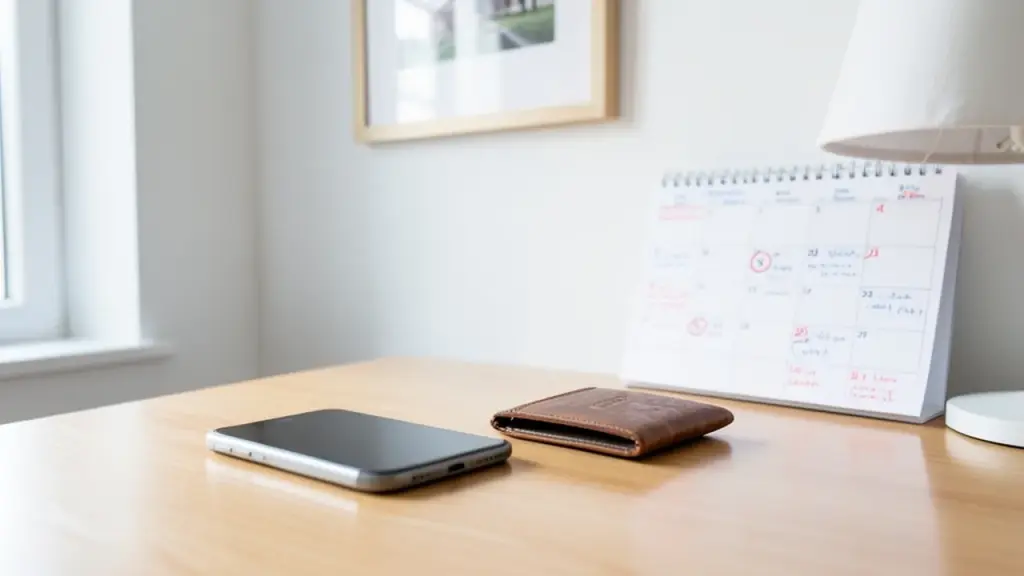
Smartphone on a desk next to a paper calendar and travel wallet
04

How to build your first widget, step by step

Building a widget starts in the same place as adding any other widget. Follow these steps:

  1. Press and hold a blank area of your home screen, then choose Widgets.
  2. Tap Create in the top right corner of the panel that slides up.
  3. Pick a data source: Google apps connected to Gemini (Calendar, Gmail and more) for personal widgets, or web data and location only for public info like news and weather.
  4. Choose a starting point. Google shows personalized “For you” ideas, ready-made recipes such as a stocks watchlist, a daily snapshot, recipe inspiration, this weekend’s local events and birthday or holiday countdowns, plus categories like Finance, Important dates, and Sports and fitness.
  5. Or tap Describe your widget and type what you want it to show and how it should look, for example a countdown to a vacation date.
  6. Wait while Gemini builds it. This takes seconds; one simple quote widget took about 20 seconds.
  7. Look at the preview. If it’s off, type the change you want and Gemini will rework it, then add it to your home screen.

Widgets that need personal data will ask for permission first. To change a widget later, press and hold it on the home screen and open its edit option from the menu.

05

Widgets that work well, and ones that fall flat

Simple, glanceable widgets are where Create My Widget shines. Reviewers who used it for a week or more built widgets for:

  • a favorite soccer team’s next fixture, with date, kickoff time and venue
  • upcoming flight details pulled from Gmail, with a manual refresh
  • package delivery status taken from shipping emails
  • a day count to the next trip
  • birthdays and anniversaries from Google Calendar
  • a different Jurassic Park quote every hour, and a message that only appears when it’s raining

Anything more ambitious tends to come back simpler than you asked. A request for real-time arrivals at a bus stop produced a “Bus Arrivals” tile that just asks Gemini, which replied with schedule-based guesses rather than live times. A visual tracker for daily walks became a single “Log Walk” button that adds an entry to the calendar. A clock that mixed analog and digital time came out as a plain digital clock.

The reason is that many of these widgets are really saved prompts. Tap one and Gemini opens on your home screen, thinks, and answers. The designs also seem to follow a fixed set of templates (countdowns, team scores, daily ideas from Search), so you get less control over the look than the name suggests.

The five-widget cap and other limits

The biggest hard limit is quantity. Your home screen can hold no more than five widgets made with the tool. Try to add a sixth and you’ll get an error until you remove one.

A few other rules apply:

  • Google asks you to double-check what the widgets show, since the content is AI-generated.
  • Google says some features may need a subscription if you use them heavily.
  • The whole tool is still labeled beta.
06

What this means for your home screen

For Pixel 10 and Pixel 11 owners, Create My Widget is the quickest way to get a widget no app offers, like a countdown to one specific event or a tile that shows only the emails you care about. Treat it as a fast way to make glanceable tiles, not a way to build mini apps.

If you own a Pixel 10a, an older Pixel or another Android brand, Create My Widget isn’t available to you yet. Pixel 11 and Pixel 10 owners in the five supported countries can try it today through the beta, and edit any widget later in plain words if the first version misses.

07

Quick answers

Why don’t I see Create My Widget on my Pixel?

The rollout is gradual. Join the Create My Widget beta in the Play Store, install the update, and make sure the Pixel Launcher is your home app.

Does Create My Widget work on Samsung phones?

Not yet. Google hasn’t said when it will reach phones outside the Pixel 10 and Pixel 11 families.

How many Create My Widget widgets can I have?

Five at a time on your home screen. Remove one to add another.

You're reading the quick version.