Thursday, 26 November 2026

How to stop Bluetooth from switching devices on Android today

Google is testing a Keep audio in headphones toggle for Android 17, but it isn't out yet. Here is what works right now to keep music in your earbuds.

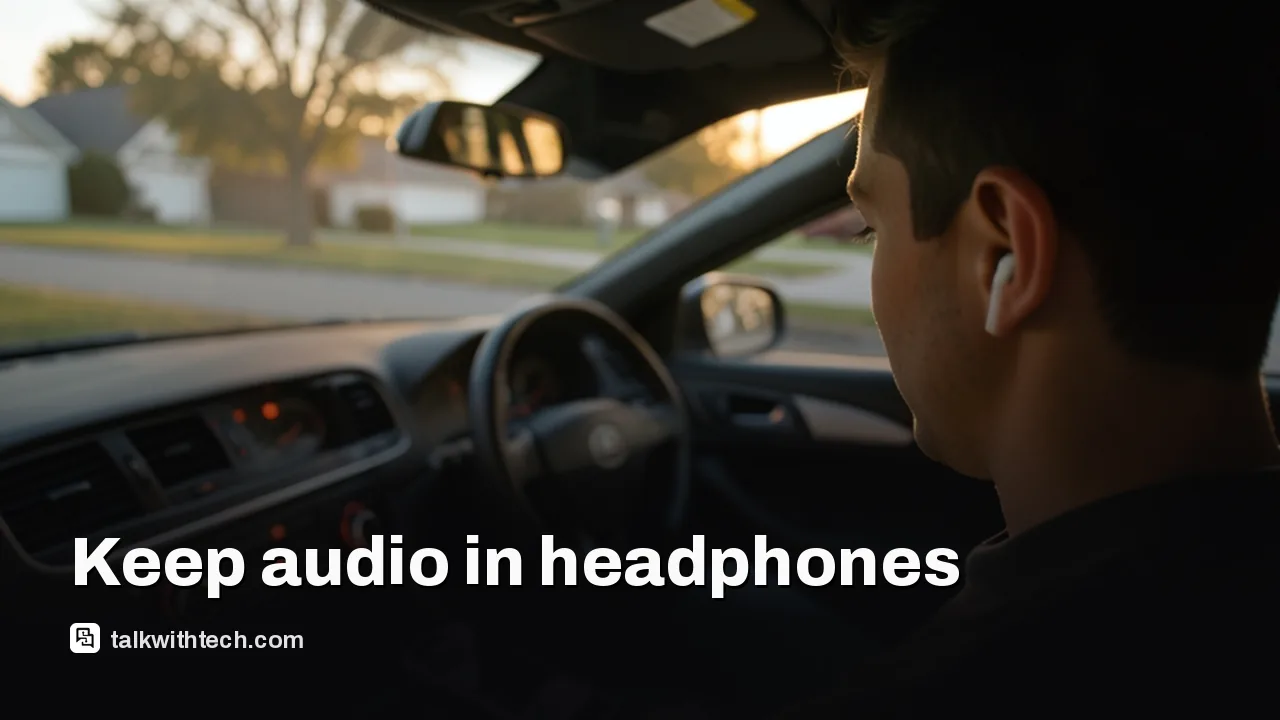
Driver in a parked car wearing wireless earbuds with a phone on the console

The short version

  • Google is testing a Keep audio in headphones setting in Android 17 QPR3 Beta 4 that stops cars and speakers grabbing your audio.
  • The toggle is hidden in the beta and had to be switched on manually, so most people cannot use it yet.
  • Until then, you can turn off Pixel Buds audio switch or Galaxy Buds Auto switch, and disconnect devices that keep stealing playback.
  • Apple already offers a similar Keep Audio in Headphones option on iPhones running iOS 26.
Quick read · 2 min

Tired of your podcast jumping to the car speakers the moment you start the engine? Google is testing a fix. A hidden Keep audio in headphones setting in the Android 17 QPR3 Beta 4 build keeps playback in your earbuds when a car or speaker connects. It is not live yet: the toggle had to be enabled by hand, and Google hasn't promised it will ship.

Until then, you can cut most unwanted switching yourself:

  • Pixel Buds: turn off audio switch in the earbud settings or the Pixel Buds app.
  • Galaxy Buds: turn off Auto switch Buds on each Samsung device.
  • Cars and speakers: disconnect or forget them from the Bluetooth settings page.

iPhone owners already have the same idea in iOS 26, called Keep Audio with Headphones. If Google's version arrives, Android phones will finally keep your music where you want it.

If you want to know how to stop Bluetooth from switching devices on Android, here is the short answer: there is no single switch for it on most phones today, but Google is building one. A hidden Keep audio in headphones setting has turned up in the Android 17 QPR3 Beta 4 test build, and it does exactly what the name says. When it is on, your music or podcast stays in your earbuds even when your car stereo or a speaker connects to the phone.

That matters because the problem is so common. You put your earbuds in, walk to the car, start the engine, and your podcast suddenly plays through the car speakers for everyone to hear. Until Google ships its fix, the best you can do is turn off the automatic switching features built into your earbuds and manage which devices are allowed to connect. Below are the steps that work now, what the new Android 17 toggle does, and how it compares with the iPhone version Apple already ships.

01

Why your Android phone keeps switching Bluetooth audio

Android tends to send sound to the newest audio device that connects. That is handy when you deliberately pair a new speaker, and maddening when your car connects on its own while you are still wearing headphones. The phone has no way of knowing that you meant to keep listening privately.

Earbuds can add a second layer of switching. Google’s Pixel Buds and Samsung’s Galaxy Buds both have features that hop your audio between your own phones, tablets and computers based on what you are doing. Those are separate from the phone’s own behavior, so it helps to know which one is causing your trouble before you change anything.

  • Car or speaker grabs the sound: that is the phone choosing the newest output. The upcoming Android 17 toggle targets this.
  • Earbuds jump to your tablet or laptop: that is usually the earbuds’ own switching feature, which you can turn off today.
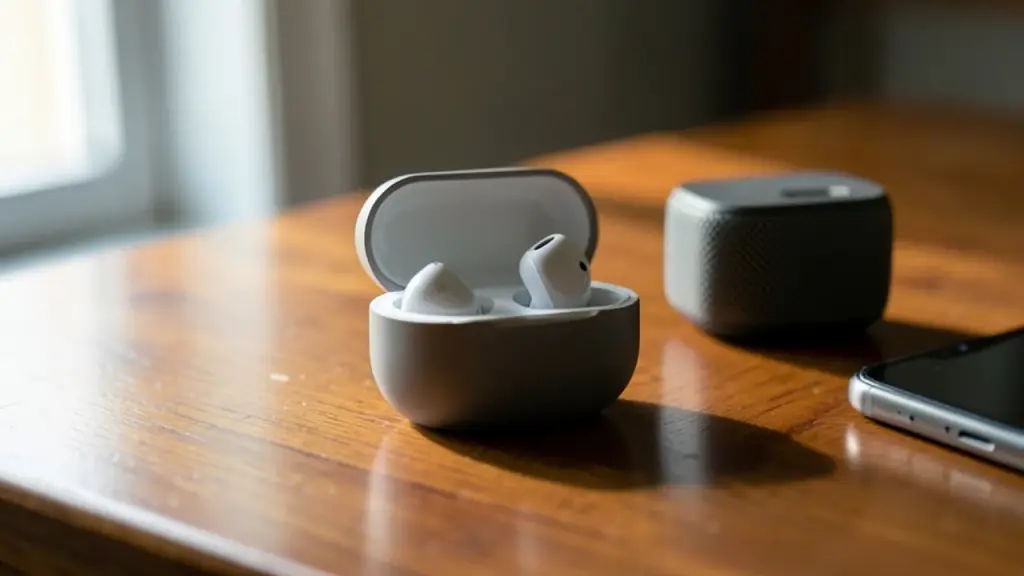
Earbuds case, a portable speaker and a phone on a kitchen table
02

The Android 17 Keep audio in headphones setting, explained

The new option was found inside the Android 17 QPR3 Beta 4 build for Pixel phones. Its on-screen description says it will always play audio in your headphones when other audio devices such as speakers and cars connect to the phone. In plain terms, your headphones get priority, and a new connection no longer steals playback.

According to the beta findings, the toggle sits under Settings > Connected devices > Connection preferences. There is a catch, though. It is not visible to ordinary beta testers. It had to be enabled manually, so installing the beta will not necessarily give it to you.

Google has not announced the feature, and nothing guarantees it will arrive with the final Android 17 QPR3 release. Features found in test code are sometimes pushed to a later update or dropped altogether. For now, treat it as a strong sign of where Android is going rather than something you can switch on today.

The same test build also points to smarter priority notifications, which would use on-device AI to push time-sensitive alerts to the top. Both changes are still unconfirmed.
03

How to stop Pixel Buds from switching devices

If you use Pixel Buds, a feature called audio switch is likely moving your sound between Android devices signed in to the same Google account. Google says audio switch is turned on by default. It works on phones and tablets running Android 8 or later with Google Play Services, and it picks a device based on what you are doing, such as a video call or a movie.

To turn it off:

  1. On a Pixel phone with Android 10 or later: open Settings, go to Connected devices, and tap the settings icon next to your Pixel Buds. Find the audio switch option there.
  2. On other Android phones: open the Google Pixel Buds app, tap Audio switch, then turn off Use audio switch.

Google also says each automatic switch shows a notification with an option to undo it, so if a switch happens only now and then, you can tap that notification to bring the audio back.

Multipoint is a different feature. It keeps Pixel Buds 2a and Pixel Buds Pro connected to two devices at once, and it is off by default. With Multipoint on, a music stream on one device can’t be cut off by music from the other; you have to pause first. Calls still win, though, so a ringing phone will pause your music. If calls on a second device keep interrupting you, turning Multipoint off is worth trying.

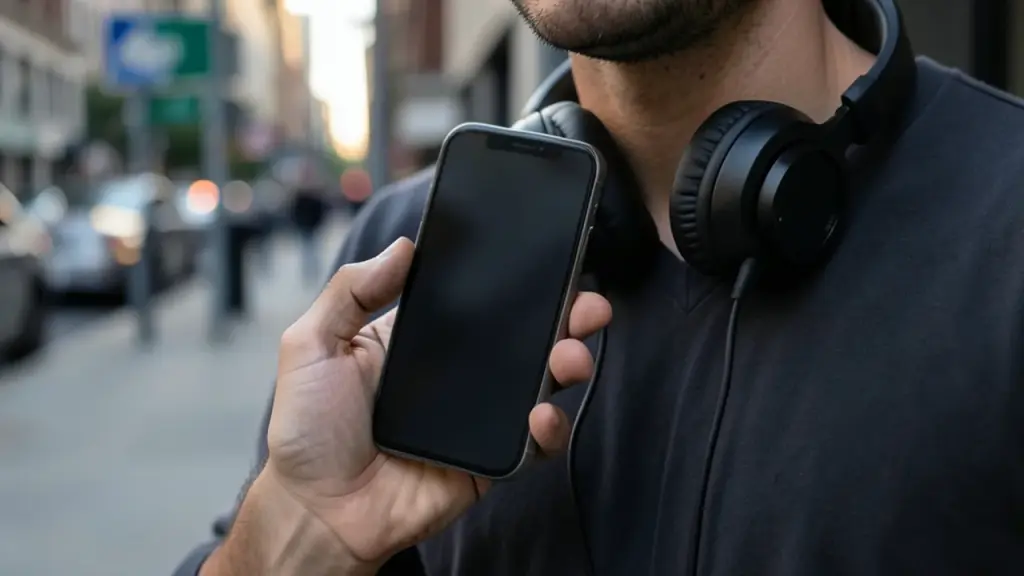
Hand holding a phone with headphones around the neck on a city street
04

How to stop Galaxy Buds from switching devices

Samsung’s version is called Auto switch, shown on many phones as Auto switch Buds. It moves your Galaxy Buds between Samsung phones, tablets and some Samsung TVs that are signed in to the same Samsung account, so your earbuds follow whichever device is playing media or taking a call.

Samsung lists support for the Galaxy Buds3 and Buds3 Pro, Buds2 and Buds2 Pro, Buds Pro and Buds+, on Galaxy devices running One UI 3.1 or later. It does not work on iPhones, and Samsung says it only works with its own phones, tablets and TVs from 2022 onward.

Look for Auto switch Buds in your Galaxy phone’s connected-device settings and turn it off on each Samsung device you own. Samsung notes that menu names and paths can vary by model and software version. If you only want to change devices now and then, you can do it by hand from the Galaxy Wearable app: open the menu and pick the device you want, as long as it is switched on.

05

What everyday Android users can do right now

If your car or a smart speaker is the culprit, the earbud settings above will not help, because the phone itself is choosing the newer device. Until Google ships its toggle, these standard Android controls are your best options:

  • Disconnect the device for this trip. Swipe down from the top of the screen, touch and hold the Bluetooth tile, tap the settings icon next to the car or speaker, and choose Disconnect. It stays paired for next time.
  • Forget a device you rarely use. From the same screen, tap Forget to remove it completely. A speaker you no longer own should not be able to grab your audio.
  • Check the other options on that page. Google says some phones let you turn extra settings on or off for each accessory, so it is worth looking for per-device audio controls on yours.
  • Label each device correctly. Under Connected devices, Android lets you set an audio device type such as Headphones, Speaker or Car. Google says this mainly helps spatial audio and hearing health features, so it is good housekeeping rather than a guaranteed fix.

A simple habit helps too: pause your audio before you start the car, then resume it once you choose where you want it to play.

06

Android vs iPhone: Apple already has this toggle

Apple added a near-identical option, Keep Audio with Headphones, in iOS 26. On an iPhone it lives under Settings > General > AirPlay & Continuity. When it is on and you are using AirPods or other wireless headphones, a car or speaker that connects will not take over the sound.

That means Android is catching up rather than breaking new ground. If Google’s version ships in the form found in the beta, the two systems will work in much the same way, and anyone who switches between an iPhone and an Android phone will find the setting easy to understand.

07

Quick answers

Is Keep audio in headphones available on Android now?

No. It was found hidden in the Android 17 QPR3 Beta 4 build and had to be enabled manually. Google has not confirmed when, or if, it will reach regular users.

Why does my music switch to my car when I’m wearing earbuds?

Android usually sends audio to the newest device that connects, so your car takes over when it pairs. Disconnecting the car from the Bluetooth panel stops it until the next time.

How do I stop my earbuds from switching between my phone and tablet?

Turn off audio switch in the Pixel Buds settings, or Auto switch Buds on Samsung devices. Both features move your earbuds between devices signed in to the same account.

You're reading the quick version.