You can change your Google Maps home address in the app's Labeled list or on your Google Account's Personal info page.
Anyone who picks up an unlocked phone can see a saved home address, so consider saving a nearby store or restaurant instead.
Custom labels let you name places like Gym for quick voice navigation, and they show with a blue icon on the map.
You can also ask Google to blur your house in Street View, but that blur is permanent.
Quick read · 2 min
Google Maps lets you save a Home address so you can get directions back with one tap. You can change it in the app or on the web in about a minute.
In the app: tap You, open Labeled, tap the three dots next to Home and choose Edit home.
On the web: click the search box and pick Edit next to Home, or go to Personal info in your Google Account.
To delete it: choose Remove home from the same menu.
There's a privacy angle, too. Anyone who gets hold of your unlocked phone can see your saved home. A simple fix is to save a nearby grocery store or coffee shop as Home using Choose on map, so directions still get you close without pointing to your door.
You can also ask Google to blur your house in Street View, but keep in mind that the blur is permanent.
The Home shortcut in Google Maps is one of the app’s handiest features: one tap and you’re routed back to your front door. It’s also a neat little label that tells anyone who picks up your phone exactly where you live.
That’s worth a moment’s thought. If your phone is stolen, or a nosy acquaintance gets a minute with it unlocked, your address is right there in Maps, and often in other apps such as Uber too. The good news is that you can change your home address in Google Maps in under a minute, and you can set it up in a way that keeps most of the convenience with less of the risk.
01
The privacy trick: save a nearby place as Home
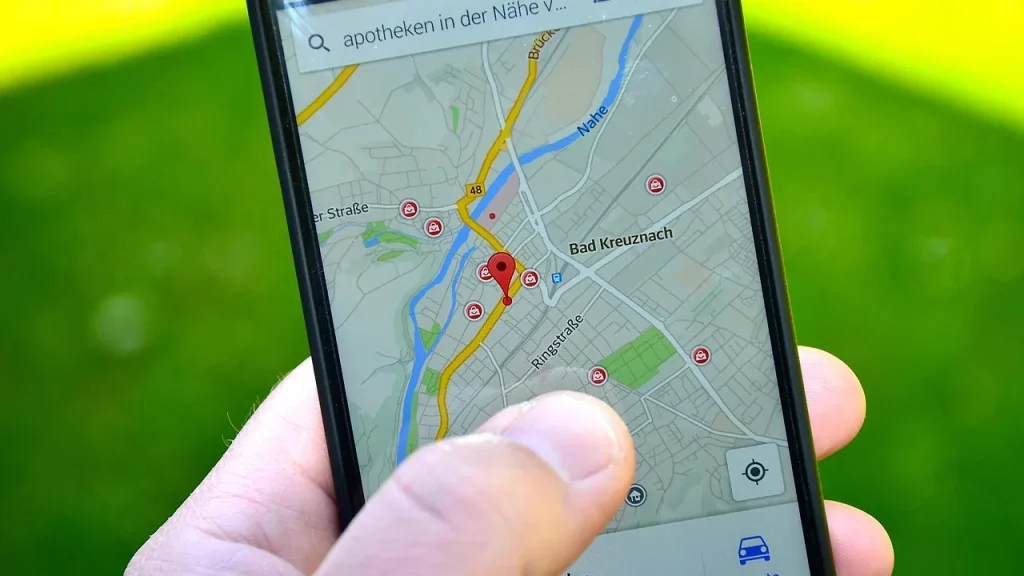
Instead of saving your exact address, save a public spot close to where you live as Home, such as a grocery store, a coffee shop or a restaurant at the end of your street. Directions still get you nearly all the way there, and you know the last few hundred feet by heart.
The easiest way to do this is with the Choose on map option you’ll see in both methods below. Drag the pin to the nearby business instead of your house and save it. Anyone browsing your phone then sees a corner store, not your door.
02
How to change your home address in the Google Maps app
On an iPhone or Android phone, the setting lives in your saved lists:
Open Google Maps and tap the You tab at the bottom of the screen.
Find the Labeled list. If it’s not visible, tap the More arrow to see all your lists.
Next to Home, tap the three-dot button and pick Edit home.
Type the new address in the bar at the top and pick it from the suggestions. Or use Choose on map to drag the pin to the right spot, which also helps when your home doesn’t line up neatly with a street address.
Tap Done to save.
On Android, the edit screen may open straight to a draggable pin. On iPhone, you can also pull an address from one of your contacts with Choose from Contacts. The same three-dot menu has Remove home, which clears the address but keeps the Home label so you can set a new one later with Set home. It also has Change icon, which swaps the house symbol for something more fun, like a barn, a treehouse or a submarine.
03
How to change it on the web or in your Google Account
On a computer, open Google Maps in a browser and sign in. Click the search box and Home and Work should appear at the top; choose Edit next to Home.
If they don’t show up, go through your Google Account instead. Click your profile picture in the top-right corner, choose Manage your Google Account, open Personal info in the left sidebar and scroll to Home address. Type your address and Maps will suggest matches, or use Choose on map. There’s an Address line 2 field for apartment numbers, and a Remove button if you want to delete the address entirely.
On an Android phone you can reach the same page through the Settings app: open Google, tap your profile and choose Manage your Google Account. On an iPhone, sign in to your Google Account in a web browser. While you’re on that page, it’s worth adding or updating your Work address too, which gives you quick commute estimates.
04
Labels: shortcuts without sharing more
Home and Work aren’t the only shortcuts. Labels let you give any place a short custom name that you can search for or say out loud, which works well with Android Auto in the car. Saying “navigate to Gym” beats reading out the full name and street of your fitness club every time.
Labels even work for spots without a street address, such as GPS coordinates for a campsite. To add one on a computer, click the place, scroll down its panel and choose Add a label. On a phone, swipe left along the small row of buttons under the place’s details and pick More, then Add label. Labeled places appear on the map with a blue icon, and the Labeled list stays tidy, showing only names, icons and addresses.
Maps also shows addresses saved for your contacts, so you can search for a friend by name. If that doesn’t work, check that your Google contacts are synced and that Maps has permission to see them.
Your saved home address is only one way your location can leak. Street View images can show your house, its layout and its security features to anyone. Google already blurs faces and license plates automatically, and you can ask it to blur your home too: open the house in Street View, choose Report a problem, frame the property and select what you want blurred. You’ll need to give an email address to verify the request, and you may be asked to prove you own or rent the place.
Think before you do it, though. Google says a blur can’t be undone, so future buyers won’t see the building either. And blurring on Google doesn’t carry over to other mapping services such as Apple Maps, which takes requests separately.
06
Quick answers
How do I change my home address in Google Maps?
In the app, tap You, open the Labeled list, tap the three dots next to Home and choose Edit home. On the web, click the search box and choose Edit next to Home.
Is it safe to save my home address in Google Maps?
It’s convenient but visible to anyone with access to your unlocked phone. Saving a nearby public place as Home is a simple middle ground.
How do I remove my home address?
Tap the three dots next to Home in the Labeled list and choose Remove home, or click Remove on the Home address section of your Google Account.
Apple's creative app bundle is getting MotionVFX effects and AI assistants in November. Here's what it costs in the US and Canada, and when buying outright wins.
Meta quietly put Instagram on the Apple TV App Store with no announcement. What you can watch, what you need to install it, and why Meta wants your couch.
5 min read
We use cookies to understand how readers use Talk With Tech, so we can make it better. Is that OK? Privacy policy
The Daily Brief
Today's biggest tech stories, in 5 minutes
Every morning, the news that matters from AI, phones, apps and the people shaping tech. Explained in plain English. Free.
One email a day. No spam, unsubscribe anytime. Privacy policy