Thursday, 19 November 2026

How to lock apps on Pixel: App Lock returns, but read the limits

Google brought its built-in App Lock back for Pixel beta testers. Here are the steps, which phones qualify, and what it still won't hide.

Hand holding a smartphone with a fingerprint prompt glowing on a dark screen

The short version

  • Google has officially brought App Lock back to Pixel phones in the Android 17 QPR3 Beta 3 build.
  • You lock an app by long-pressing its icon and choosing App Lock, or from the Security and privacy settings.
  • Locked apps hide notification content, blur recent previews and lose widgets, but approved AI services can still reach their data.
  • The stable release is expected in the first quarter of 2027, and Samsung's One UI 9.5 beta gets a version too.
Quick read · 2 min

Pixel phones finally have a built-in way to lock individual apps. Google has officially brought back App Lock in the Android 17 QPR3 Beta 3 build, after pulling it from an earlier beta to polish it.

To use it, press and hold an app icon and tap App Lock, or manage several apps from Settings under Security and privacy. The lock uses your phone's existing PIN, pattern, password, fingerprint or face unlock.

  • Locked apps hide notification content, blank their recent previews and lose widgets and shortcuts.
  • Some preloaded apps can't be locked, and AI services you've already approved can still reach the data.
  • The beta covers the Pixel 6a through Pixel 11 phones, plus the Fold and Tablet.

Joining the beta carries risks, including a data wipe if you want to go back. Most people should wait for the stable release, which Google expects in the first quarter of 2027. Samsung's One UI 9.5 beta also includes App Lock.

If you want to know how to lock apps on Pixel, the answer finally lives inside Android itself: long-press the app’s icon, tap App Lock, and confirm with your fingerprint, face, PIN, pattern or password. The catch is timing. Google’s built-in App Lock is officially back, but for now only on Pixel phones running the Android 17 QPR3 beta.

That matters if you hand your phone to a friend, a partner or a child and don’t want them wandering into your banking app, your photos or your messages. Until now, Pixel owners had to lean on third-party lock apps or Google’s more awkward Private Space. Google says the feature should reach everyone with the stable QPR3 release in the first quarter of 2027, and Samsung Galaxy phones are getting their own version through the One UI 9.5 beta.

01

How to lock apps on Pixel, step by step

There are two ways to turn App Lock on, and both use the same screen lock you already have on your phone.

From the home screen or app drawer:

  1. Find the app you want to protect on your home screen or in the app drawer.
  2. Press and hold its icon until the menu appears.
  3. Tap App Lock.
  4. Confirm with your fingerprint, face unlock, PIN, pattern or password.

From Settings, if you want to lock several apps at once:

  1. Open Settings.
  2. Go to Security and privacy.
  3. Tap App Lock to see your apps in a list.
  4. Switch the lock on for each app you want covered.

One requirement trips people up. App Lock only works if your phone already has a device lock set, such as a PIN or pattern. In the current beta there doesn’t appear to be any way to give locked apps their own separate PIN, password or fingerprint, so anyone who knows your phone’s unlock code can also open your locked apps.

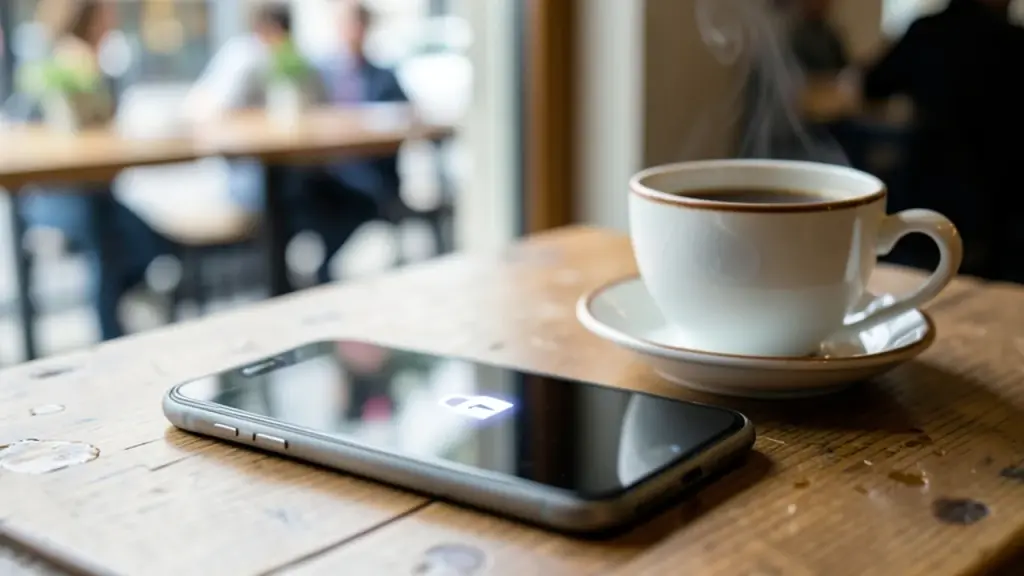
Phone on a cafe table with a soft padlock glow on its dark screen
02

Which Pixel phones can use App Lock right now

Right now, App Lock is limited to Pixels enrolled in the Android Beta program and running Android 17 QPR3 Beta 3. That build arrived on October 29 and covers the Pixel 6a through the Pixel 11 family, plus the Pixel Fold and Pixel Tablet.

The original Pixel 6 and Pixel 6 Pro are left out. Their software support window ended last month, so they can’t join this beta and won’t get the feature through it.

To join, you sign in to Google’s Android Beta page with the Google account on your phone, pick your eligible device and accept the beta program’s terms. Enrolled phones then get each new beta build automatically.

Think hard before you do that just for one privacy feature. Google warns that beta builds can contain bugs that affect how your phone works. Leaving the beta and going back to a stable version normally means wiping all the data stored on the phone, and restoring a backup afterward may not go smoothly. Google does offer one gentler exit: when a stable release lands for the version you’re testing, you can opt out without a wipe for a short window, until you install the next beta update.

03

What App Lock hides, and what it doesn’t

Once an app is locked, it gets a layer of protection that goes beyond the front door.

  • Notification content from that app stays hidden.
  • Its preview in the recent apps view is blanked out.
  • Its widgets and shortcuts disappear until you unlock it again.
  • The icon looks exactly the same, so nobody glancing at your screen can tell which apps you’ve locked.

Now the fine print, which matters more than the feature list. Some preloaded apps can’t be locked at all, and neither can apps that hold certain system roles. AI agents and services you’ve already given access to a locked app can still read its data. And photos or videos saved inside a locked app may still show up in other apps that already have permission to see them.

In other words, App Lock is a privacy screen for people holding your phone, not a vault. Google itself points users who want stronger protection toward Private Space instead.

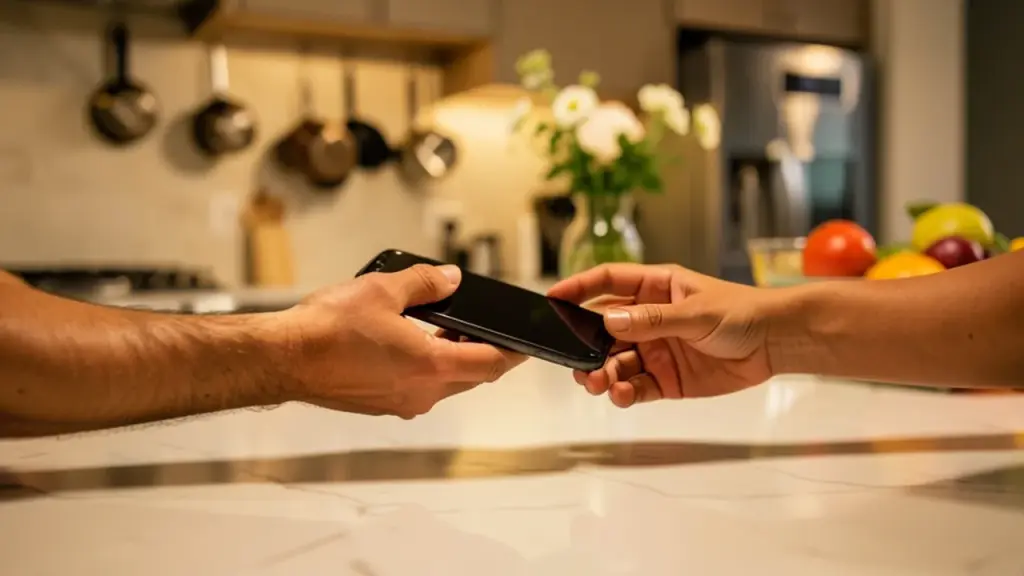
One person handing a phone to another across a kitchen counter
04

App Lock or Private Space: which one to use

Private Space is the older option already on Pixel phones, and it works very differently. Rather than locking apps where they sit, it creates a separate hidden area on the phone with its own password. You install apps inside that space, and they’re separate copies from the ones on your main home screen.

You’ll find it in Settings under Security and privacy. Setting it up means adding a Google account to manage the space and reinstalling any apps you want inside it. If you don’t want the normal version of an app reachable, you also have to delete it from the main side of the phone.

The trade-off is convenience. Apps in Private Space don’t send notifications while it’s locked, and their data stays walled off from the rest of your phone. That’s stronger protection, but you can’t just tap an icon and authenticate. You have to open the space first, enter its password, then launch the app.

A simple way to choose: use App Lock to keep a nosy friend out of your chats or gallery, and Private Space for apps you’d rather nobody knew you had.

05

Why Google pulled App Lock, and what Samsung owners get

This feature has had a bumpy road. An early test first showed up in an Android Canary developer build labeled 2603, and back then it could lock only one app. A later Android 17 QPR1 beta hinted at locking several apps at once.

App Lock then appeared properly in an Android 17 QPR2 beta build in August, letting testers long-press an app and lock it. It vanished again in the following updates. In a Reddit post, Google’s Community Engagement Manager explained that the product team pulled it back temporarily to give it more polish and testing, and to make sure it worked properly across every part of the system. It returned with QPR3 Beta 3, and Google is now officially inviting Pixel testers to try it again.

Samsung owners are getting App Lock too. The One UI 9.5 beta, which opened on November 18 for Galaxy S26 phones, includes support for it, because the feature is built into Android 17 QPR2, the release One UI 9.5 appears to be based on. That leads to an odd twist: the Galaxy S27 series will probably ship with App Lock out of the box, while Pixel phones may not get the stable version until around March. If Samsung follows its past pattern, One UI 9.5 may not reach older Galaxy phones until around May.

Other Android phone makers haven’t announced plans yet, but App Lock should spread as they move to newer Android 17 builds.
06

What you can do until the stable release

If you’d rather not run beta software, you still have options while you wait for the first quarter of 2027.

  • Use the lock inside the app. Many messaging, banking, payment and cloud storage apps have their own lock option, usually under Privacy or Security in the app’s settings.
  • Hide files in Safe Folder. The Files by Google app on your Pixel has a Safe Folder under Collections. Set a password, move private files there, and they won’t appear anywhere else on the phone.
  • Try Private Space. It takes longer to set up, but it already works on stable Pixel software.
  • Consider a third-party app lock. Plenty exist on the Play Store, and some security suites include one, but they don’t work at the system level the way Google’s own feature does.
07

Quick answers

Is there app lock on Pixel phones?

Yes, but only in the Android 17 QPR3 beta for now. Google expects it to reach all supported Pixels with the stable QPR3 release in the first quarter of 2027.

Can I set a different PIN for locked apps on Pixel?

Not in the current beta. App Lock uses the same PIN, pattern, password, fingerprint or face unlock you use for the phone itself.

Does App Lock work on the Pixel 6?

No. The Pixel 6 and Pixel 6 Pro aren’t eligible for the beta because their support window has ended. The Pixel 6a and newer models are covered.

You're reading the quick version.