Thursday, 5 November 2026

Windows 11 taskbar move to top: the setting, and why no dragging

Top, left and right positions are now built in, but only through Settings. Here's the switch, what each edge costs you, and why dragging is out.

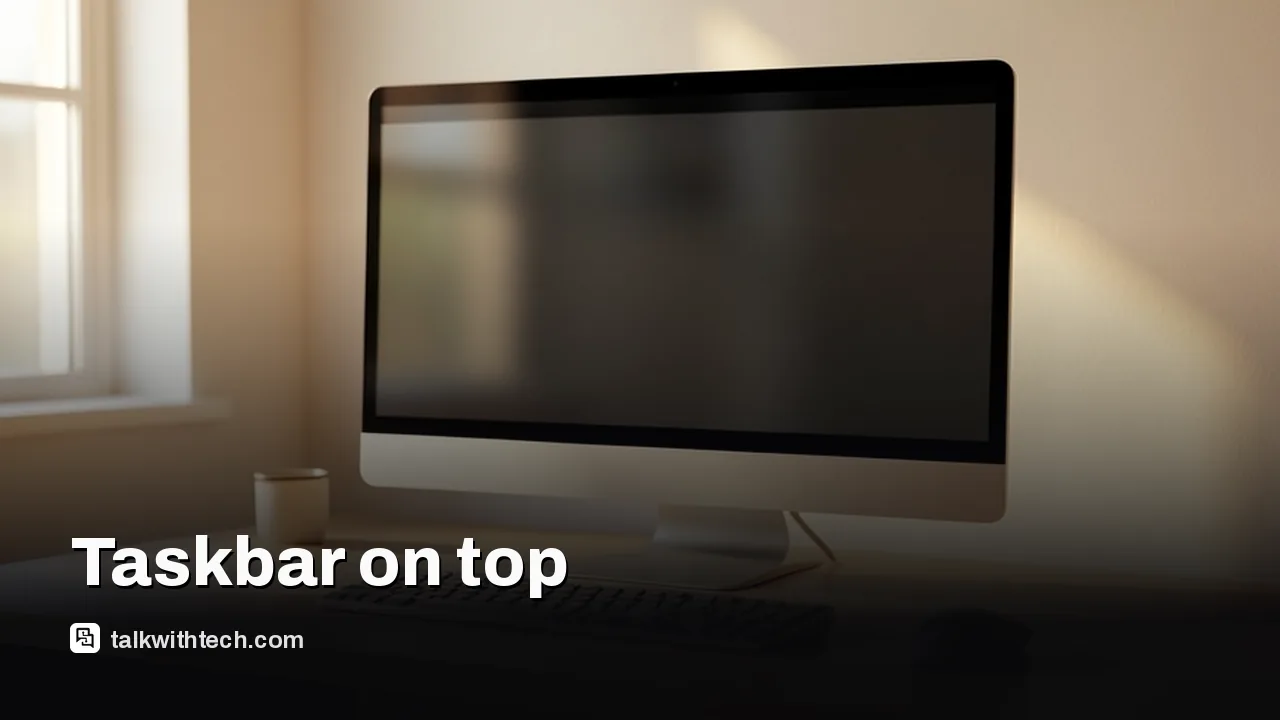
Desktop monitor with a dark bar along the top edge of the screen

The short version

  • Windows 11 can now put the taskbar at the top, left or right of the screen through a new Taskbar position setting.
  • The option arrived with update KB5120998 for versions 24H2 and 25H2 and reached PCs through a gradual rollout.
  • The search box and the smaller taskbar only work when the taskbar sits at the top or bottom.
  • Microsoft's Windows design chief says leaving out drag-to-move was deliberate, because dragging caused accidental moves.
Quick read · 1 min

Windows 11 finally lets you put the taskbar at the top, left or right of your screen without any hacks. The new Taskbar position option sits in Settings under Personalization, Taskbar and Taskbar behaviors. It came with the KB5120998 update for versions 24H2 and 25H2, which reached PCs in stages from late summer.

There are trade-offs. The taskbar search box and the new smaller taskbar only work at the top or bottom, so a side bar loses both. And unlike Windows 10, you can't drag the bar with your mouse.

  • Missing the option? Install pending updates and restart.
  • Work PCs may have the setting locked by IT.
  • Third-party tools can add dragging, at your own risk.

Microsoft's design chief for Windows says dropping drag-to-move was deliberate, since dragging caused accidental moves, but he hasn't ruled it out for good.

Yes, you can finally do a Windows 11 taskbar move to top, and you don’t need a registry hack or a third-party app to do it. Microsoft added a built-in Taskbar position setting that puts the bar at the top, left, right or bottom of your screen. The catch is that you can’t grab the bar with your mouse and drag it there, the way you could in Windows 10.

The switch lives in Settings under Personalization, then Taskbar, then Taskbar behaviors, then Taskbar position. It arrived with the KB5120998 update for Windows 11 versions 24H2 and 25H2, which Microsoft rolled out gradually, so a few PCs may still be waiting for it. Below are the exact steps, what you give up at each edge, and why Microsoft’s head of Windows design says dragging isn’t coming back for now.

01

How to move the Windows 11 taskbar to the top

Moving the Windows 11 taskbar to the top takes a few clicks in the Settings app, and the bar jumps to its new edge as soon as you pick it. Here’s the route Microsoft lists in its own update notes, with each click spelled out:

  1. Press the Windows key and I together to open Settings.
  2. Select Personalization in the list on the left.
  3. Select Taskbar.
  4. Find the Taskbar behaviors section. After this update it opens expanded by default, so you shouldn’t need to click it open.
  5. Open the Taskbar position menu and choose Top. Left, Right and Bottom are the other choices.

There’s a quicker way in, too. Right-click an empty spot on the taskbar and choose Taskbar settings, which drops you straight onto the Taskbar page. From there you only need the last two steps.

To put things back the way they were, repeat the same steps and choose Bottom. The steps don’t change between Windows 11 Home and Pro.

Hand resting on a computer mouse beside a laptop
02

Which Windows 11 update you need, and why the option might be missing

You need KB5120998 or a later update. Microsoft first offered it as an optional update on August 27, and the September Patch Tuesday release then brought the movable taskbar to everyone, again in stages. Microsoft’s notes describe it as a gradual rollout, meaning features reach devices over time rather than all at once.

If you don’t see Taskbar position under Taskbar behaviors, check your update history first:

  • Open Settings and select Windows Update, then Update history.
  • Look for KB5120998 in the list of installed updates.
  • If it isn’t there, go back to Windows Update, select Check for updates, install what it finds and restart if asked.

On a work or school laptop, your IT department can lock the setting through policy, so it may stay missing even on a fully updated machine. One more oddity: Microsoft’s own general taskbar help page still says there are no settings for moving the bar to the top or side, so don’t let that older text put you off.

03

Top, left or right: what you keep and what you lose

Top is the safe choice if you like the taskbar search box, because Microsoft supports the search box and the new smaller taskbar only in the top and bottom positions. Put the bar on the left or right and both of those features switch off.

Here’s how each edge behaves:

  • Top: keeps the search box and the small taskbar option. Start and Search open downward from the top edge, and the clock and tray icons move to match.
  • Left or right: the bar runs down the side of the screen. The clock shows a shortened year and can’t show seconds, but the Never combine option, which keeps every window as its own labeled button, still works.
  • Bottom: the default, with every taskbar feature available.

In every position, tooltips, pop-up panels and animations still spring from the taskbar itself, and most of your existing taskbar settings carry over. A side bar trades width for height, which on a widescreen monitor leaves more vertical room for long documents and web pages. On a narrow laptop screen it can squeeze your app windows instead, so try it for a day before deciding.

The same update also adds a Taskbar size option. Set it to Small and both the bar and its icons shrink, which helps on smaller screens. Turning it on disables the older setting for smaller icons further down the page.

Two monitors on a desk, one with a dark strip down its side
04

Why Microsoft won’t let you drag the taskbar

Microsoft says the missing drag is on purpose. Diego Baca, Microsoft’s vice president of design for Windows, wrote on X that the company’s research found dragging led to accidental moves, the very problem the old Lock the taskbar option in Windows 10 existed to stop. He called the Settings switch a more predictable approach and described it as a “deliberate design decision” rather than a missing feature.

Plenty of Windows 10 users will recognize the problem. One stray click-and-drag could fling the bar to the side of the screen, and less confident users often had no idea how to get it back. Baca’s other point is that people rarely change the taskbar’s position at all, so a quick drag mostly helps a small group of power users.

Some users suggested bringing back a lock that is switched on by default. Baca argued that this just adds a step, since anyone wanting to move the bar would first have to unlock it, every single time. Brandon LeBlanc of Microsoft replied to agree with him.

There’s history behind this, too. The Windows 11 taskbar was rebuilt from scratch for its 2021 launch, and a former product lead said the work needed to let it move was “just huge”, because apps have to reflow around it. That is why it took about five years for the side and top positions to return at all.

05

What this means if you want Windows 10 style dragging back

For most people, the built-in setting is enough: you pick an edge once and forget about it. If you swap positions often, say a side bar for writing and a bottom bar for watching video, you’re left with third-party tools for now.

Two are getting attention. Taskbar Location Options, a free app from independent developer Michał Łeptuch, adds Left, Top, Right and Bottom to the taskbar’s right-click menu and lets you drag the bar to any edge. It needs Windows 11 26H2, build 26300 or newer, and installing it means trusting a self-signed security certificate. The developer himself calls it an experiment that could stop working at any time. A mod for Windhawk, a popular Windows customization tool, also adds dragging and locking.

Use either at your own risk. Monthly Windows updates can change the taskbar’s inner workings and break tweaks like these without warning.

Don’t rule out an official fix, either. Microsoft’s May Windows Insider post said it was weighing extras such as per-monitor taskbar positions and drag and drop, and Baca has since asked people not to read his explanation as a promise that dragging will never happen.
06

Quick answers

Can you move the taskbar to the top in Windows 11?

Yes. With KB5120998 or a later update installed, go to Settings, Personalization, Taskbar, Taskbar behaviors, Taskbar position, and choose Top.

Why can’t I drag the taskbar in Windows 11?

Microsoft left dragging out on purpose because it caused accidental moves in Windows 10. Positions can only be changed in Settings unless you use a third-party tool.

Does the search box work with a side taskbar?

No. The search box and the smaller taskbar only work when the taskbar is at the top or bottom of the screen.

You're reading the quick version.