Save family photos now: back up older USB thumb drives
That drawer of old USB sticks is slowly losing its grip on your photos and files. Here's why flash drives fail and the simplest way to copy them somewhere safer.
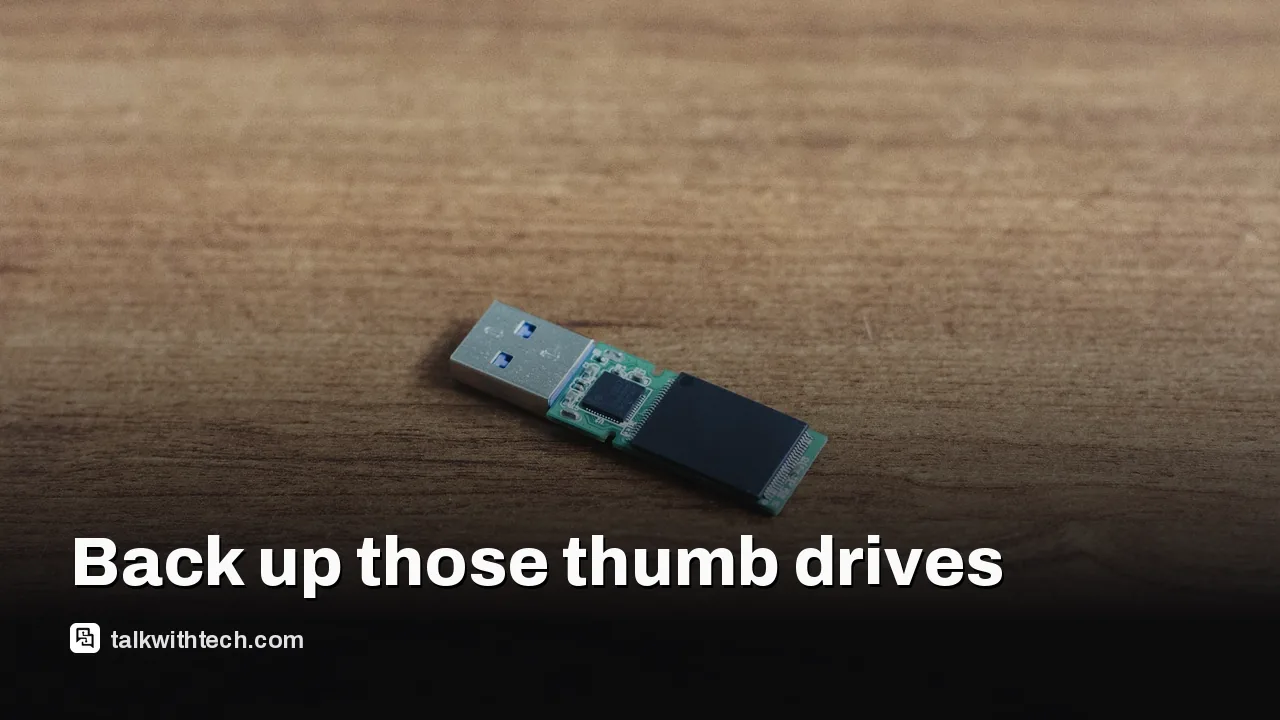
Old USB thumb drives can lose data through lost sticks, broken connectors, worn-out memory cells and slow charge leakage called bit rot.
Flash memory in a typical thumb drive survives somewhere between 10,000 and 100,000 write cycles before it starts to fail.
The 3-2-1 rule means keeping important files in at least three places: two local drives and one cloud copy.
Once your files are safe, an old stick still makes a good emergency boot drive for Windows or macOS.
Quick read · 2 min
Old USB thumb drives are a risky place to keep the only copy of anything important. They are easy to lose or break, their flash memory wears out after a limited number of writes, and stored data slowly degrades as memory cells lose their charge, a problem known as bit rot.
The fix is simple. Copy every old stick to your computer, check that the files open, and then follow the 3-2-1 rule:
Keep at least three copies of important files
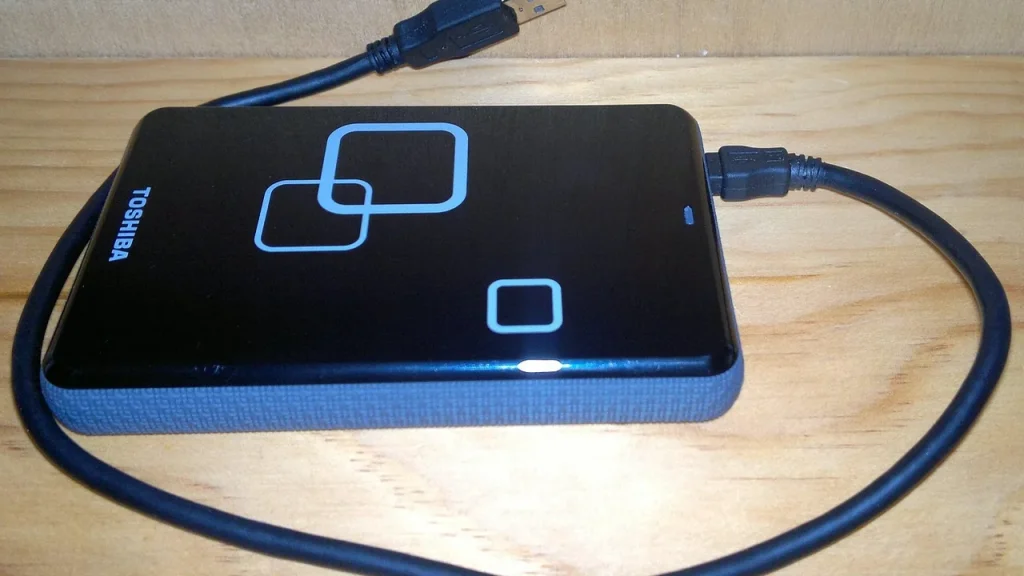
Store two of them on local drives, such as a computer and an external drive
Put one copy in the cloud
Don't rely on the cloud alone, since services cost money and can fail. For long-term storage of rarely used files, a traditional hard drive beats both thumb drives and SSDs. Once your files are safe, an old stick makes a handy emergency boot drive for Windows or macOS.
If your wedding photos, a parent’s old documents or your college essays live only on a USB stick in a drawer, the clock is already running. Flash memory slowly leaks the electrical charge that holds your data, and thumb drives are small enough to vanish, snap or corrode long before you notice anything is wrong.
Backing up old USB drives costs almost nothing and takes an afternoon. Losing what is on them can’t be undone. With memory prices climbing, it is tempting to keep using the sticks you already own, which is fine for moving files around. It just isn’t a safe place for the only copy of anything you care about.
01
Why old USB thumb drives lose data
There are three main ways a thumb drive lets you down, and only one of them is dramatic.
The obvious one is physical. A stick that small is easy to leave in an office computer, drop out of a bag at the airport or lose in a house move. Even when it stays put, it still depends on a connector and a controller chip, and both can fail after a knock, from corrosion or simply because the drive was cheaply made. Leave one in a damp garage or basement and mold can get in.
The second is wear. Every flash drive can only be written to a limited number of times, usually between 10,000 and 100,000 cycles for a thumb stick. If you only stored files once and left them, that barely matters. If you have used the same stick for daily or weekly copying for years, it has been quietly wearing out, and one day it may simply stop working. Unlike a regular SSD, a thumb drive can’t run TRIM, the housekeeping command that helps an SSD manage worn space.
The third is bit rot, the slow one. Flash memory stores each bit of data as a charge trapped in a tiny cell. Over time those cells lose electrons, and eventually a stored bit can flip to the wrong value. That is data corruption. Cosmic rays can flip bits too, at roughly one per gigabyte per month at sea level. Any single event is unlikely, but across years in a drawer, rare events stop being rare.
02
How long does a USB flash drive keep data?
A healthy flash drive can hold data safely for at least 10 years. The trouble is that “healthy” and “safely” are doing a lot of work in that sentence.
How long your files actually last depends on how much the drive has been used, how well it was made and where it has been kept. Charge leaks faster when a drive sits unpowered for long stretches, which is exactly how most old sticks spend their lives. So a drive that has been forgotten in a box for a decade or more is the one most worth checking now.
The same weakness applies to SSDs, because they use the same NAND flash memory. For long-term storage of files you rarely open, a traditional spinning hard drive is a better choice than either.
03
The 3-2-1 rule for backing up old USB drives
The standard advice for anything important is the 3-2-1 rule: keep your files in at least three places, with two copies on local drives and one in the cloud. Some people go further and keep one of the drives at a different address or in a fireproof safe. That’s more than most households need, but fires and floods do happen.
Don’t lean on the cloud alone. Subscriptions cost money every month, internet connections drop, and even huge data centers can fail badly. A company’s privacy and security standards can also change in ways you won’t like. A local copy means you stay in control.
For files that are nice to have but not precious, a single extra copy somewhere easy to find is usually enough. Your computer’s internal drive will do in a pinch, though an external drive or cloud folder is better. If a laptop dies, getting files back out of it can mean removing its drive and finding a way to plug it into another machine.
04
A simple way to rescue what’s on your old sticks
You don’t need special software. Here’s a plan you can follow this weekend:
Gather every stick. Check drawers, bags, car glove boxes and old desks. Label each one as you go.
Copy everything to your computer first. Make a folder for each drive and drag the whole contents across, so nothing gets missed.
Open a few files to check them. Look at photos and documents from different folders. If something won’t open, copy it again and note which drive it came from.
Eject properly before unplugging. Computers sometimes hold data in a temporary cache and finish writing later, so pulling a stick out early can corrupt files even when a copy looks finished.
Make your second and third copies. Copy the folders to an external hard drive or SSD, then upload them to a cloud storage service.
Check again once a year. Make sure your backups still open and add any new files.
A quick tip while you’re at it: use the fastest USB port on your computer. A USB 2.0 port tops out at 480 Mbps, so a big photo archive copies much more slowly than it would on a newer port.
For most people, the at-risk files are the irreplaceable ones: scanned family pictures, early digital camera photos, old school work and home videos. These were often saved once, years ago, and never touched again, which is the exact situation where bit rot and forgotten drives do the most damage.
It is also worth keeping digital copies of vital papers, such as passports, driver’s licenses, Social Security cards and birth certificates. Authorities often want the paper original, but a scan reminds you of numbers and details if the original is lost. Those deserve all three copies.
06
What to do with old thumb drives afterward
Once your files are safe, you can retire the sticks as primary storage and still put them to work. One good use is a bootable recovery drive for Windows or macOS. If your computer’s normal system ever gets corrupted, a recovery stick lets you run repair tools, reinstall the system or pull off important files. Microsoft and Apple both publish official guides. Make it before you need it, because a computer that won’t start can’t make one.
Older sticks also work for an offline music library in a car that supports USB playback. Just don’t let any of them hold the only copy of something you’d miss.
07
Quick answers
What is the best way to back up old USB drives?
Copy each drive to your computer, check the files open, then make an extra copy on an external drive and one in the cloud. That follows the 3-2-1 rule.
Do USB flash drives lose data if not used?
They can. Flash memory slowly leaks the charge that stores data, especially when a drive sits unpowered for long periods, which can corrupt files over time.
Should I back up to the cloud or an external drive?
Both. The cloud protects you if your home copies are lost, while a local drive keeps your files available if the internet or a service fails.
Leaked Slack messages show Proton's chief pushing AI-written code over security delays. Users are canceling. Here is what happened and what it means for your encrypted mail.
Researchers showed one booby-trapped ChatGPT link could read a victim's private chats. OpenAI has fixed it, but share links are still a favorite trick for scammers.