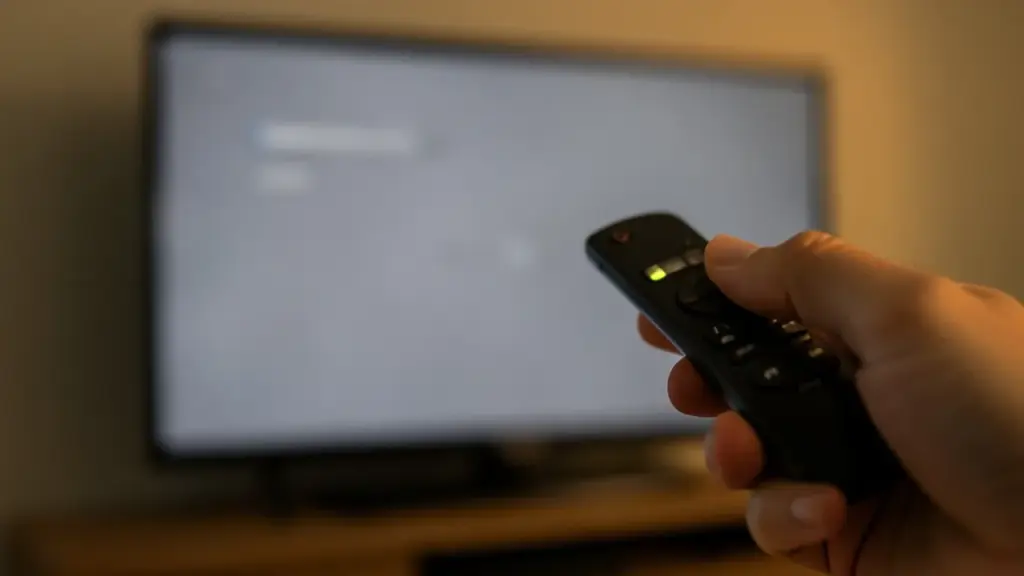
Game Mode switches off the picture processing a TV normally runs on films and shows, such as sharpening, contrast boosts and noise reduction. Every one of those passes costs time, and in a 30fps game the combined lag makes aiming and driving feel heavy. LG calls it Game Optimizer; Sony, Samsung and TCL call it Game Mode. If your TV has ALLM (auto low latency mode), set it to on or automatic so it switches over when the PS5 starts a game. On many sets, these options only appear on the HDMI 1 input.
Motion smoothing needs a separate check. It invents frames between the real ones to make 30fps look closer to 60, but those fake frames add input lag and can leave smears around fast cars. Look for it under these names:
- Sony: Motionflow
- Hisense: Motion Enhancement
- LG: TruMotion
- TCL: Motion Clarity or Action Smoothing
- Samsung: Picture Clarity or Auto Motion Plus
Finally, turn off eco and energy-saving modes, plus any automatic brightness feature. They dim the backlight based on room light, which makes night missions murky and neon look dull, and the power saved is small.
Do VRR and 120Hz help a 30fps game?
Only a little, and the guides don’t fully agree on how to set them. VRR (variable refresh rate) lets the TV match its refresh rate to the console’s output, which cuts tearing and stutter when frame rates wobble. One guide notes that VRR on PS5 only works at 40fps and above, and many TVs’ VRR ranges start above 30Hz, so the main benefit comes when GTA 6 dips, not during steady play.
The common advice is to leave VRR on Automatic. For 120Hz Output, one guide says turn it on, another suggests Automatic and says to switch it off if you see screen tearing. If your picture looks clean, leave it alone.