Saturday, 21 November 2026

How to create a LinkedIn business card, then swap in one scan

LinkedIn's new digital card lives in Apple Wallet or Google Wallet and swaps with one scan. Here is how to build yours, share it, and what it won't do.

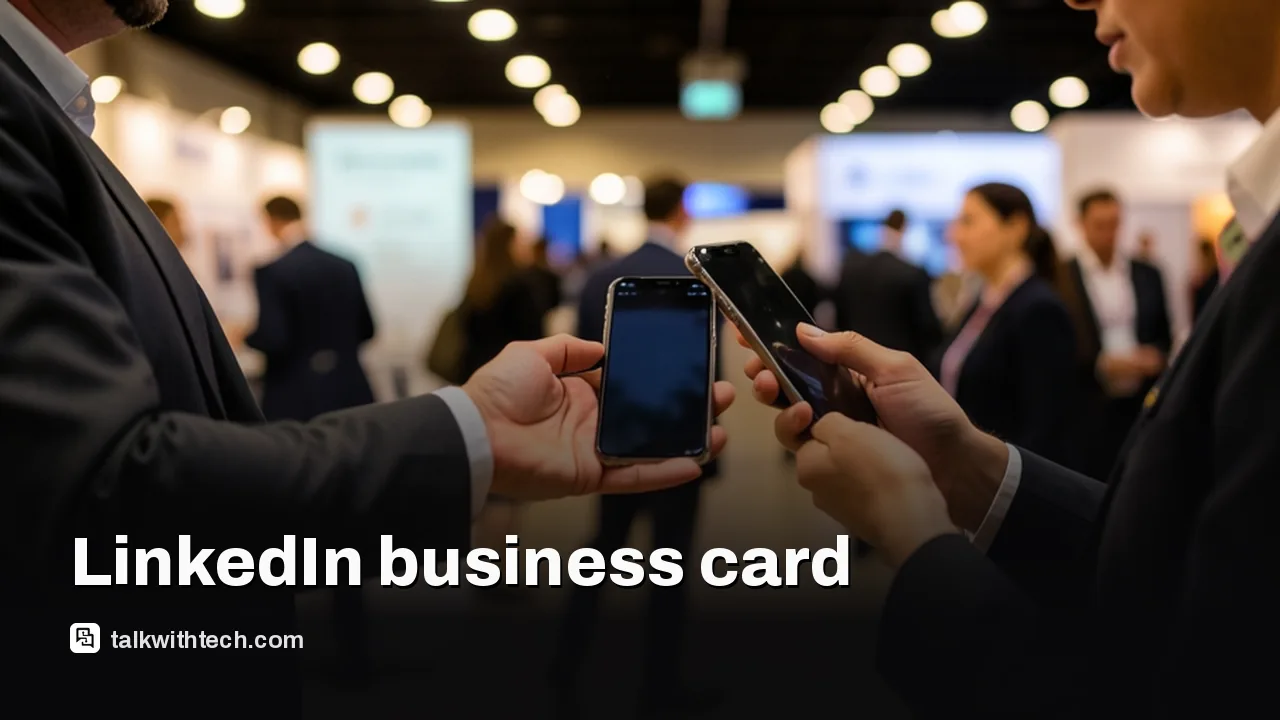
Two people at a conference holding their phones close together to swap contact details

The short version

  • LinkedIn now lets members design a digital business card in its mobile app and save it to a phone wallet.
  • The card is opened from the QR code on your profile, and other people get your details by scanning it.
  • An optional auto-swap setting trades cards with one scan, but it does not send a connection request.
  • For now the card works only in the mobile app and only in English, and it is still rolling out.
Quick read · 2 min

LinkedIn has turned its little-used profile QR code into a digital business card. You design it in the mobile app, save it to Apple Wallet or Google Wallet, and share it by letting someone scan the code.

  • To make one, tap your profile photo, tap the QR code at the top of your profile, hit edit, then save and add it to your wallet.
  • You can pick a layout, pattern, colors and font, and leave your company and location off.
  • An auto-swap setting trades both cards with a single scan.

One thing to remember: swapping cards doesn't send a connection request, so you still have to follow up. Cards you collect are stored in the app under My Network. The feature is rolling out in stages, works only on mobile and only in English for now, and LinkedIn says more devices and languages will come later. If you don't see it, update the app.

If you want to know how to create a LinkedIn business card, the short answer is that you start from the QR code on your own profile. LinkedIn has turned the plain QR code on your profile into a card you can design, save to Apple Wallet or Google Wallet, and hand over with a scan.

That matters if you ever go to a conference, a job fair or a client lunch. You no longer need paper cards, a third-party app or the awkward wait while someone types your name into search. The whole thing is built in the LinkedIn mobile app, and the card pulls its basic details from the profile you already have.

01

How to create a LinkedIn business card in the app

You build the card on your phone, starting from your own profile. Here are the steps, in the order the app walks you through them.

  1. Open your profile. Launch the LinkedIn app and tap your profile photo in the top-left corner.
  2. Tap the QR code. It sits at the top of your profile. Tapping it opens your business card. There is also a matching icon in the search bar that leads to the same place.
  3. Hit the edit button. A row of design tools appears along the bottom of the screen. This is where you change how the card looks (more on those choices below).
  4. Check both sides, then save. The card has a front and a back. Swipe to flip it, make sure both look right, and tap Save.
  5. Add it to your wallet. Tap the wallet button and follow the prompts. iPhone owners get the card in Apple Wallet, and Android owners get it in Google Wallet.

If you can’t see the QR code or the card, you may not have the feature yet. LinkedIn is switching it on in stages, and its advice for anyone who doesn’t see it is to update the app to the latest version first.

A phone held next to a stack of blank paper business cards on a desk
02

What you can change on the card

You get a fair amount of control over the design, more than the old black-and-white QR square ever offered. The card carries your headshot, your job title and a scannable code that points to your LinkedIn profile.

From there, the editing tools let you:

  • Pick one of six layouts. LinkedIn has named them Classic, Clean, Grand, Precise, Striking and Strong.
  • Add one of eleven background patterns.
  • Change the colors and the font.
  • Crop your photo the way you want it.
  • Drop in stickers, or draw on the card with a doodle tool.
  • Put a signature on the back.

Two details are easy to miss. First, the headline on the card doesn’t have to match the headline on your profile, so you can write something shorter or more specific for the people you meet face to face. Second, your current company and your location are optional. You can leave either one off.

03

How to share your card, and what auto-swap does

Sharing comes down to showing the other person your QR code and letting them scan it. Once they do, they have your LinkedIn details.

You have several ways to pull the code up. You can open it inside the LinkedIn app, call it up from your phone’s wallet app, or show it straight from the lock screen. The code can also be scanned from a separate web page made for the card.

Then there’s auto-swap. Open the menu in the top-right corner of the card, go into the sharing settings and switch on the option that swaps cards when you scan. With that on, one scan trades both cards at once, so neither of you has to take turns holding up a phone.

Here’s the catch people will trip over: swapping cards is not the same as connecting. A swap doesn’t send a connection request or a follow request. It only hands over the details. If you want that person in your network, you still have to send the invite yourself afterwards.

A conference attendee with a lanyard checking a phone in a hotel lobby
04

Where the cards you collect end up

Every card you scan is kept in one place inside the app, so you don’t have to remember names on the train home. Tap the business card icon in the bottom-right corner, or go through My Network, open the page for managing your network, and choose the business cards list.

A swap doesn’t connect you, so this list is where you open those cards again later.

LinkedIn rolled out a related tool at the same time: private notes on other people’s profiles, meant for reminders such as where you met someone. That one is limited to Premium subscribers.

05

Who can get it right now, and the limits

The card is rolling out worldwide, but with two clear limits for now. It works only in the LinkedIn mobile app, and only in English. LinkedIn says it plans to bring it to more devices and more languages later, without giving dates.

The company previewed the feature at a showcase event before starting the global rollout, and described it this way: you can design and personalize a card to show who you are professionally, add it to your digital wallet, and stay in touch with people you meet in person.

What LinkedIn hasn’t spelled out is when desktop users get it, or which languages come next.

06

Why LinkedIn rebuilt a QR code almost nobody used

The card grew out of a workaround. LinkedIn has had a personal QR code since 2018, but it had no design options and never caught on widely. For years it was tucked into the search bar, where you tapped a small icon, chose a tab to show your own code or scan someone else’s, and could save the code to your photos.

Kevin Arcara, a principal product designer at LinkedIn, said in a post that because the code was hard to find, people at events came up with their own tricks to share details, including NFC tags (tiny wireless chips) built into their fingernails. LinkedIn’s own staff at Cannes were swapping QR codes too, which gave the team the idea of putting the code in Apple Wallet.

They built a prototype on the spot and passed it around. Within a few hours, colleagues at the event had their profiles sitting in their wallets. The team noticed the exchange felt a lot like handing over a paper card, and the business card idea followed from there.

LinkedIn also pointed to how its members are changing. It says the number of founders on its platform has grown 70% in recent years, and members listing more than one job are up 26% since 2019. The company says its aim is to help members turn the relationships they build into real opportunities.
07

Quick answers

Does swapping LinkedIn business cards connect you automatically?

No. A swap passes on profile details only. It doesn’t send a connection or follow request, so you need to do that yourself.

Can I make a LinkedIn business card on a computer?

Not yet. The card is limited to the mobile app and to English for now. LinkedIn says more devices and languages are planned.

Why can’t I see the business card option?

The feature is arriving in stages. Update the LinkedIn app to the newest version, then tap the QR code at the top of your profile again.

You're reading the quick version.