Saturday, 28 November 2026

How to make ChatGPT default on Android phones: steps and limits

Setting ChatGPT as your Android assistant takes a minute. Here is the exact menu path, what it still can't do, and the calling and texting tricks hidden in its code.

A hand pressing the side button of an Android phone to call up the assistant

The short version

  • You can set ChatGPT as the Android assistant under Settings, Apps, Default apps, then Digital assistant app.
  • Once set, ChatGPT only talks and types; it can't set alarms, send texts, make calls or see your screen.
  • Code in a new ChatGPT for Android build points to calls, texts, music controls and screen context.
  • OpenAI hasn't announced those features or a date, and each one would need its own Android permission.
Quick read · 1 min

You can make ChatGPT the default assistant on Android in about a minute. Open Settings, tap Apps, then Default apps (Choose default apps on Samsung), tap Digital assistant app and choose ChatGPT. Samsung owners can also set a long press of the side button to open it.

Today the switch mostly changes which app answers your long-press or swipe. ChatGPT is great for questions and keeps listening for follow-ups, but it can't set alarms, send texts, make calls or see your screen, and "Hey Google" still wakes Gemini.

That may change. Code in a new ChatGPT for Android build points to:

  • calls and text messages, with your permission
  • pause and skip controls for music already playing
  • answers about what's on your screen

OpenAI hasn't announced these or a date. To go back, pick Gemini in the same Digital assistant app menu.

Here is how to make ChatGPT default assistant on Android: install or update the ChatGPT app, open Settings and choose Apps, then Default apps, then Digital assistant app, and select ChatGPT. On a Samsung Galaxy the middle step is called Choose default apps. That’s it, and from then on the long-press or swipe that used to open Gemini opens ChatGPT instead.

The catch is what happens next. Right now ChatGPT in that slot is a very good talker that can’t touch your phone. But a teardown of the latest Android app found unused permission prompts for placing calls, reading and sending texts, controlling music and looking at your screen. If those ship, the main reason people stick with Gemini gets a lot weaker. So it’s worth knowing exactly what you get today, what’s coming, and how to undo the switch.

01

How to make ChatGPT default assistant on Android, step by step

The switch lives in Android’s own settings, not inside the ChatGPT app. OpenAI first offered the assistant option in a beta in early 2025, and it is now a normal choice for anyone with the app installed.

On a Pixel and most other Android phones:

  1. Update ChatGPT from the Google Play Store.
  2. Open Settings and tap Apps.
  3. Tap Default apps, then Digital assistant app.
  4. Select ChatGPT in the list of assistant apps.

On a Samsung Galaxy phone:

  1. Open Settings and tap Apps.
  2. Tap Choose default apps.
  3. Tap Digital assistant app and choose ChatGPT.
  4. Optional: go to Settings, then Advanced features, then Side button, and set the long press to open the digital assistant instead of Bixby or the power-off menu.

If ChatGPT isn’t in the list, the app on your phone doesn’t yet register itself for the assistant role. Update it from the Play Store and check again. Android only has one assistant slot, so picking ChatGPT pushes Gemini out of it.

A smartphone on a desk with a blurred settings screen
02

How you open ChatGPT once it’s the default

ChatGPT answers the same gestures Gemini used to. Which one you use depends on how your phone is set up:

  • With the three-button bar, long-press the home button.
  • With gesture navigation, swipe up diagonally from a bottom corner of the screen.
  • On phones where the side or power button is mapped to the assistant, hold it down.

ChatGPT opens straight into voice, and it keeps listening after it answers until you close it. That means you can ask a follow-up or cut it off mid-sentence without tapping anything, and it fills the wait with short spoken check-ins.

Two things don’t change. Saying “Hey Google” still wakes Gemini, because hands-free hotwords rely on special system access that only trusted, preinstalled apps get. And if you hold the button while the phone is locked, ChatGPT plays its start-up sound and then shows nothing.

03

What ChatGPT can’t do as your assistant yet

Today ChatGPT can only talk and type; it can’t operate your phone or other apps. In a hands-on test with routine chores, it handled every general question, from tip math to translations, but fell apart on device tasks:

  • Asked for an early alarm, it explained how to set one manually.
  • It said it would start a timer and then never did.
  • A reminder was saved inside the ChatGPT chat rather than a reminders app, though a notification did arrive later.
  • For a text message, it wrote a draft but couldn’t send it.
  • Calendar entries needed Google Calendar connected first.
  • Flashlight, Do Not Disturb, screenshots and phone calls got spoken instructions only.

There are smaller annoyances too. Answers don’t always appear on screen as text, so a drafted message read aloud can vanish before you copy it. And every request opens a fresh chat in your ChatGPT history, which fills up quickly. ChatGPT also can’t see what’s on your screen, though Circle to Search still works alongside it.

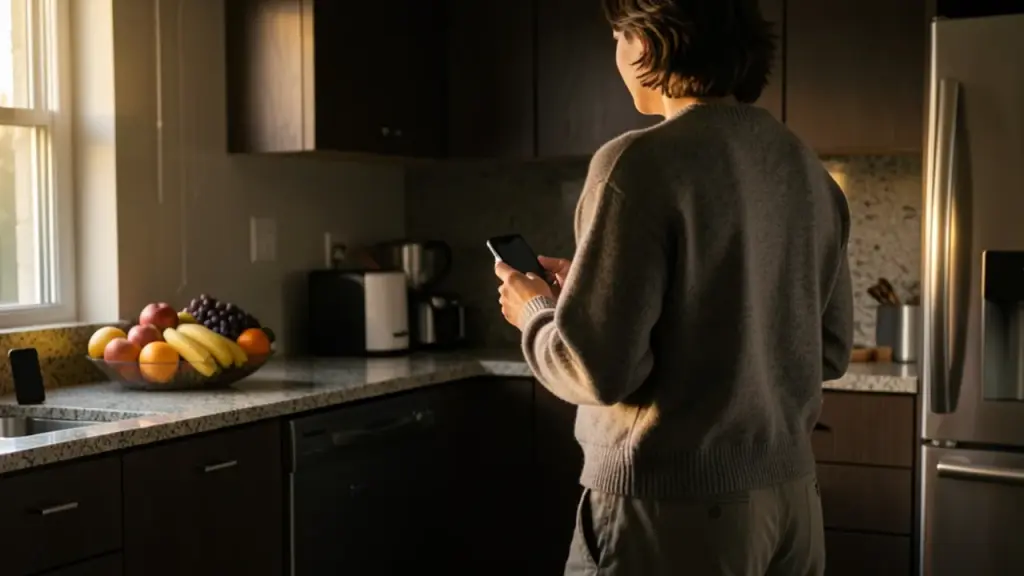
Someone talking to a voice assistant on a phone propped up in a kitchen
04

The calling and texting powers hiding in the code

A teardown of a new ChatGPT for Android build found permission prompts that are already in the app but not switched on. They suggest ChatGPT, with your approval, could:

  • place a phone call when you ask;
  • read your recent call log and look people up in your contacts;
  • read text messages and send new ones;
  • pause, resume or skip whatever is playing, using Android’s notification access;
  • use what’s on your display as context, behind a toggle labeled “Use screen and app data.”

Music control has a limit. The code suggests ChatGPT could only steer a session that’s already running. It wouldn’t open a music app and start a particular song for you. Screen help would refresh as you go: the app would take a new look at the display for each follow-up, so you wouldn’t have to screenshot and upload anything yourself.

Other strings mention a “Dot card.” Dots are the always-on agents OpenAI introduced at its DevDay event on September 29, 2026. They run on the GPT-6 Astra model with their own cloud computer and browser, so they keep working after you close the app. The app also carries two settings flags, “useDotAsAssistant” and “allowedWhileLocked.” Together they suggest you might summon a Dot without unlocking the phone, or even pick one as the phone’s assistant. For now Dots are limited to ChatGPT Pro and Business Premium subscribers, and new ones are created on a computer.

OpenAI hasn’t announced any of this, and features found in code can change or never ship. The first visible sign of a launch would be the new permission requests showing up after a Play Store update.

05

What switching means for your privacy and your daily routine

For most people, the trade today is simple. You give up quick phone chores and hands-free “Hey Google” in exchange for better conversations and drafting one gesture away. If you already pay for ChatGPT and mostly ask questions, that can be worth it. If you rely on alarms, timers, smart home control or on-screen help, it will feel like a step down.

The coming features shift the privacy question. To call, text and read your screen, ChatGPT would need access to your messages, call history, contacts and display. Because each of those sits behind its own Android permission prompt, you’d be able to pick and choose, for example allowing music controls while refusing SMS access.

Voice is changing as well. OpenAI’s help page says the Advanced and Standard voice options retire on December 11, 2026, and anyone using them moves to Live automatically. The same page says Live doesn’t support video or screen sharing, while Advanced does in the Android app.

Keep Google’s own plans in mind too. Google began shutting down Google Assistant on Android phones on September 4, 2026, and removed the toggle that switched back to it in Google app version 17.60. So the real choice on a phone is now Gemini versus a third-party app like ChatGPT, Claude or Perplexity.
06

How to switch back to Gemini

Undoing the change takes the same few taps. In Settings, head to Apps and Default apps (Choose default apps on Samsung), then the Digital assistant app entry, and select Gemini. If you remapped the Samsung side button, check that its long press still points to the digital assistant.

There’s also a middle path. Leave Gemini as the default and put a ChatGPT widget or shortcut on your home screen. You keep “Hey Google” and Gemini’s phone controls, and ChatGPT is still a single tap away.

07

Quick answers

Can ChatGPT replace Gemini completely on Android?

Not yet. It can take the assistant slot and the launch gestures, but it can’t wake on a hotword, work from the lock screen or control your phone’s apps and settings.

Can I say “Hey ChatGPT” to wake it?

No. Hotword wake-up needs system access that only preinstalled apps get, so “Hey Google” still opens Gemini even after you switch.

When will ChatGPT make calls and send texts on Android?

OpenAI hasn’t given a date. The features exist only as unused code in a recent build, and the first sign will be new permission prompts after an app update.

You're reading the quick version.