Thursday, 26 November 2026

Google Docs compare documents with Word: steps, limits, fixes

Docs can now check a Word file against your Google Doc without converting it. Here is how to run it, review the edits, and fix a grayed-out menu.

Laptop on a desk showing two documents side by side next to a printed contract

The short version

  • Google Docs compare documents now works with Microsoft Word .docx files, with no need to convert them into Google Docs first.
  • Google switched the feature on November 16 for all Workspace customers, Workspace Individual subscribers and free personal Google accounts.
  • The comparison appears in a brand-new Google Doc as suggested edits, and Google says neither of the original files changes.
  • The Word file has to live in Google Drive, and changes to column layouts and table column widths are not compared.
Quick read · 2 min

Google Docs can now compare a Microsoft Word file against a Google Doc without converting it first. Open your Doc, choose Tools and then Compare documents, click From Drive, pick the .docx file and hit Compare. Docs produces a new document that marks every difference as a suggested edit, and both original files stay untouched.

This helps anyone who trades contracts or drafts with Word users, because it ends the habit of making converted copies that clutter Drive. It is switched on for everyone: Workspace customers, Workspace Individual subscribers and free personal accounts, with no admin setting.

  • The Word file must be stored in Google Drive.
  • You can credit the changes to a name and bring over comments.
  • Column layout and table column width changes are not compared.

If the option misbehaves, Google points to an old Office editing extension in Chrome; open the file from Drive with Google Docs instead.

Google Docs compare documents can finally read a Microsoft Word file as it is. Open your Google Doc, go to Tools, pick Compare documents, choose the .docx file from Drive, and Docs builds a new file that shows every difference as a suggested edit. No converted copy, no extra clutter.

That matters if you trade drafts with people who live in Word: a landlord’s lease, a freelance contract, a school report, a manuscript coming back from an editor. Until now you had to turn their Word file into a Google Doc before Docs would compare it, which left two versions of the same document sitting in your Drive. Google turned the change on November 16, and it is free for personal accounts too.

01

How to use Google Docs compare documents with a Word file

You compare a Word file by starting from your own Google Doc and pointing the tool at the .docx in Drive. Here are the steps from Google’s help pages, in order:

  1. Upload the Word file you got back (for example, the contract with someone’s changes) to Google Drive. The tool can only see files stored there.
  2. On a computer, open the Google Doc you want to treat as the starting version.
  3. In the menu bar, click Tools, then Compare documents.
  4. In the box that opens, click From Drive and pick the .docx file.
  5. Optional: under the attribution field, type a name or label for the changes, such as the other party’s name. Leave it empty and Docs credits the changes to you.
  6. Optional: tick the box to bring in comments from the selected file, so their margin notes come across too.
  7. Click Compare, wait a moment, then click Open.

The result is a third document. Your original Google Doc and the Word file both stay exactly as they were, which Chandu Thota, an engineering lead on Google Workspace, also stressed when he showed the feature off on X using a contract as the example.

Hands on a laptop reviewing a document with highlighted edits
02

How to compare two Google Docs instead

Comparing two Google Docs uses the same menu, and it has been around longer than the Word support. Open the main document, choose Tools and then Compare documents, and select the other Doc you want to check against.

You get the same two options: who the differences should be credited to, and whether to pull in comments from the second file. Click Compare, then Open, and the new comparison file appears.

One tip: if both versions are really the same file at different points in time, you may not need Compare at all. Google’s version history (the clock-style Last edit icon at the top right) lets you open an earlier version, see who changed what, restore it or copy it. You can also name versions, up to 40 per document, which makes a handy checkpoint before you send a draft out. Compare is for two separate files; version history is for one file over time.
03

Accept or reject the changes, one by one or all at once

Because the differences show up as suggestions, you review them with the normal suggestion tools. Additions appear in a new color and deletions are crossed out, just as if someone had typed them in Suggesting mode.

  • One at a time: click a suggestion in the margin and approve or turn it down. This is the safe route for contracts, where one changed word can matter.
  • All at once: go to Tools, then Review suggested edits. A small panel appears at the top right. Use its arrow to preview the document with or without the changes, then choose Accept all or Reject all.

Sending the result back to a Word user? Google says that when files move between Docs and Office, suggestions in Docs become tracked changes in Word, and tracked changes from Word become suggestions in Docs. So the other side should see your accepted and pending edits in the format they know.

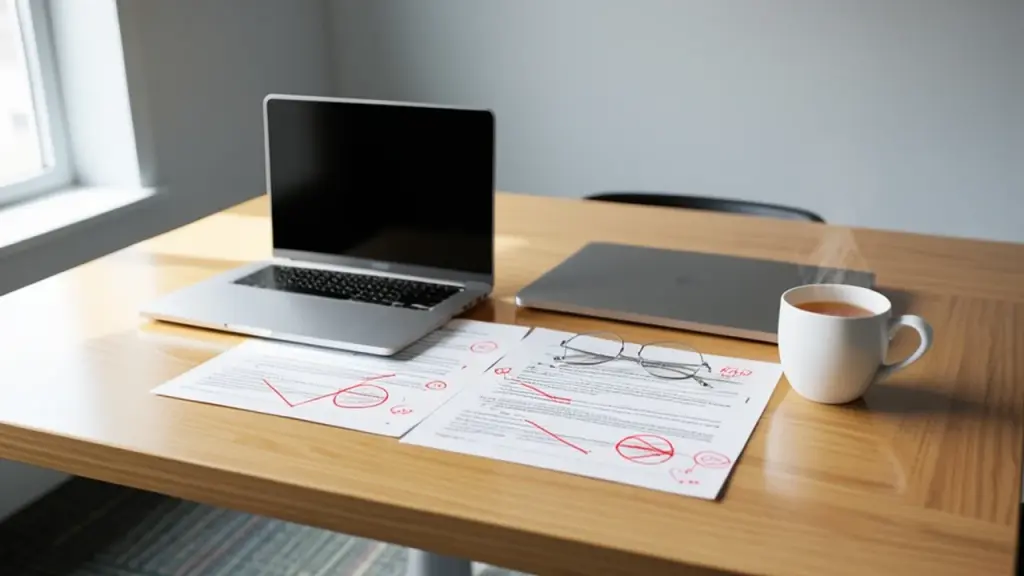
Printed agreement pages with red pen corrections on a meeting table
04

Compare documents greyed out or not opening? Check these first

Google hasn’t published a single list of reasons the option might not work, but its own help pages point to a few usual suspects. Run through them in this order:

  1. The Word file isn’t in Drive. The tool only browses Drive. A .docx sitting in your Downloads folder or an email attachment won’t appear until you upload it.
  2. You’re on your phone. Google’s instructions for Compare are written for a computer, so try it in a desktop browser.
  3. An old Office extension is in the way. If you still have the legacy Office Editing for Docs, Sheets & Slides extension in Chrome, Google says it can open Word files in a restricted viewer tab. Open the file from Drive instead: right-click it and choose Open with, then Google Docs. Google also suggests turning off that extension when you work in Office editing mode, to avoid compatibility problems.
  4. You started from the wrong file. Compare runs from the document that is open. Open the version you want as the base first, then pick the other file in the dialog.

If none of that helps, open the Word file once in Docs straight from Drive. Google says the feature turns on by default when a .docx is opened in Docs, so that is the simplest way to confirm it works on your account.

05

Who gets it: Workspace, Workspace Individual and free Gmail accounts

Everyone does. Google says Word support in Compare documents is available to all Google Workspace customers, Workspace Individual subscribers and people using a personal Google account, so a free Gmail login is enough.

It is already live on both of Google’s business release tracks, Rapid Release and Scheduled Release. Scheduled Release usually trails behind, so companies on that slower track don’t have to wait this time. There is also no admin switch: IT departments can’t turn it on or off, and it works by default whenever a .docx is opened in Docs.

06

What this means if you swap contracts with Word users

The practical win is a cleaner Drive and fewer mix-ups. The old routine was: receive the Word file, convert it, compare, then try to remember which of the near-identical copies was the real one. Google itself pitches the change as a way to cut down on duplicate converted files.

For a small business or freelancer, a typical round now looks like this:

  • You draft in Google Docs and send it out as a Word file.
  • The client edits it in Word and emails it back.
  • You drop their file into Drive, run Compare from your original, and review every change as a suggestion, including any of their comments.

That catches quiet edits, such as a changed date or a deleted clause, that are easy to miss when you only skim the returned file. Compare shows every difference, not just the ones someone remembered to flag.

07

What the tool still won’t do

Compare documents is not a perfect redline machine. Google’s help page says changes to a document’s column layout and to table column widths are not compared, so check page layout by eye if it matters.

Google also hasn’t mentioned file size limits or other restrictions for Word files, and it only names .docx in the announcement. If you have an older Word file in another format, saving it as .docx first is the safe bet. And the comparison is a new file in your Drive, so give it a clear name, such as the document title plus the date, before you share it.

08

Quick answers

Can Google Docs compare two documents?

Yes. Open one document, then go to Tools and Compare documents, and choose the second file. Docs creates a new file showing the differences as suggested edits.

Do I need to convert a Word file to compare it in Google Docs?

No. Since November 16, Docs can compare a .docx file directly, as long as it is saved in Google Drive.

Is Google Docs compare documents free?

Yes. It works with free personal Google accounts as well as Workspace and Workspace Individual plans.

You're reading the quick version.