Thursday, 22 October 2026

How to set up passkeys and stop typing passwords for good

Passkeys let you sign in with your face, fingerprint or PIN, and they can't be phished or pasted into a chatbot. Here's how to start without getting locked out.

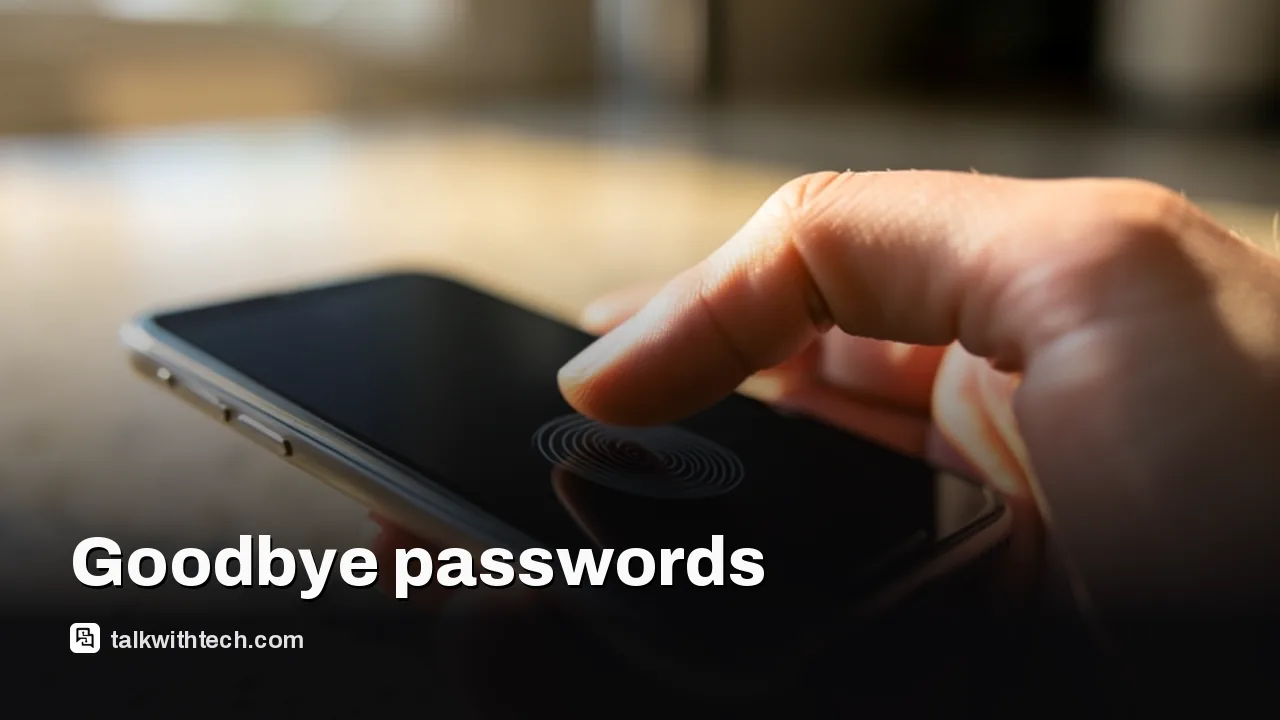
Thumb unlocking a smartphone over a kitchen counter

The short version

  • A passkey replaces your password with your device's face scan, fingerprint or screen-lock PIN.
  • Passkeys resist phishing because the secret part never leaves your device and the website never learns it.
  • Google accounts support passkeys on Windows 10, macOS Ventura, Android 9, iOS 16 and newer.
  • The biggest risk is losing every device that holds a passkey, so set up at least one backup.
Quick read · 1 min

A passkey lets you sign in with your fingerprint, face or phone PIN instead of a password. Your device makes two keys: a public one the website stores, and a private one that never leaves your device. That makes passkeys resistant to phishing, and you can't reuse, forget or accidentally share them.

To start, turn on your phone's screen lock, update your devices and, on Apple gear, switch on iCloud Keychain. Then create a passkey in your Google account's sign-in options or accept the prompt when a site offers one. Google supports Android 9, iOS 16, Windows 10, macOS Ventura and newer.

  • Only create passkeys on devices you own.
  • Keep a backup: an old phone or a security key, which starts at $30 to $35.
  • Test sign-ins before deleting old passwords.

This week 1Password launched a way for AI assistants to log in to your accounts without ever seeing your password. It’s a neat fix for a growing problem: people pasting passwords into chatbots. But there’s an even simpler habit you can pick up today that makes that whole risk smaller. Switch your most important accounts to passkeys.

A passkey lets you sign in with the same face scan, fingerprint or PIN you use to unlock your phone. There’s nothing to remember, nothing to type, and nothing a fake login page can trick you into handing over. This guide explains how to set up passkeys on the accounts and devices most people in the US, UK and Canada use, and how to make sure you never get locked out.

01

What a passkey is, in plain English

A passkey is a pair of digital keys that your device creates for one website or app. One key is public and gets stored by the website. It isn’t secret, so a hacker who steals it from the site gets nothing useful. The other key is private and stays locked on your device. The website never learns what it is.

When you sign in, your phone or computer proves it holds the private key, and you approve that with your fingerprint, face or screen lock. No secret ever travels across the internet. That’s built on an open standard called WebAuthn, and the big platform makers worked together through an industry group, the FIDO Alliance, so passkeys work across brands.

Here’s why that matters for you:

  • They can’t be phished. A passkey only works on the real website it was made for, so a lookalike scam page can’t use it.
  • They’re always strong. You can’t pick a weak passkey or reuse one across sites.
  • They can’t be shared by accident. You can’t write a passkey down, read it out over the phone or paste it into a chat.
  • Your fingerprint stays private. Biometric data used to unlock a passkey stays on your device. Google says it never receives it.
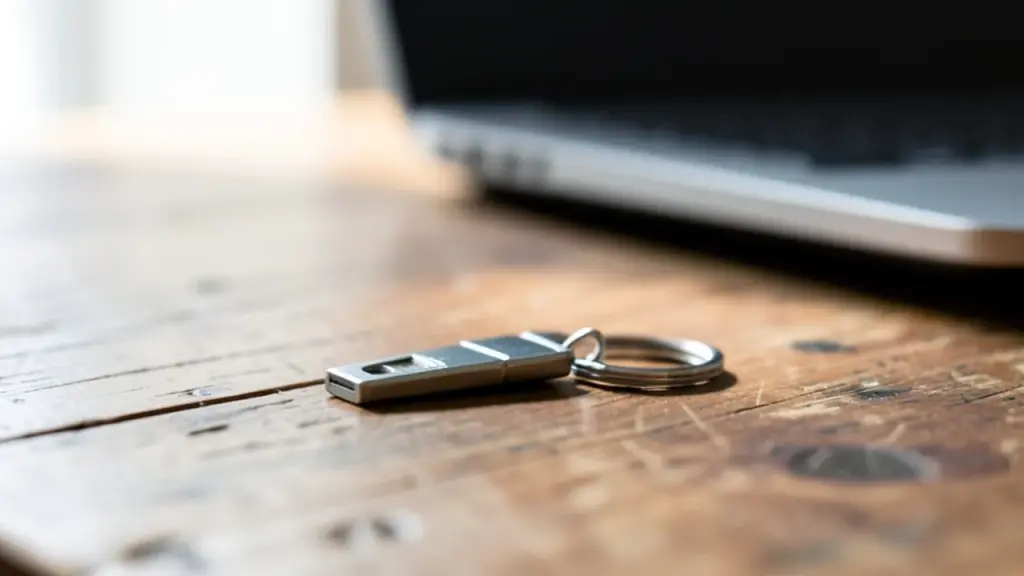
Hardware security key on a keyring beside a laptop
02

Check your devices work with passkeys

Most phones and computers bought in the last few years already support passkeys. For a Google account, Google lists these minimums:

  • Computers: Windows 10, macOS Ventura or ChromeOS 109 and newer.
  • Phones: Android 9 or iOS 16 and newer.
  • Browsers: Chrome 109, Safari 16, Edge 109 or Firefox 122 and newer.
  • Security keys: any hardware key that supports the FIDO2 standard.

Before you start, do three things. Turn on a screen lock on your phone, since the passkey is only as safe as the lock. Update your operating system and browser. And if you use an iPhone, iPad or Mac, turn on iCloud Keychain, which is where Apple stores passkeys.

03

How to set up passkeys on your Google account

Your Google account is a smart place to start because it often unlocks your email, photos and other sign-ins. Here are the steps:

  1. On the phone or computer you want to use, sign in to your Google Account and open the security settings.
  2. Go to the sign-in options section and choose Passkeys.
  3. Tap Create a passkey, then unlock your device with your fingerprint, face or PIN when asked.
  4. Repeat on your other devices. To store one on a hardware security key instead, pick the option to use another device, insert the key and enter its PIN or touch its sensor.

A few things to know after you’re done:

  • Adding a passkey doesn’t remove your password or recovery options. Those stay as backups.
  • If you use 2-Step Verification, a passkey skips the second step, because unlocking your own device already proves it’s you.
  • A new passkey can take up to 7 days to become available at sign-in, unless you already have a trusted passkey or security key.
  • If Google spots a passkey it thinks is suspicious, it disables it and warns you, and you have 30 days to confirm you added it.

One important warning: only create passkeys on devices you personally own. Google points out that anyone who can unlock that device can get into your Google account, even if you signed out.

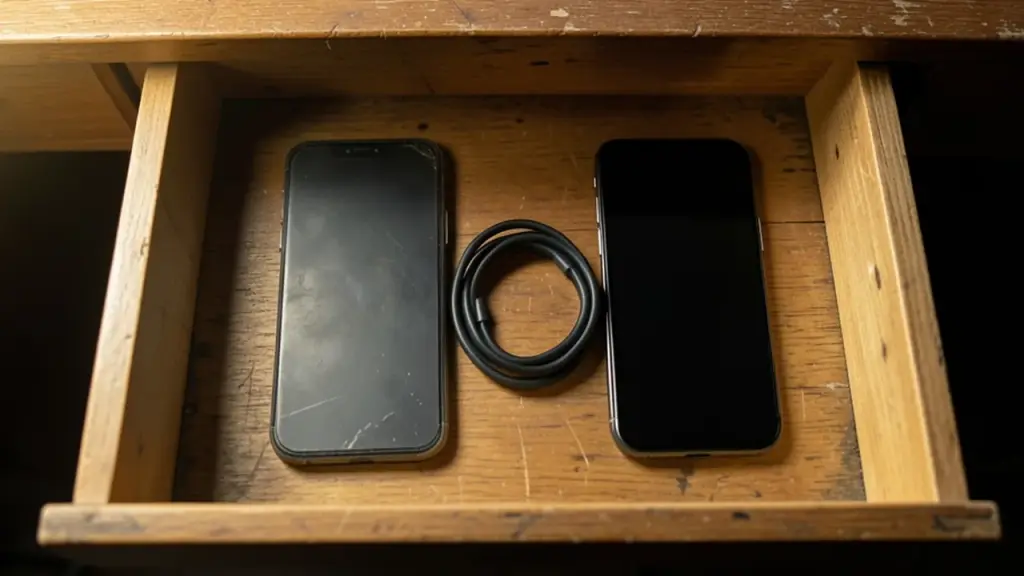
Two smartphones in a desk drawer kept as backup devices
04

How passkeys work on iPhone, Mac and Windows

On Apple devices, passkeys sync between your iPhone, iPad and Mac through iCloud Keychain, and Face ID or Touch ID approves each sign-in. Apple says iCloud Keychain is end-to-end encrypted with keys Apple doesn’t know, so even Apple can’t read what’s inside. Two-factor authentication is required, and if you try to add a passkey without it, your device prompts you to turn it on.

When a site or app offers to create a passkey, you’ll usually see the prompt right after you sign in or in its security settings. Accept it, approve with Face ID or Touch ID, and you’re done. You can also use your iPhone to sign in on a nearby computer, since passkeys work with non-Apple devices in physical range, which is why Google asks you to turn on Bluetooth for this.

On a Windows PC, you can save passkeys to the computer itself, protected by Windows Hello. If you don’t use face or fingerprint unlock, pick a PIN of at least 6 to 8 digits. If you’re signed in to Chrome with a Google account or Edge with a Microsoft account, passkeys you save there are kept in the cloud instead, so they follow you between devices.

05

The lockout problem, and how to avoid it

Think of a passkey like a house key. If you only have one copy and you lose it, nobody can pick the lock for you. That’s the one real downside, and it’s easy to fix with a backup or two.

  • Keep a second device signed in. An old phone that still gets security updates is a cheap, easy backup for cloud-synced passkeys.
  • Add a hardware security key. Keys such as a YubiKey or Google Titan Security Key start at $30 to $35 and can hold passkeys offline. Set a PIN of at least 6 digits. Some YubiKeys wipe themselves after eight wrong PIN attempts, which stops guessing attacks.
  • Use two keys for device-only passkeys. If your passkeys live only on hardware, keep them on at least two security keys, or one PC and one key.
  • Set up a recovery contact. Apple lets you add an account recovery contact who can help if you forget your password or passcode.

It also helps to know how Apple’s last-resort recovery works. If you lose every Apple device, you can recover your keychain by signing in, answering a text to your phone number and entering your old device passcode. You get 10 tries. After the tenth failure, the recovery copy is destroyed for good, so take it slowly.

Switching password managers without losing passkeys

Switching password managers used to mean exporting everything to a plain CSV file, which is risky and doesn’t carry passkeys reliably. That’s changing. Google added a standard called Credential Exchange to Google Password Manager in June, letting compatible apps move passwords and passkeys directly. 1Password supports direct imports on Android 14 and later from apps that use the same standard, such as Dashlane.

If you’re switching, update every app first, test sign-in on your most important accounts in the new manager, and only then delete the old copies. 1Password warns that desktop exports don’t carry passkeys over, so some sites may need a fresh passkey in the new app. And whatever cloud service stores your passkeys, protect that account with a strong, unique password and two-factor sign-in, because it now holds the keys to everything else.
06

Quick answers

Are passkeys safer than passwords?

Yes. Passkeys resist phishing, can’t be reused or guessed, and the private part never leaves your device, so a website breach doesn’t expose it.

What happens if I lose my phone with my passkeys?

If your passkeys sync through iCloud Keychain, Google Password Manager or another password manager, you can sign in on a new device. If they lived only on that phone, you’ll need a backup device, security key or your account’s normal recovery options.

Do I still need a password if I use passkeys?

Usually yes, as a backup. Adding a passkey to a Google account doesn’t remove your password or recovery options, so you can still fall back on it.

You're reading the quick version.