Dust, background noise, and distance can all cause misheard commands, and fixes are usually simple.
Each major brand offers prompts to improve voice recognition without extra gear.
Repositioning and voice training steps can significantly reduce misinterpretations in daily use.
Quick read · 1 min
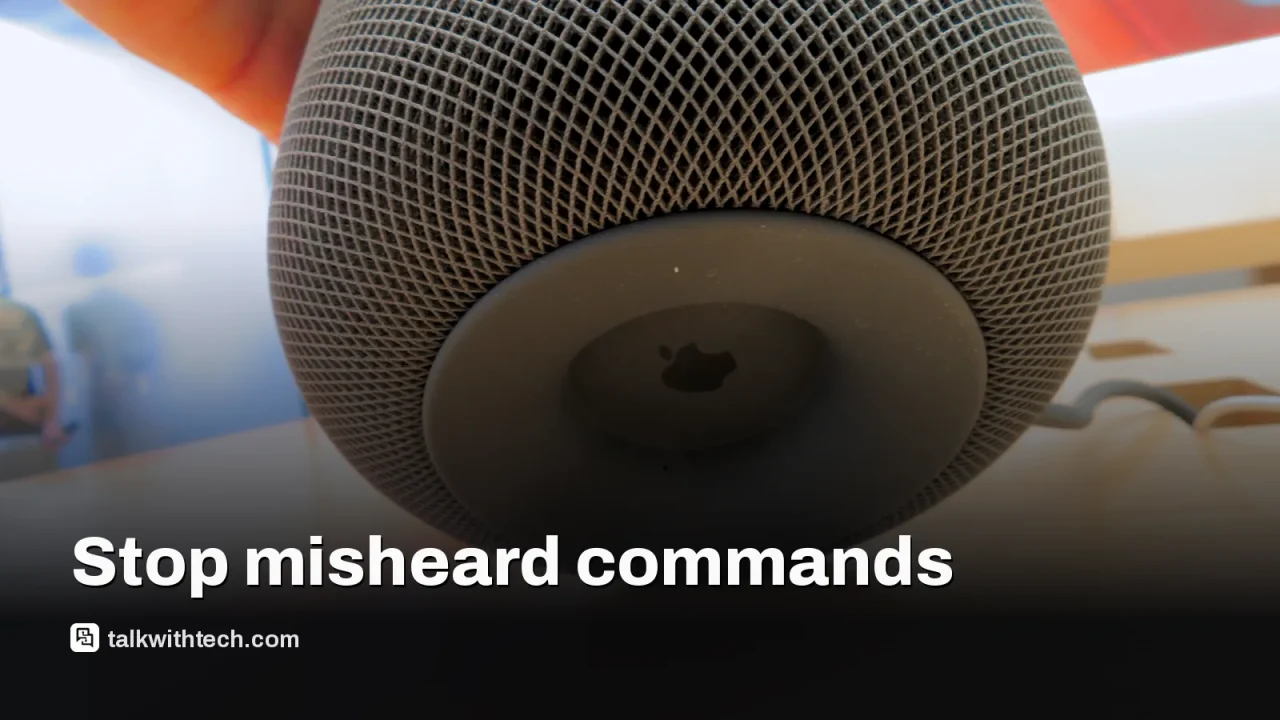
Smart speakers aren’t perfect at understanding you, but a few simple fixes can help. Start by cleaning the mic grille, moving the speaker away from noisy devices, and ensuring there’s space around it. If you have several speakers, give each a unique room name so the right unit responds.
Brand-specific steps include enabling voice recognition features and setting up Voice Match or Voice ID. If problems persist, try a restart, and only then a full factory reset as a last resort.
Clean and reposition your speaker
Set up voice recognition or wake-word options
Test multiple phrases to confirm accuracy
Smart speakers sit at the center of many homes, but they don’t always catch what you say on the first try. A practical look at the common culprits shows that routine tweaks can dramatically cut misinterpretations. The fixes span Google, Amazon, and Apple and mostly involve cleaning, placement, and teaching the device your voice a little better.
Here’s what tends to trip up a command and how to fix it without buying new devices or reworking your whole setup.
01
What usually goes wrong when they mishear you
Dust on the microphone grille can muffle your voice. Background noise from fans, TVs, or busy living spaces can drown out your commands. If you position the speaker too close or too far, the mic may struggle to pick up your speech. When several speakers are in the same area, the wrong unit might respond. Finally, similar device names or room labels can confuse the system about which gadget you want to control.
02
Universal tweaks that help most brands
Start with the basics: wipe the mic area with a dry cloth, move the speaker to a quieter spot, and give it some space from walls and other electronics. If you have more than one speaker, give each a distinct name and label rooms clearly so the correct unit responds to your command.
After you’ve adjusted placement, test a handful of common tasks. If performance barely improves, revisit brand-specific options. These voice-recognition tweaks can make everyday commands feel more natural.
03
Brand-by-brand tricks you can try
Amazon Echo: The Alexa app lets you set up a Voice ID so the device better recognizes your voice. If you suspect your commands are going to the wrong speaker, assign a different wake word for each speaker or adjust per-device settings so the closest one answers.
Google Home: In the Google Home app, go to Settings > Google Assistant > Voice Match. You can enroll multiple voices so everyone in the home is recognized, and you can tailor which device responds in which room for more accurate results.
Apple HomePod: In the Home app, open More > Settings and enable Recognize My Voice. For broader consistency, make sure your Apple ID profile is up to date so the same voice profile is used across devices.
If none of these steps help, a quick restart can clear minor glitches. Unplug the speaker for a minute, then plug it back in. If problems persist after trying the brand-specific steps, a factory reset is a last resort, but note that it wipes personalized settings.
04
What this means for everyday life
Better voice recognition means fewer misheard reminders, fewer mistakes with timers, and fewer misrouted commands. You’ll spend less time repeating yourself and correcting errors, which makes hands-free control feel more natural in daily routines, whether you’re cooking, working, or helping kids with homework.
Try these steps today: wipe the mic grill, reposition the speaker away from loud gear, and set up voice profiles or unique wake words in the apps. Then run through a few familiar tasks (play music, set a timer, turn off lights) to check improvements. If you have multiple speakers, label rooms clearly and test which unit responds to each command.
06
Quick answers
Why do smart speakers miss commands?
Dust, background noise, distance from the mic, and how devices are named and labeled can all cause mishearing.
What’s the fastest way to fix it?
Clean the mic area, adjust placement, and enable voice recognition features or wake-word controls in the app.
Should I reset my device?
Only reset as a last resort if nothing else works, since it erases personalized settings.