Thursday, 5 November 2026

Use phone as Xbox controller? Scan one QR code and start playing

Microsoft's new Xbox Cloud Gaming preview turns an iPhone or Android phone into a gamepad for smart TVs, no app needed. Here's the setup and the limits.

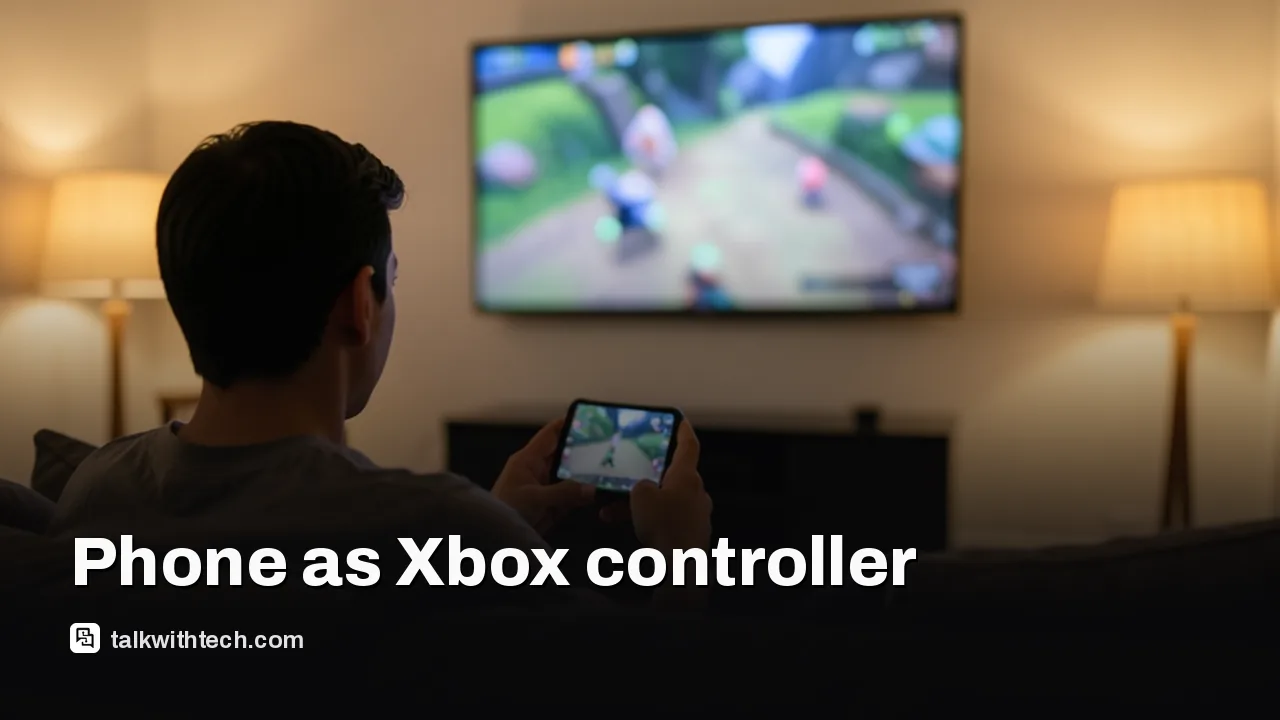
Person on a sofa holding a phone sideways while a game plays on a big TV

The short version

  • Microsoft began testing a way to use an iPhone or Android phone as a controller for Xbox Cloud Gaming on smart TVs on November 4.
  • The touch controls load in the phone's web browser after you scan a QR code on the TV, so there is no app to install.
  • The preview is rolling out in countries where Xbox Cloud Gaming is available, but supported TVs and games are limited for now.
  • A separate US-only preview lets the $49.99 Xbox Nano Controller connect straight to cloud servers over Wi-Fi to cut lag.
Quick read · 2 min

Microsoft is testing a way to play Xbox Cloud Gaming on a smart TV with no gamepad at all. Since November 4, a preview lets you use an iPhone or Android phone as the controller: switch on Preview Features in the TV's Xbox app, start a game without a controller, and scan the QR code on screen.

The touch buttons load in your phone's browser, so there is no app to install, and some games will get their own touch layouts. The preview is reaching every country where Xbox Cloud Gaming is offered, but Microsoft warns that supported TVs, phones and games are limited while it tests, and there is no full release date.

  • Works on supported smart TVs only for now
  • Some games get their own touch layouts
  • US players can also test a direct Wi-Fi mode for the $49.99 Xbox Nano Controller

The only thing standing between a smart TV and an Xbox game used to be a controller. Not anymore, at least in testing: Microsoft now lets you use your phone as an Xbox controller for Xbox Cloud Gaming on supported smart TVs, and all it takes is a QR code.

The preview began rolling out on November 4. It works with both iPhones and Android phones, the touch buttons open inside your phone’s web browser, and there is nothing to download. If you have ever wanted to try a cloud game on the living room TV but the gamepad was dead, lost or never bought, this is aimed squarely at you. There are catches, though, and they matter.

01

How to use your phone as an Xbox controller on a smart TV

You use your phone as an Xbox controller by switching on preview features in the Xbox app on your TV, then scanning a QR code when a game starts. Microsoft’s steps, in order:

  1. Open the latest version of the Xbox experience on a supported smart TV.
  2. Go to Settings, then Account, and switch on Preview Features.
  3. Start a game with no physical controller connected.
  4. When the TV offers it, choose to play with your phone for that session.
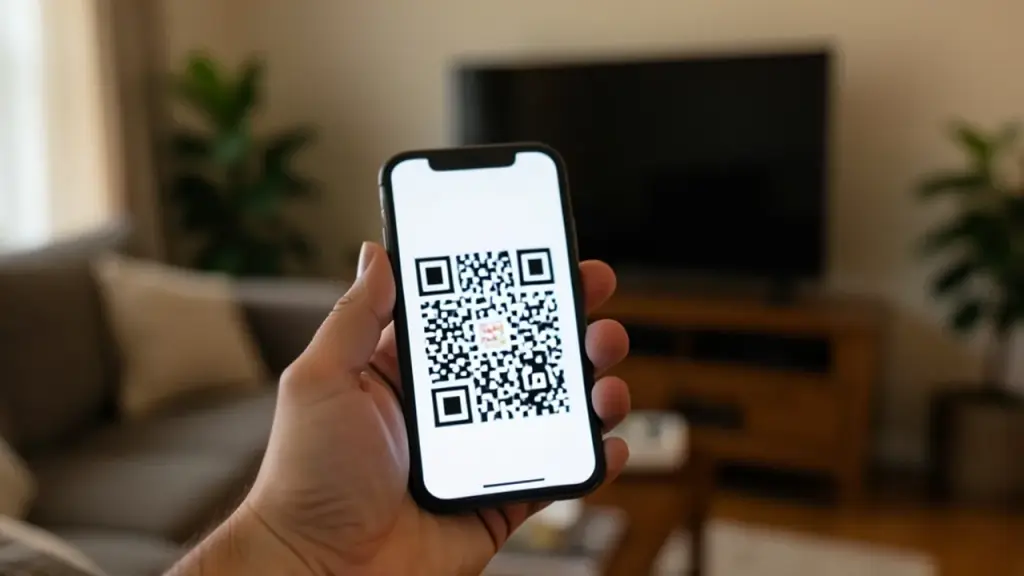
  5. Point your phone’s camera at the QR code on the TV screen. The controls then load in the phone’s browser while the game keeps running on the TV.

That is the whole setup. The phone is only the gamepad here, so the picture and sound stay on the big screen. Some games will also get touch layouts built around how they play, though Microsoft’s announcement doesn’t name which titles have them yet.

The phone option applies to that session only. Microsoft describes the whole feature as a preview that is still being tested.

Phone held up toward a TV screen to scan a code
02

Which TVs, phones and countries get it

Every country that has Xbox Cloud Gaming is getting the phone option, but only on supported TVs. On the phone side, you need a compatible iPhone or Android handset with a browser. On the TV side, you need a set that runs the Xbox app.

Here is the honest gap: Xbox has not published a complete list of the TVs, phones or games that work with this preview. It does keep a list of verified TVs for cloud gaming in general on its support site, and that is the best place to check your model.

For background, in January the Xbox app was already on LG’s webOS TVs and Amazon’s Fire OS devices. In January, Microsoft said select Hisense and V homeOS televisions would get the app later in the year, and TCL said then that its Google TV-based X11L series would add it in a future software update. Xbox also said at the time that Game Pass members on the Ultimate, Premium and Essential tiers can stream games through the app on supported TVs.

Microsoft’s own warning is worth taking at face value. It says both new experiences are “still being tested,” and that games and devices may be limited while the preview runs. No date has been given for a full release.
03

Phone controls vs a real gamepad: what you give up

Microsoft pitches the phone option for moments when there is no controller nearby. It is not presented as a replacement for one, and that framing tells you a lot.

The phone option is a stand-in, then, for the evening when the gamepad is missing. That is also why the custom per-game layouts matter: Xbox says some titles will get touch controls shaped around how they play, rather than one generic set of on-screen buttons for everything.

There is also an interesting contrast with PlayStation. Sony already offers on-screen controls through its PS Remote Play app, but that app streams the game from your PS5 to the phone itself, and you play on the phone’s screen. Sony’s official app doesn’t let the phone act as a gamepad while the game stays on your TV. Xbox’s preview does exactly that, and it doesn’t even need an app.

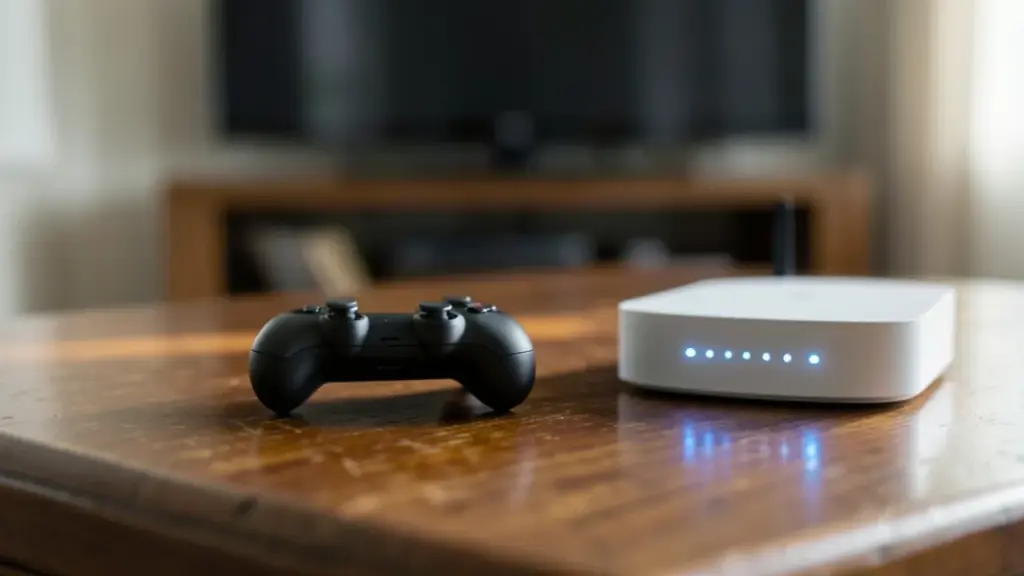
Small game controller on a coffee table beside a Wi-Fi router
04

The other preview: Xbox Nano goes straight to the cloud

Microsoft tested a second idea at the same time, and it is for people who do own a controller. Called cloud connect, it lets the new Xbox Nano Controller talk to Xbox’s servers directly over your home Wi-Fi.

Normally, a controller pairs with the TV over Bluetooth, and the TV passes your button presses along to the cloud server running the game. Cloud connect skips the TV in that chain. Xbox says that can cut input latency, which is the delay between pressing a button and seeing the result on screen, so games may feel more responsive.

  • Price: the Xbox Nano Controller costs $49.99.
  • Where: the cloud connect preview is limited to players in the US.
  • What works: supported smart TVs and cloud gaming on the web, not every cloud gaming app.
  • Setup: on a PC through Xbox Accessories (Xbox Insider membership required), or on Android through the beta version of the Xbox app.

After setup, the Nano joins your home Wi-Fi, and you log in to cloud gaming on the TV or the web using the Xbox account you set it up with.

05

What this means if you just want to play on your TV

Before this test, you could already stream Xbox games to a supported TV with no console in the house. Until now, the one piece of hardware you still needed was a controller. This preview removes that last requirement, as long as your TV, your phone and your game all support it.

For anyone who already owns an Xbox controller, nothing changes. If lag on your TV has bothered you and you are in the US, the Nano test is the one to watch, because it changes how your button presses reach the game.

If something breaks, Xbox wants to hear about it. On the phone, tap the Xbox icon in the top-left corner of the screen and pick Give Feedback. On the TV, use the Guide or profile menu in the Xbox app. People testing the Nano can report problems from the Xbox mobile app, or from the Accessories app on a PC.

06

Quick answers

Can you use your phone as an Xbox controller?

Yes, for Xbox Cloud Gaming on supported smart TVs, in preview. Turn on Preview Features under Settings and Account in the TV’s Xbox app, start a game with no controller, and scan the QR code with your phone.

Do I need to install an app on my phone?

No. The controls open in your phone’s web browser, and both iPhones and Android phones are supported.

When will everyone get the Xbox phone controller?

Microsoft hasn’t shared a date for wider availability. For now it is a preview, and support for TVs and games may be limited while testing continues.

You're reading the quick version.