iPhone, Android, Windows and Mac all keep a list of apps allowed to use the microphone, and you can switch any of them off.
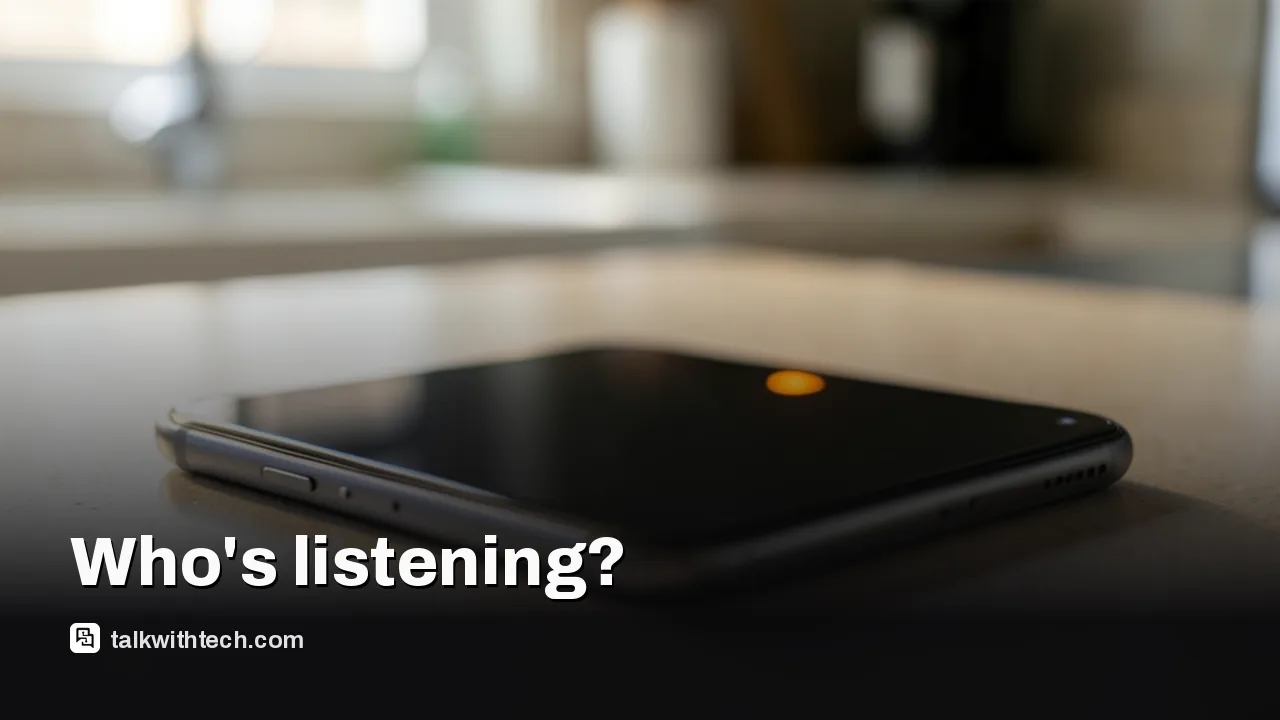
Each platform shows an indicator when the mic is in use, such as the orange dot on iPhone.
Android and newer Windows versions also let you cut microphone access for every app at once.
Smart TVs and soundbars need their own checks, including unpairing Bluetooth devices you no longer use.
Quick read · 1 min
Every major platform lets you see which apps can use your microphone and switch them off. It takes a few minutes and is worth doing after recent claims that some smart TVs can borrow a soundbar's mic.
iPhone and Mac: open Settings or System Settings, then Privacy & Security, then Microphone. An orange dot on iPhone means the mic is on.
Android: use Permission manager under Security & privacy, choose Allow only while using the app, or kill the mic for all apps in Privacy controls.
Windows: go to Privacy & security, then Microphone. Store apps toggle one by one; desktop programs share one switch.
For TVs and speakers, review privacy settings, unpair unused Bluetooth devices and use physical mute buttons. If an indicator lights up unexpectedly, find the app responsible and revoke its access.
A security researcher claimed last week that some Samsung TVs without a microphone will borrow one from a connected soundbar. Whether or not that holds up, it raises a question worth five minutes of your time: which of your apps and gadgets are allowed to listen to you right now?
The good news is that you don’t have to guess. iPhone, Android, Windows and Mac all keep a list of apps with microphone access, let you switch any of them off, and show a warning when the mic turns on. This guide shows you how to check microphone permissions on each, what the little lights mean, and how to handle the trickier devices in your living room.
Most apps ask for your microphone for a good reason. A messaging app needs it for voice notes, a video app for calls, a note-taking app for dictation. The trouble is that permissions pile up. You tap Allow once, forget about it, and years later a game you never open still has the right to use your mic.
Checking takes a few minutes per device and gives you three wins: you remove access from apps that don’t need it, you learn what the warning lights look like, and you know exactly where to go if something ever seems off.
01
How to check microphone permissions on iPhone and iPad
Apple requires apps to ask before using your camera or microphone and to explain why they want it. To review every app that has asked:
Open Settings and tap Privacy & Security.
Tap Microphone.
You’ll see every app that has requested access. Turn the switch off for any app that shouldn’t have it.
While you are there, look at Camera, Bluetooth and Local Network too. The same screen controls those.
Know the dots. When an app uses the microphone without the camera, an orange dot appears at the top of the screen. When the camera is on, with or without the mic, the dot is green. Swipe down to open Control Center and a message at the top tells you which app used either one recently. If you see the orange dot and you aren’t on a call or recording anything, that is your cue to check which app it was.
02
How to check microphone permissions on Android
Menus vary a little between phone makers, but on Google’s own Android the steps look like this. On Pixel phones, some options need Android 11 or newer.
To see every app with mic access at once:
Open Settings and tap Security & privacy, then Privacy, then Permission manager.
Tap Microphone to see which apps are allowed and which are blocked.
Tap any app to change its setting.
To check one app: go to Settings, then Apps, choose the app (tap See all apps if it isn’t listed), and tap Permissions.
Android gives you finer choices than a simple on or off. For the microphone you may see:
Allow only while using the app: the best choice for most apps that genuinely need audio.
Ask every time: the app has to request access each time you open it, which is handy for apps you rarely use.
Don’t allow: no microphone, even while you are using the app.
The master switch. Android can also block the microphone for every app at once. Go to Settings, then Security & privacy, then Privacy, then Privacy controls, and turn off Microphone access. It is useful in meetings you want kept private, though calls and voice assistants won’t hear you until you turn it back on.
One more tidy-up: in each app’s settings, turn on Pause app activity if unused. Android will then remove permissions from apps you stop opening.
03
How to check microphone permissions on Windows
Windows splits apps into two groups, and that split is the part most people miss.
Select Start, open Settings, choose Privacy & security, then Microphone.
At the top, Microphone access turns the mic on or off for the whole PC.
Let apps access your microphone controls apps from the Microsoft Store, and you can toggle each one individually.
Further down, Let desktop apps access your microphone covers traditional programs you installed yourself. You can’t switch these off one by one; the setting applies to all of them together.
The desktop list is still useful. Windows shows the desktop programs it has detected using your mic, and you can select one to see which file on your PC accessed it. That has been available since Windows 10 version 1903. Microsoft also warns that some desktop apps may not appear in the list, or may still reach the mic with these settings off, so treat it as a strong guide rather than a guarantee.
Watch the taskbar. When any app is using your microphone, a small mic icon appears in the notification area of the taskbar.
Websites are separate. In Microsoft Edge, open Settings, choose Privacy, search, and services, then Site Permissions and All sites. Pick any site and set Microphone to Block. Chrome and other browsers have similar site settings.
04
How to check microphone permissions on a Mac
Choose the Apple menu, then System Settings.
Click Privacy & Security in the sidebar. You may need to scroll.
Click Microphone and turn access on or off for each app.
Macs have a recording indicator in Control Center that shows when the microphone is in use or was used recently. Apple also points out that once you let a third-party app or website use your mic, what it does with that audio falls under its own privacy policy, not Apple’s. That is a good reason to grant access sparingly.
Phones and computers have clear permission screens. Living room gadgets often don’t, which is exactly why the recent Samsung TV claims got so much attention. The researcher alleged that TVs without a mic can look for one on a connected soundbar or Bluetooth device. That hasn’t been verified on an ordinary TV, but the basic hygiene is the same either way:
Review your TV’s privacy settings. Look for viewing information, interest-based ads and voice options, and turn off what you don’t use.
Check Bluetooth pairings. Remove soundbars, speakers and headsets you no longer use from your TV and phone.
Use mute switches. Many smart speakers and some remotes have a physical microphone button. Use it when you want quiet.
Unplug what you don’t need. Disconnecting unused microphones and smart accessories is the simplest fix of all.
If an app keeps listening: if you spot a warning light at an odd moment, open the indicator (Control Center on iPhone and Mac, the taskbar icon on Windows) to see which app is responsible. Then revoke its microphone permission. If you don’t recognize the app, uninstall it. And keep your devices updated, because platform makers regularly tighten these privacy controls.
06
Quick answers
How do I know if my phone’s microphone is on?
On iPhone, an orange dot appears at the top of the screen when the mic is in use. Windows PCs show a mic icon in the taskbar, and Macs show a recording indicator in Control Center.
Should I turn off microphone access for all apps?
No. Calls, voice messages and dictation need it. Switch it off for apps that have no clear reason to listen, and use Allow only while using the app on Android where you can.
Can websites use my microphone?
Only if you allow them. Browsers ask first, and you can block any site later in your browser’s site permission settings.
Passkeys let you sign in with your face, fingerprint or PIN, and they can't be phished or pasted into a chatbot. Here's how to start without getting locked out.
Whether you're upgrading from an old iPhone or leaving Android, here's the quickest way to copy everything over, plus the files that won't make the trip.