Tuesday, 13 October 2026

Chrome 155 Googlebook turns any website into its own app

Chrome 155 on Googlebook lets you convert most websites into apps that run in their own window and stay synced with your Google account.

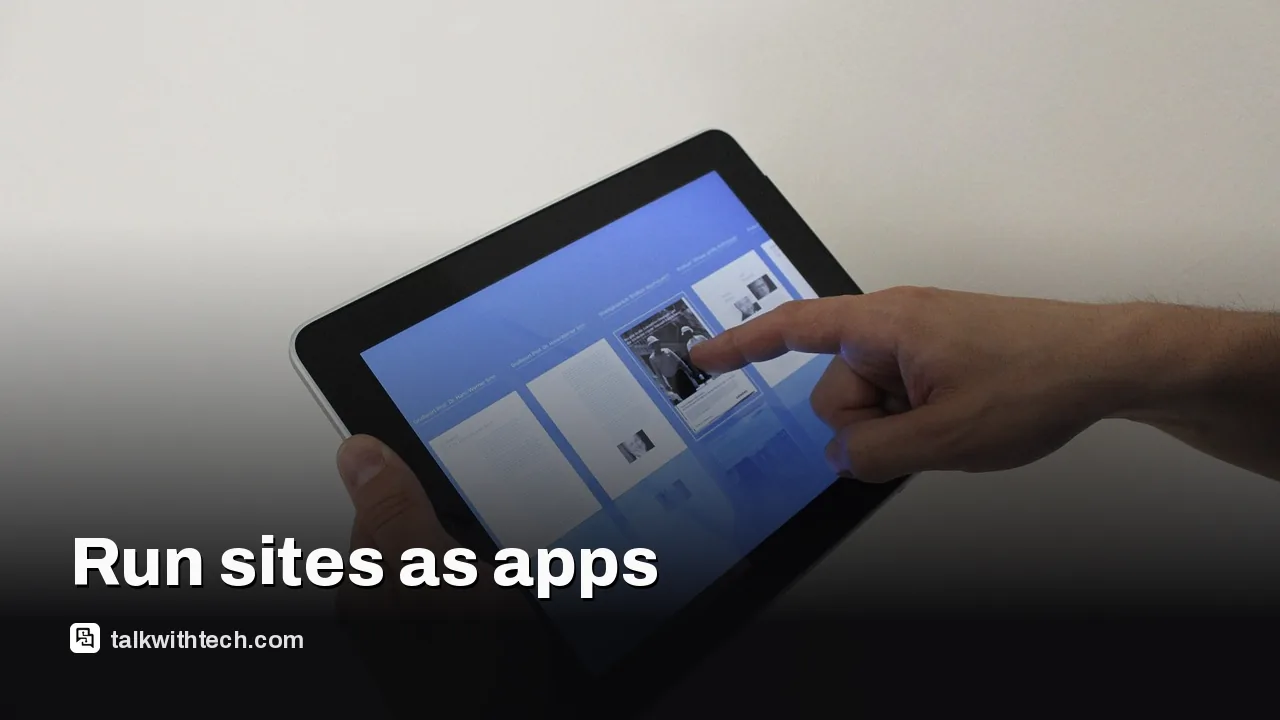
Tablet showing multiple web apps installed as windows

The short version

  • Chrome 155 on Googlebook adds a feature to turn most websites into apps that operate in their own window.
  • Installed web apps can be pinned to the taskbar or home screen and share login data, cookies, and permissions.
  • If you had an old browser-tab shortcut, you should remove it and reinstall for best results.
Quick read · 1 min

Chrome 155 on Googlebooks lets you turn many websites into standalone apps that run in their own window. These apps can be pinned to the launcher and share login data and permissions across instances. If you had an old browser-tab shortcut for a site, delete it and reinstall using the new steps.

Why it matters: it cuts down on tab clutter and makes web tools feel more like native apps for daily use. What’s next: update Chrome on Googlebooks and experiment with one favorite site to see how the workflow compares.

Google is expanding how you can use websites on Googlebooks. With Chrome 155, users can convert almost any site into an app that runs in a separate window, not just a tab. The update changes how installations work on Googlebooks, making more pages behave like native apps.

Before this release, Chrome on Googlebooks only allowed apps for sites that declared themselves as web apps. If a site didn’t offer an installable manifest, it opened as a regular browser tab. Chrome 155 removes that limitation, letting you install more sites as stand-alone apps and use them from your launcher like other apps.

01

How to turn a site into an app on Googlebooks

Here’s the quick flow Google describes: open Chrome, visit the site you want to turn into an app, open the Chrome menu at the top right, choose Save and share, then Install and create shortcut. Some sites will show an Install option near the address bar. Tap Install to complete the setup.

If you previously created a browser-tab shortcut for that site, Google recommends deleting it first and then reinstalling with the new steps to ensure the latest behavior and permissions.

App launcher showing installed web apps on a device
02

What changes for installed apps

Apps you install this way appear in the app launcher and can be pinned to the taskbar or homescreen. They share your Google account login, cookies, site permissions, and any installed extensions, so you don’t have to re-enter details each time you use them.

Googlebooks Settings have also changed. It moves away from a fullscreen mobile feel and now uses a separate tab, making it easier to reference a site while adjusting preferences.

03

Why this matters for everyday users

If you rely on web tools for work or personal tasks, turning a site into an app can cut down on tab clutter and give you quicker access. It also makes it easier to keep your login state and permissions consistent across these web apps.

04

What happens next

Chrome 155 is rolling out through the Google Play Store on Googlebooks. If you don’t see the update yet, check for updates in the Play Store and install Chrome 155 when it appears. After updating, try turning a favorite site into an app to see how it behaves.

05

Quick answers

Which sites can be installed as apps?

You can convert many pages into apps with Chrome 155 on Googlebooks, though some sites may still require specific configurations.

Will these apps sync across devices?

Yes. The apps share your Google account login and permissions, so they behave consistently across Googlebooks devices using the same account.

06

What this means for you

This update could simplify daily routines for people who use a lot of web tools. By treating more sites as native-like apps, Googlebooks users get less tab juggling and faster access to important web services. Expect more sites to offer a smoother install path as developers adjust to the manifest requirements or updated guidance from Google.

07

What happens next

Look for further refinements as Google polishes the web-app install experience. If you rely on a handful of web services daily, consider turning one into an app this week and compare it with your current tab workflow.

08

Quick answers

Is this available on all devices?

Chrome 155 is rolling out on Googlebooks via the Play Store, so availability may vary by device and region as updates propagate.

You're reading the quick version.