Saturday, 17 October 2026

Android Auto tablet setup turns spare Android into car display

You can repurpose an old Android tablet as an Android Auto display at your desk, kitchen counter, or car-less setup with a couple of apps and a USB cable.

Android Auto
Photo: DoulosBen / CC BY 4.0 (modified)

The short version

  • You can use Android Auto on a spare Android tablet or phone to mirror a car-like interface for maps, music and messages.
  • Two third-party receiver apps let you project Android Auto onto a tablet, wired or wirelessly, without a car.
  • There are setup caveats, including USB compatibility, battery life, and app limitations.
  • This is a DIY setup that works best for desks or kitchen counters rather than full, everyday tablet use.
Quick read · 1 min

You can repurpose a spare Android tablet as an Android Auto display outside a car using two inexpensive apps and a USB cable. The setup mirrors maps, music and messages on a home desk or kitchen counter, not a car dashboard. Wired is simplest and most reliable, but wireless is possible with extra setup. Self-Mode lets the tablet run Android Auto by itself, though you may need to tweak developer settings for new versions. Expect some quirks and occasional compatibility limits. If you want to try it, buy Open Headunit ($3.99) or Headunit Reloaded ($4.99), connect via USB, and test. It won’t replace a real dashboard, but it can cut down on phone checking when you’re not driving.
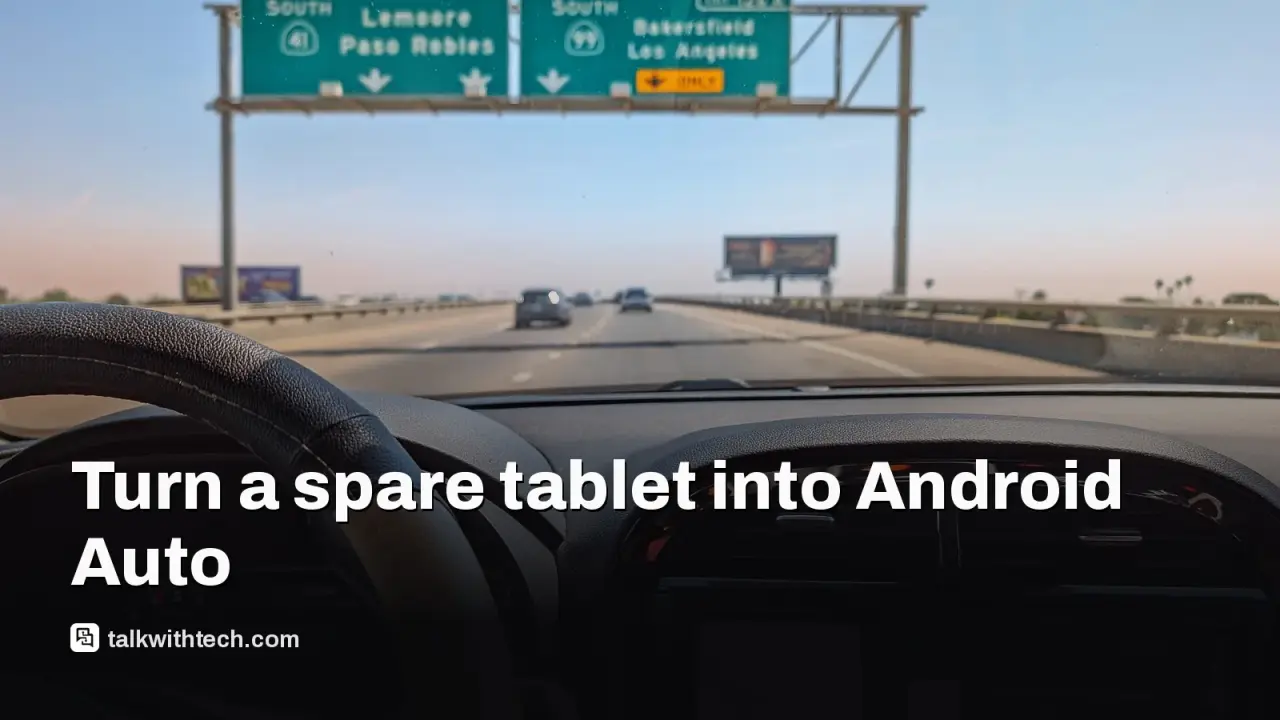
Android Auto isn’t just for dashboards. A surprising trick lets you turn a spare Android tablet into a car-style display, without needing a vehicle in sight. With two inexpensive apps and a USB cable, you can project a driving-friendly interface for maps, music and messaging on a tablet sitting on your desk or counter. It’s not official Google Home dashboard mode, but it can help curb phone checking when you’re at home or at work.

Here’s how it works and what to expect.

01

Which devices and apps do you need?

You’ll need an Android phone running Android 11 or newer and a spare tablet (or second phone) that supports data. On the tablet, you install a “receiver” app such as Open Headunit (formerly Headunit Revived) or Headunit Reloaded. Open Headunit costs $3.99 on Google Play, while Headunit Reloaded is $4.99. Both require the tablet to have a working USB connection to your phone, and they enable Android Auto to run on the tablet as a separate screen.

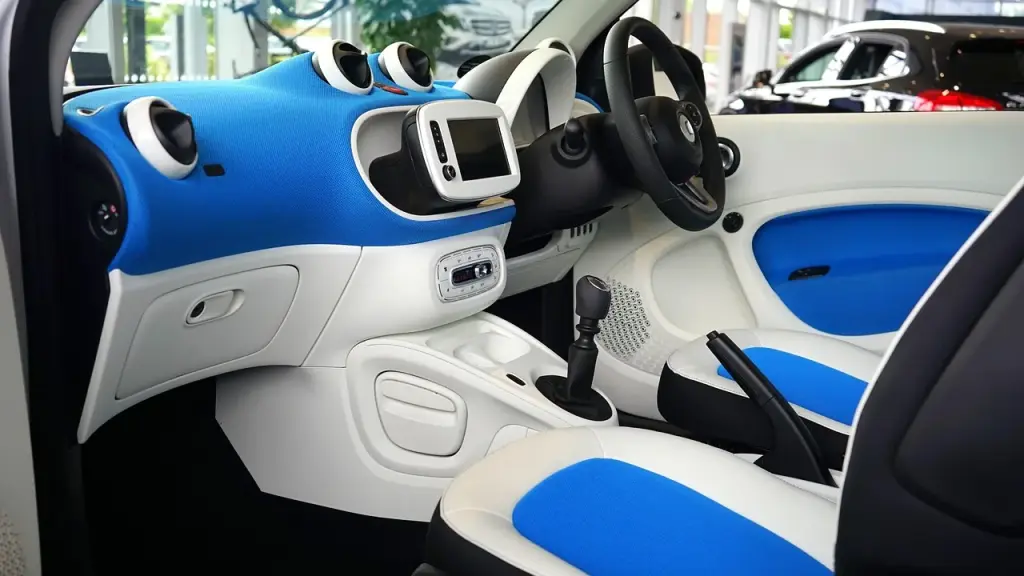
A blank car dashboard screen
02

Wired vs wireless: what works best

With a wired setup, you connect the tablet to your phone via USB. The system then runs Android Auto on the tablet, controlled from the phone. Wireless connections are possible, but they require extra setup and can be less reliable. If you want continuous charging on the tablet, wired is easier, just be mindful that the tablet’s charging port gets occupied while in use.

03

What about Self-Mode?

Both apps offer a Self-Mode option, which lets the tablet run Android Auto on the device itself, without needing your phone connected all the time. The catch is that Self-Mode may require starting the server from Android Auto’s developer settings for newer versions. If you’re aiming for a simple plug-and-play setup, staying with a wired, phone-driven connection keeps things straightforward.

04

What you can do with it

Android Auto on a tablet keeps the familiar driving-friendly layout: big, easy-to-tap controls for navigation, music and messages. It filters distraction by limiting which apps are visible, so you won’t get pulled into endless social apps. Voice control still works, so you can ask your assistant to play a track, navigate home or read messages aloud, hands-free.

05

The limits you should know

It’s a clever workaround, but it isn’t a perfect replacement for a car dashboard. The experience hinges on the third-party receiver apps, and these aren’t official Google products. Some tablet models may have compatibility quirks, and you won’t have access to every Android Auto feature you get on a car’s display. You’ll also need to deal with the occasional quirk around permissions, USB adapters, and the potential need to fiddle with developer settings for Self-Mode.

06

What this means for everyday life

If you’ve got an aging tablet gathering dust, this turns it into a dedicated, distraction-minimized control center for your home or office. It’s a neat way to keep maps or commute reminders visible without pulling your phone out of your pocket. It won’t replace a real car display for most drivers, but it can provide a simple, stable dashboard-like setup when you’re parked or working at a desk.

07

What happens next

If you want to try it, pick up the two apps and test with a USB cable. Start with wired mode for reliability, then experiment with Self-Mode if you prefer a more self-contained tablet setup. Watch for battery drain and consider a stand that keeps the tablet easily visible but out of the way.

08

Quick answers

Will Android Auto work on any tablet?

Not automatically. You’ll need a compatible tablet and one of the third-party receiver apps to project Android Auto onto it.

How much does it cost?

The receiver apps cost around $3.99 and $4.99, depending on the app you choose, plus you’ll need a compatible USB setup.

Is it officially supported?

No. This is a DIY workaround using third-party apps, not an official Google Home dashboard feature.

You're reading the quick version.