Saturday, 17 October 2026

Repurpose old USB drives with 8 useful DIY projects

Turn stale USB sticks into something useful again with simple projects that save money and protect privacy.

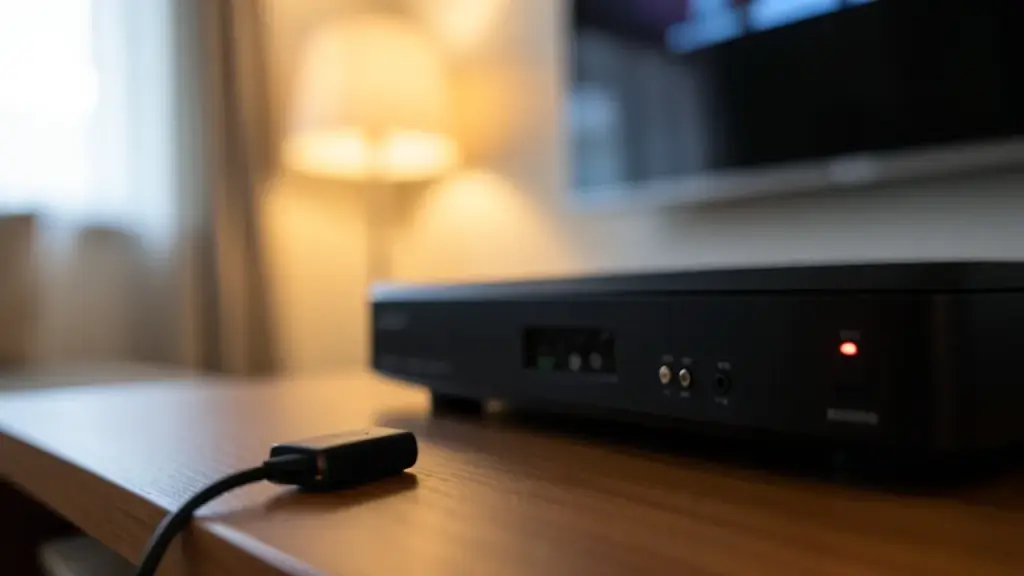
USB drive in router enabling local file share NAS.

The short version

  • Old USB flash drives can still be useful with simple DIY projects.
  • Projects include turning drives into a NAS, network file sharing, or a secure login key.
  • Most ideas work with common USB sticks and standard home hardware.
  • Each project includes basic security tips to keep data safe.
Quick read · 1 min

Old USB drives aren’t dead yet. Here are eight practical ways to reuse them, without buying new gear.

Ideas include turning a drive into a small NAS for local file sharing, building a portable media library, and creating a tiny slideshow server. You can also use USB keys for PC login, or keep offline backups for extra privacy.

  • NAS on your router for private sharing
  • Portable media library you can carry between devices
  • Offline backups to protect data

Remember when USB flash drives felt revolutionary and portable? Even if cloud storage made them feel dated, your old USB sticks can still do useful things. Here are eight practical ideas to repurpose those forgotten drives, with steps you can try at home today.

01

Make a simple NAS for local file sharing

Plug the external drive into a router’s USB port and enable file sharing in the router settings. On other devices, your drive will show up as a network volume. It behaves like a small private cloud for your home. Keep security in mind by limiting which devices can access it on your LAN.

USB drive used as portable media library connected to home devices.
02

Turn a USB drive into a portable media library

Use the drive to house music, photos, or videos and connect it to devices you already own. When you’re away from a primary computer, you can still access your media on compatible players and smart TVs that support USB drives.

03

Create a lightweight, local slideshow server

With the latest USB drive, you can run a simple HTTP File Server on a computer to host slideshows for family gatherings. This keeps your photos on a private network rather than in the cloud.

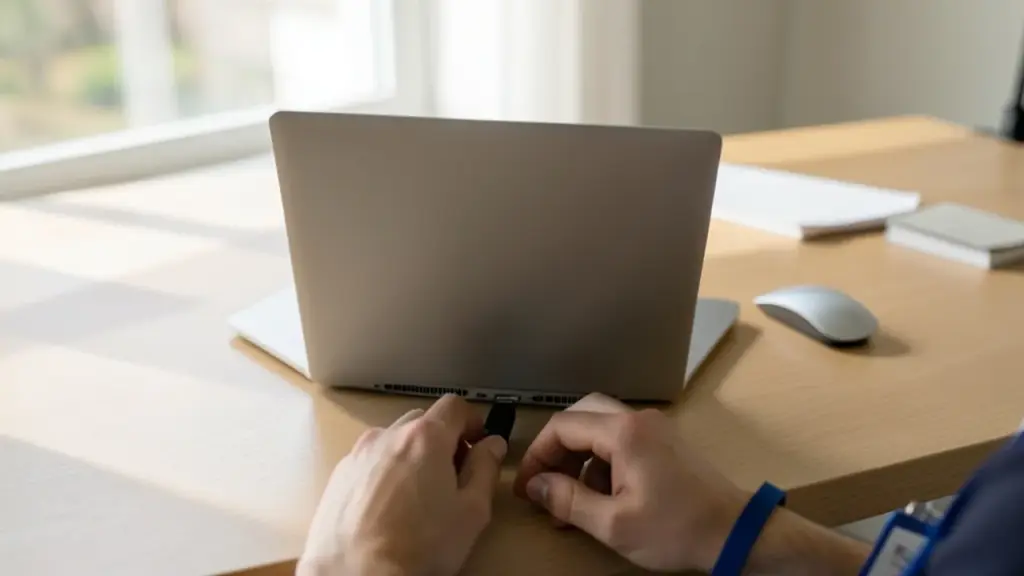
USB key for PC login in a secure home office scene.
04

Set up a secure USB key for PC login

Some tools let you use a USB drive as a second factor for unlocking a PC, effectively acting as a physical key. If you choose this route, you’ll want to pair it with strong passwords and keep the USB secure when not in use.

05

Back up important files offline for extra privacy

Use a USB drive as an offline backup option. This protects sensitive data from online breaches, as long as you keep the drive physically secure and encrypted when possible.

06

Create a dedicated recovery drive

Keep a USB drive with essential recovery tools and a small OS. It can help you troubleshoot a computer that won’t boot, without risking your main drive.

07

Use a USB drive as a portable sandbox for testing

Fill a drive with a lightweight, portable OS or apps for testing software and safe browsing on any PC. This keeps your main system clean while you experiment.

08

Protect your data with basic security hygiene

Regardless of the project, encrypt sensitive data when possible and avoid storing login credentials on a reusable drive. Treat USB sticks like physical keys: loss can mean access to your stuff.

09

What happens next

If you’re curious, start with the easiest option: turn an old USB drive into a local file share on your router. It’s a quick win and a good baseline for the others.

10

Quick answers

What if my USB drive is very old?

Even older drives can still work for simple projects, though performance may be slower. Consider reformatting to a fresh file system if necessary.

Do I need extra hardware?

Most ideas only need the USB drive and a router or PC. Some options benefit from encryption tools or a second computer for the backup role.

Is this safe for my privacy?

Yes, if you encrypt sensitive files and limit access to trusted devices. Don’t store passwords on the drive itself and keep it in a secure place when not in use.
You're reading the quick version.