A Fire TV Stick can be unplugged from a TV and plugged into a computer monitor to stream in 4K.
Bluetooth audio support on the Fire TV Stick lets you use wireless headphones or headsets without extra apps.
Compared to Roku, the Fire TV Stick offers native Bluetooth audio and easier setup for monitor use.
Quick read · 1 min
You can turn a Fire TV Stick into a monitor streamer by plugging it into a computer monitor and using Bluetooth audio for headphones. The setup is simple, and you avoid some browser limits for 4K video. The big caveat is audio quality on some monitors and browser limits on some services.
What to know: it works best if you already have a monitor with HDMI. If not, you may need to add a basic setup. For many, the payoff is a low-cost, compact 4K streaming option at the desk without extra boxes.
Next steps: try pairing Bluetooth headphones with the Fire TV Stick and test different streaming services to see which gives you the best 4K quality on your monitor.
A simple project with surprisingly clear upside: turn your Amazon Fire TV Stick into a mini monitor for 4K streaming. That’s exactly what one user did by moving a Fire TV Stick from the living room to a desktop monitor and streaming straight from the stick, not a browser. The kicker: the Fire TV Stick supports Bluetooth audio, so you can listen with wireless headphones without fiddling with apps or extra gear.
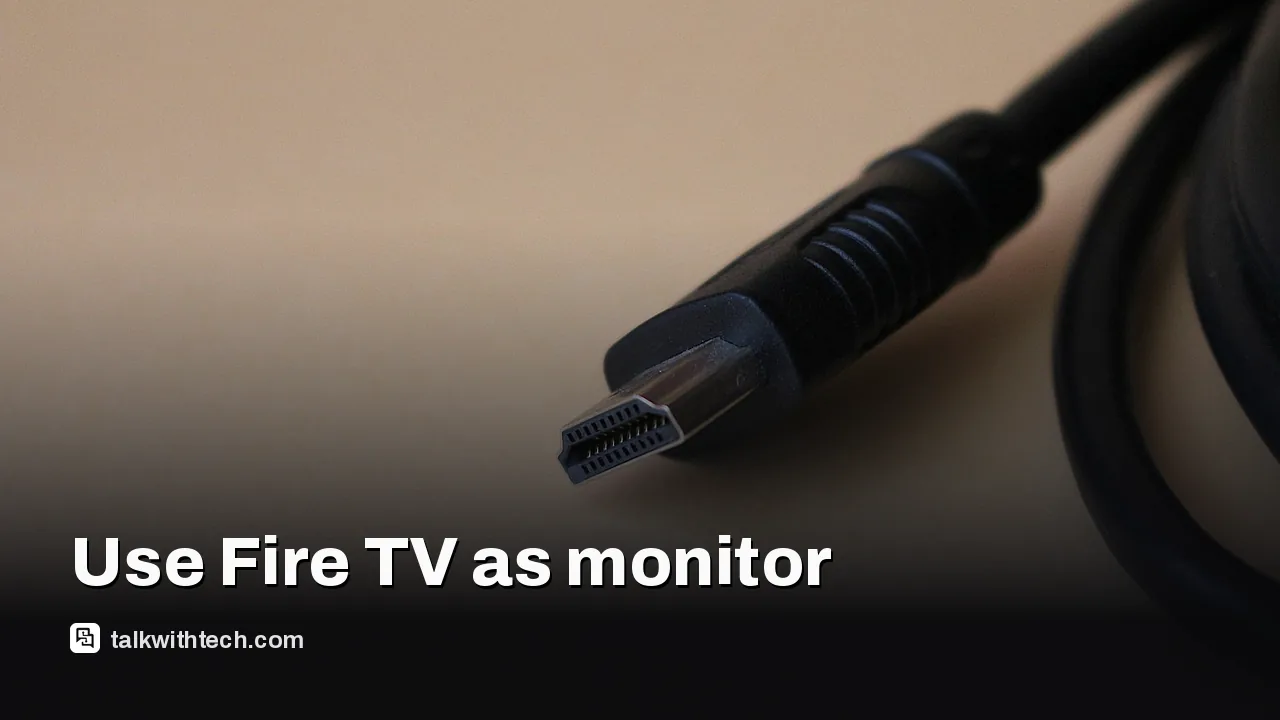
The setup is straight enough: unplug the Fire TV Stick from a TV, connect it to a monitor’s HDMI port, and power it from a USB port or a power bar. The user found that the main snag was audio, many monitors have mediocre built-in speakers, and some people don’t want to chase separate speaker gear. With Bluetooth audio on the Fire TV Stick, you can pair a headset or wireless headphones and hear the show without extra cables.
In contrast, other streaming sticks like Roku can’t natively handle Bluetooth headphones without using the Roku app’s Private Listening mode. Roku itself notes that its sticks don’t support Bluetooth Headphone Mode without the app, which makes the Fire TV Stick a more attractive option for monitor setups if you want a clean wireless audio path.
Why this matters for you is simple: if you ever want 4K streaming on a computer monitor without a full PC or a dedicated streaming box, the Fire TV Stick can be a compact, affordable option. It’s especially handy if you already have a monitor with HDMI and you want to avoid the browser quality limits some streaming services place on PC browsers.
01
Which devices get the update first
The Fire TV Stick’s Bluetooth audio support works without extra apps, which means you don’t need to install a third-party tool to listen on wireless headphones. That’s a practical edge compared with some competing sticks.
02
The catch nobody mentions
Browser quality still matters when you’re viewing on a PC screen. Some services cap video quality in browsers, so you’ll still get the best 4K experience by using the Fire TV Stick itself rather than a browser stream in some cases. Netflix in particular can offer 4K through its dedicated app on Windows, but not necessarily across all browsers for every service.
03
How much this will really cost you
The post highlights a budget path: if you already own a Fire TV Stick, you can repurpose it at low cost. If you’re buying anew, compare the price of a Fire TV Stick with a dedicated streaming device, keeping in mind that you might save by avoiding extra speaker gear thanks to Bluetooth support.
04
What this means for everyday life
If you want a quiet, compact setup for late-night streaming at your desk or a spare monitor, a Fire TV Stick can do the job. You’ll plug it into your monitor, pair Bluetooth headphones, and you’re ready to watch without turning on the living room TV.
What to try next: first, test Bluetooth headphones with the Fire TV Stick. If you’re in a shared space, it can be a clean way to watch without disturbing others. If you’re curious about using a Fire TV Stick this way regularly, keep an eye on any updates that improve stability or add new audio options.
If you want to follow along, check your Fire TV Stick’s settings for Bluetooth audio, then pair your preferred wireless headphones. Experiment with whether you’re better off using the Fire TV Stick plugged into the monitor’s HDMI port or connected through a powered USB supply for reliable performance.
06
Quick answers
Can I use a Fire TV Stick on a monitor without a TV?
Yes. You can connect it to a monitor’s HDMI input and power it from a USB port or power bar.
Will I get 4K streaming on a PC browser?
Some services limit browser 4K; using the Fire TV Stick itself can often deliver the best 4K experience on a monitor, depending on the service.