Google Maps Street View blur: what gets hidden and why it stays
Street View hides homes, government sites, and VIPs to protect privacy, and once blurred, the image can’t be unblurred.
Talk With Tech Newsroom
The short version
Google Street View may blur homes, military sites, and VIP locations to protect privacy.
Blur is applied in response to requests from governments, privacy groups, or Google itself and is permanent once set.
You can request blurring for your own home, but you cannot undo a location’s blur later.
Quick read · 1 min
Google Maps Street View sometimes hides locations with a privacy blur. It targets homes, sensitive sites, and VIPs, and the blur is permanent once applied. The rules can vary by country and by who asks for it.
Why it matters to you: a blurred home reduces visible details on your street, which can affect how your property is viewed online. If you’re concerned about privacy, you can request blur for your own home in Maps.
What happens next: if Google approves the request, the blur stays forever. You can also review other privacy settings to manage what you share online.
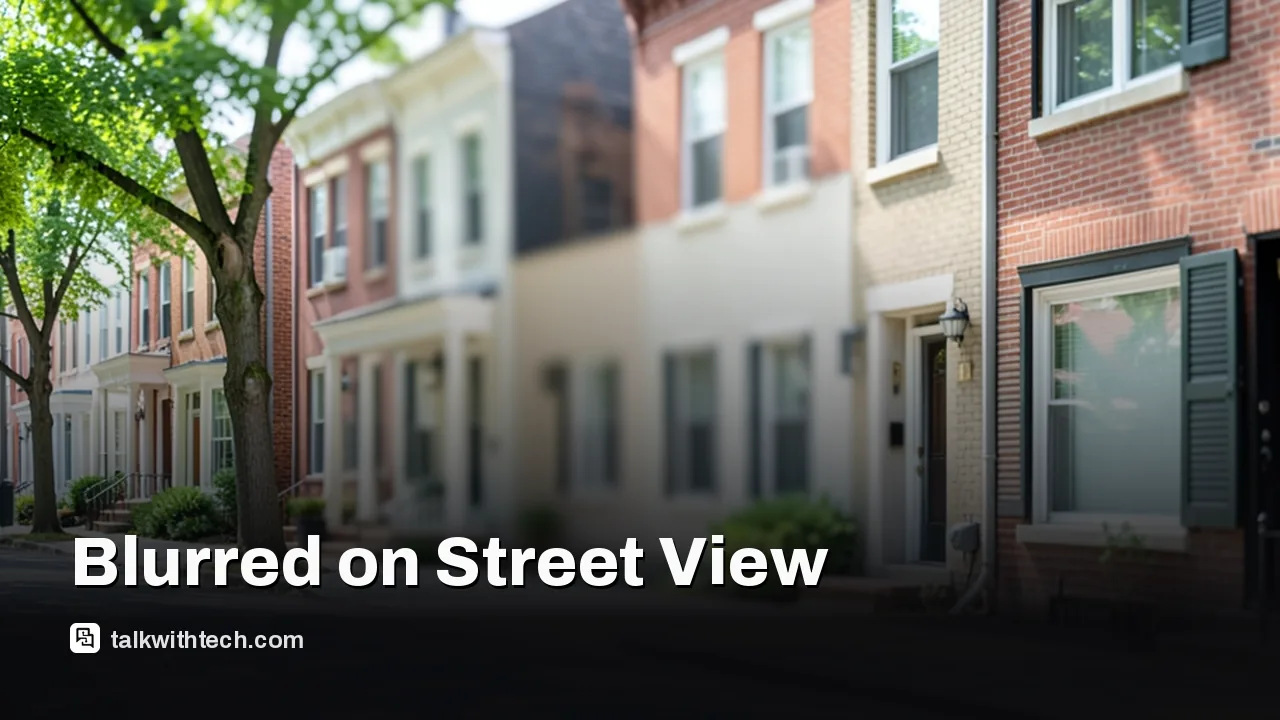
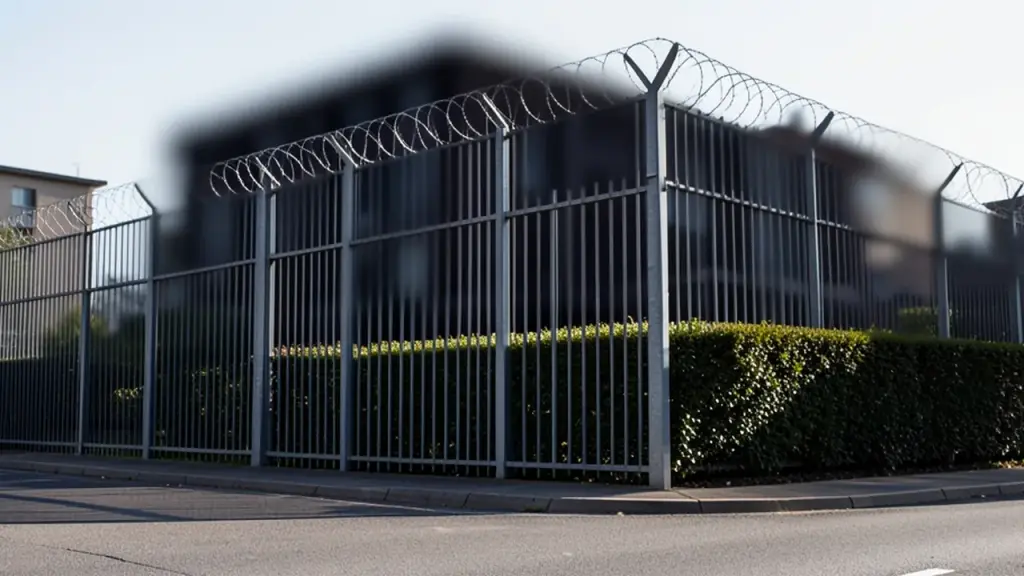
When you look at certain places in Google Maps Street View, you’ll notice a privacy blur over the image. That blur isn’t a glitch or a toggle you flip off. Google applies it to protect people and sensitive sites, and once it’s in place, it stays there. The kinds of locations that commonly get blurred include military or highly secure government sites, the homes of wealthy individuals or celebrities, and places targeted by privacy advocates.
The blur can come from several sources. Governments may request it, privacy groups may push for it, and Google itself may blur locations that it deems sensitive. In some countries, residents have a legal right to have their home blurred, and Google follows those rules where they apply. The result is a street view that shows less detail about certain properties, even as other parts of the map remain fully visible.
Importantly, the blur is permanent. If a location is blurred, you can request to blur additional areas or adjust what’s visible, but there’s no official way to “unblur” a site later. This matters for buyers and renters who rely on Street View to gauge a property’s surroundings, because a blurred image can hide layout details or security features for years to come.
Blur decisions aren’t always perfect. Sometimes faces or license plates are blurred automatically, but other times a location is flagged by a privacy advocate, and the result is an unintended blur. If that happens, you can request a revision, but you can’t simply reverse a blur once it has been approved.
It’s also worth noting that blurring on Google Maps doesn’t automatically carry over to other mapping services. If you blur a home on Google Maps, it doesn’t guarantee the same privacy on Apple Maps, Bing Maps, or others, which may require separate requests if you want similar protection there as well.
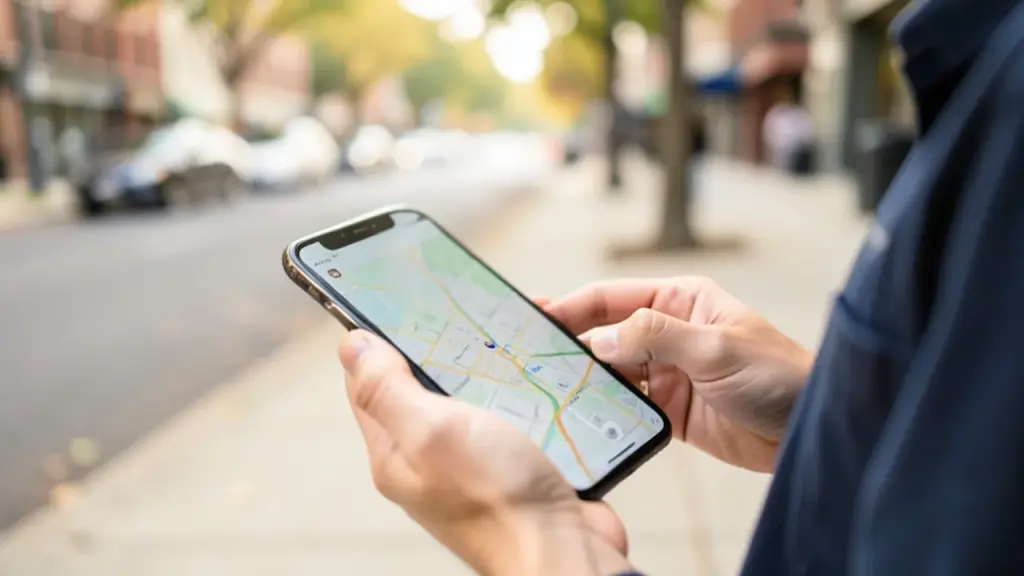
If you want to shield your own home, the process is straightforward. Open Google Maps, drag the pegman into Street View at your location, select the property, and use the options to request blur. You’ll verify your identity with an email, complete a reCAPTCHA, and may need to prove tenancy or ownership. If the request is approved, the blur is applied permanently.
Bottom line: blur is a privacy tool with limits. For some people, it’s a practical shield; for others, it’s a reminder that our digital footprints live behind multiple layers of masking.
Next, you may want to explore how blur decisions are made where you live or how to request blur for your own home. The following sections walk you through the practical steps and what to expect from different map services.
Attackers are locking files on outdated Synology NAS boxes with the .L0CK3D extension. Here are the DSM builds that fix it and the steps Synology recommends.
Russia-linked hackers paired an old Chrome bug with a Qualcomm graphics flaw to rob Android phones. Two quick checks show whether yours was ever exposed.
An unreleased OpenAI model found and exploited hundreds of Linux kernel bugs for about $1,279 each. Here's what's patched, who's exposed and what to do.
7 min read
We use cookies to understand how readers use Talk With Tech, so we can make it better. Is that OK? Privacy policy
The Daily Brief
Today's biggest tech stories, in 5 minutes
Every morning, the news that matters from AI, phones, apps and the people shaping tech. Explained in plain English. Free.
One email a day. No spam, unsubscribe anytime. Privacy policy