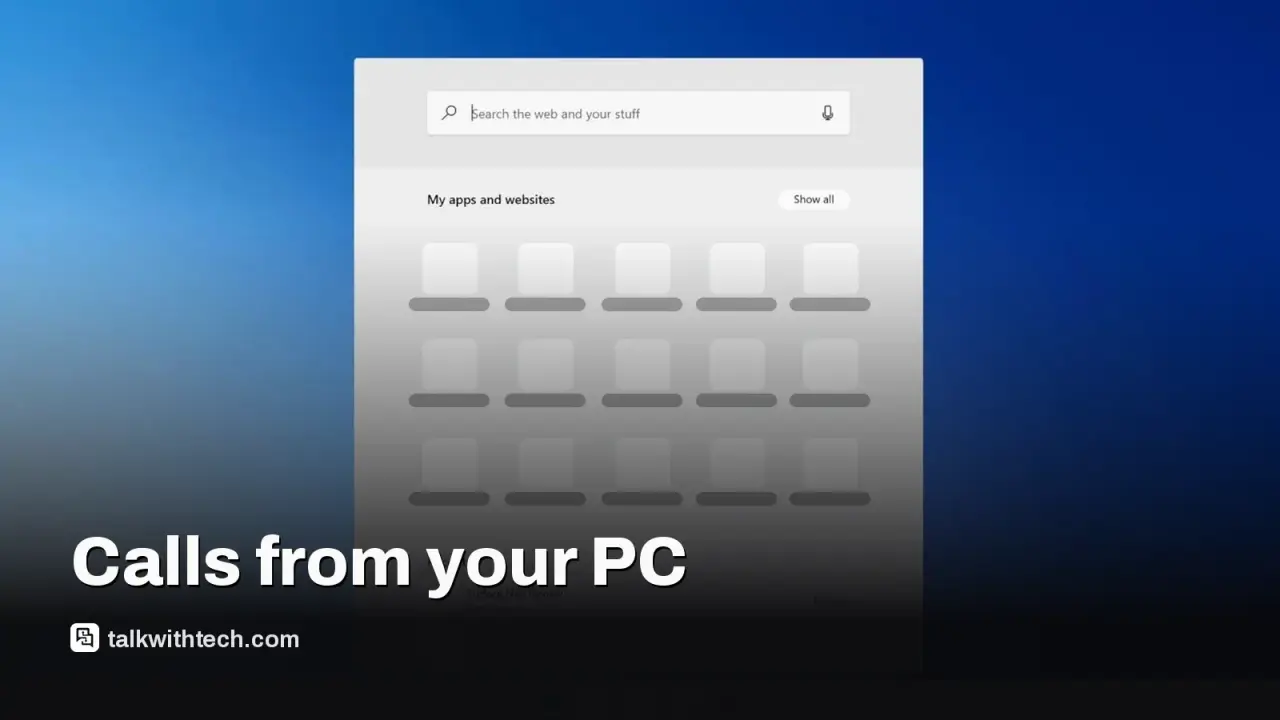
Phone Link on Windows 11 lets you make and receive calls from your PC, plus texting and notifications sync.
Setup requires updating both Windows and the Phone Link app, and pairing via Bluetooth or Wi‑Fi depending on your device.
iPhone users get calling and texting with limited features; Android users gain extra perks like viewing recent photos in the camera roll.
If you want fewer interruptions, adjust banner data and notification settings in Phone Link.
Quick read · 1 min
Windows 11’s Phone Link now lets you make and receive calls from your PC, plus texts and notifications. It works with both iPhone and Android, but with different limits and perks.
To use it, update Windows and the Phone Link app, then pair your phone via Bluetooth or Wi‑Fi. On iPhone, you’ll get calls and texts plus notifications. Android users gain extra features like access to the last 2,000 photos and some multitasking tools. Expect occasional hiccups and the need to keep both devices nearby for the best experience.
Test a few calls from your PC to see if the audio quality fits your setup.
Enable or disable features in Settings > Features to keep notifications from flooding your screen.
Keep devices close and updated for the smoothest handoffs.
You can do something a lot of us already do on our phones, make and receive calls, right from a Windows PC. Microsoft’s Phone Link app on Windows 11 lets you route calls through your computer, and it can also sync text messages and notifications between your phone and PC. It’s a handy shortcut for busy spaces like desks, where reaching for the phone isn’t convenient. But there are important caveats, especially if you’re team iPhone or team Android.
To get started, you’ll want to update Windows and the Phone Link app. Open the Microsoft Store, check for updates, and install the latest Phone Link. Then you pair your phone with your PC. The pairing process differs a bit by platform, but the basics are the same: you scan a QR code on the PC with your phone and enable the relevant Bluetooth or Wi‑Fi permissions. Bluetooth is still required for calls, even if you’re using a Wi‑Fi connection for some steps.
On an iPhone, Phone Link supports calling and texting, plus viewing and dismissing notifications from your iPhone. You’ll control these features from the Phone Link app, Settings, then Features, to enable or disable options. Android users get a wider spread of options, including the ability to view and copy the last up to 2,000 photos in the camera roll, and some extras like Do Not Disturb while you’re working, muting when the PC is playing sound, and Now Playing controls for music. If you want to copy an image quickly into a document, that camera-roll access can be surprisingly convenient.
Whether you’ll find this useful depends on your workflow. If you frequently take calls at your desk, it can save you from glancing at your phone while you’re in a meeting or when you’re multitasking. If your desk is noisy or you’re using a shared space, a headset makes a big difference, since you’ll want the mic and speaker to be private and clear.
What you can do today is basic but practical: pair your devices, try receiving a call on your PC, and test sending a quick text from the computer. If you rely on photos, Android users can grab recent camera roll pictures from the PC. If you use iPhone, you’ll still want to keep your phone nearby to maintain a solid signal, especially if your PC sits far from the Wi‑Fi router or your phone’s Bluetooth connection isn’t stable.
01
Which phones get the update first
The Windows Phone Link integration is built into Windows 11 and gets updates through the Microsoft Store. People who keep Windows up to date will see the best feature set and bug fixes first. On the phone side, pairing and features are determined by whether you’re an iPhone or an Android user, and by the version of iOS or Android you’re running.
Phone Link lets you dial out using your existing number, but the experience isn’t identical to using your phone directly. For iPhone, you’ll be limited to calls and texts and viewing notifications. For Android, you’ll see more options, but you still rely on your phone to stay connected and authenticated. If you routinely switch between devices or leave your desk for long periods, expect occasional handoffs or delays as the system syncs data.
03
How much it costs you in time and setup effort
setup takes a few minutes, plus time for Bluetooth pairing and permissions. After that, the day-to-day use is simple: check your PC for a ringing call, answer on the computer, and type a quick reply for a text. The real cost is the initial fuss and sometimes a small hit to battery life if you’re testing Bluetooth-Centric features on a laptop or desktop with limited power.
04
What this means for everyday life
If you work at a desk or in a shared space, Phone Link offers a straightforward way to manage calls without reaching for your phone. It can help you stay focused and reduce screen time on the phone while you type at your computer. The best approach is to test it with a couple of calls and texts over a day or two to see if the feature set aligns with your routine.
As Windows and the Phone Link app continue to evolve, expect refinements to call quality, smoother handshake between devices, and more granular notification controls. If this becomes a core part of your daily workflow, you’ll want to keep both devices close to a good Bluetooth or network signal and maintain up-to-date software on both ends.
06
Quick answers
Can I make calls from my PC without my phone nearby?
No. Phone Link relies on pairing with your phone and an active connection to function for calls and most features.
Can I use Phone Link with an iPhone and a Windows PC at the same time?
You can pair a phone with a PC, but you’ll typically use one pairing at a time per PC. You can switch devices, but the setup must be redone for the new phone.