Android storage space: find the hidden files stealing gigabytes
Apps, caches, and forgotten files can quietly fill up your device. Here’s how to spot the culprits and reclaim space fast.
Talk With Tech Newsroom
The short version
Storage on Android isn’t just apps and photos; caches and hidden files can take a big bite over time.
You can reclaim space by uninstalling or archiving unused apps, deleting large files, and backing up media to the cloud.
Built-in tools in Settings help locate duplicates and large files, and there are options to automate storage cleanup.
Quick read · 1 min
Hidden data, caches, duplicates, and forgotten downloads, can quietly fill Android storage. Start by checking which apps take the most space, then decide whether to uninstall or archive them. Back up photos and videos to the cloud, then use the Free up space tool to remove locally stored copies. Look for Duplicate files and Large files in Storage to find other culprits, and don’t forget to empty Trash. For ongoing relief, enable Auto-archive and Smart Storage where available.
Why it matters: more free space means faster updates, smoother performance, and less anxiety about running out. What happens next: try these steps today and likely recover significant storage in minutes.
Android storage can surprise you. Even a phone you think is fairly new may feel like it’s running out of space not because of new photos, but because of hidden data and long-forgotten files piling up over the years. The good news: you don’t have to wipe the device or guess what’s taking up space. A few concrete checks and a couple of cleanups can reclaim a lot of room.
First, zero in on what actually eats space. It isn’t only apps and media. Caches, duplicate files, and old downloads can quietly swell to a surprising amount. Understanding the breakdown helps you decide what to delete, archive, or move to the cloud without losing access to the apps you rely on every day.
Let’s walk through practical steps you can take today. Start by sizing up per-app storage. In Settings, go to Device Care, then Storage, and open Apps. This view shows which apps are using the most space. If you don’t use an app often, you can free space by uninstalling it. If you still want to keep the app handy later, Archive lets you remove core files and temporary data while preserving login info and settings. When you need the app again, you can reinstall it without starting from scratch.
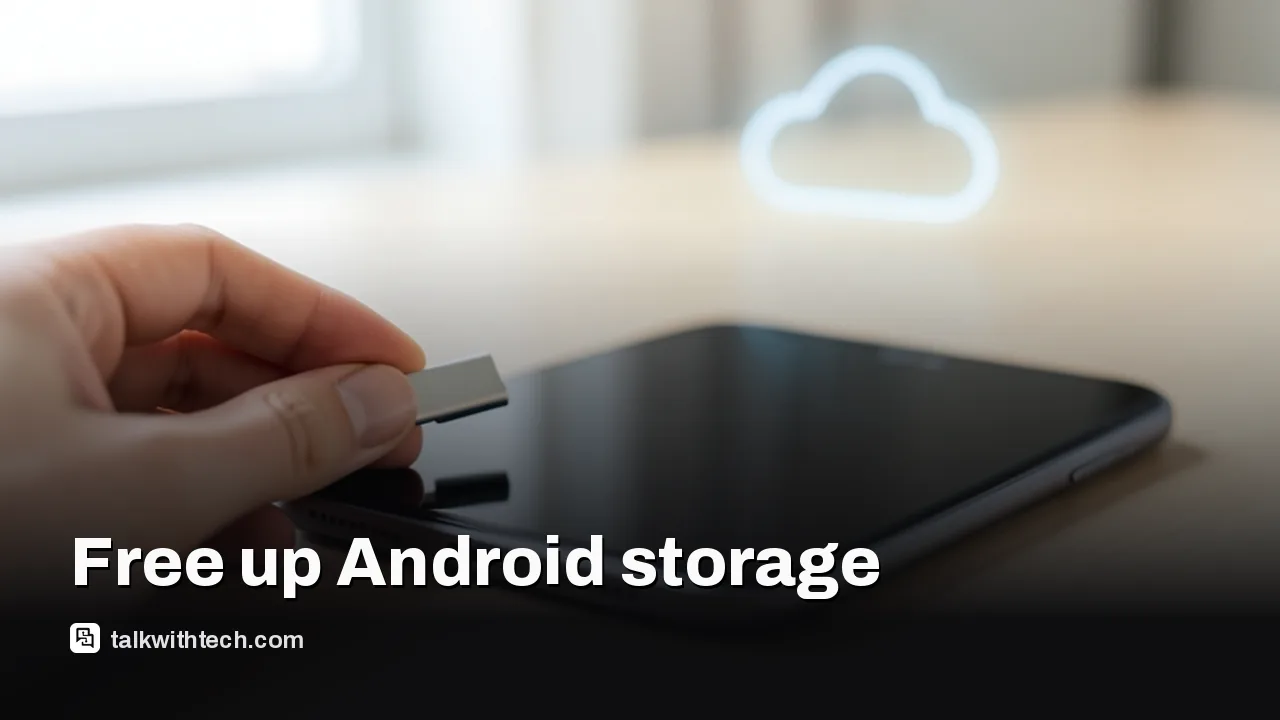
Media tends to be the largest consumer. Photos and videos rack up quickly, especially if you’ve lingered on a long trip or a high-volume chat thread. If you regularly back up to the cloud, you can safely delete local copies and still access them later. Google Photos makes it easy: back up your images and videos to your Google account, then use Free up space on this device to remove the local copies after the upload. If you need extra cloud storage, Google One offers paid plans that can help you store more without clogging your device.
Don’t overlook other data that hides in plain sight. Under Storage, look for Duplicate files and Large files. Those sections pull up candidates you may have forgotten about, old downloads, duplicated media, or big files from long-gone apps. Review and delete what isn’t needed. And clearing app caches can reclaim gigabytes without removing the apps themselves. Remember to empty the Trash or Recycle bin in the storage menu to permanently remove discarded items.
Suggesting smart, ongoing help, Android also offers features that can automatically manage space. Auto-archive can nudge rarely used apps out of the way when storage gets tight, and Smart Storage (where available) will clear already-backed-up media to keep room free. These tools are especially helpful if you tend to keep devices for a few years and don’t want to babysit storage every week.
In short, most space you gain comes from being deliberate about what you keep and where you keep it. With a few taps you can reclaim tens of gigabytes, speed up updates, and reduce the dread of a nearly full phone. The trick is knowing where to look and making space-cleaning a regular habit rather than a one-off purge.
Reviews are in. The OLED MacBook Pro wins on blacks, contrast and weight, but the mini-LED model still matches its speed and lasted longer in one battery test.