Saturday, 17 October 2026

Android USB gadgets for desktop mode and big displays

From external storage to desktop-like modes, here are four USB-C accessories that unlock more from your Android phone.

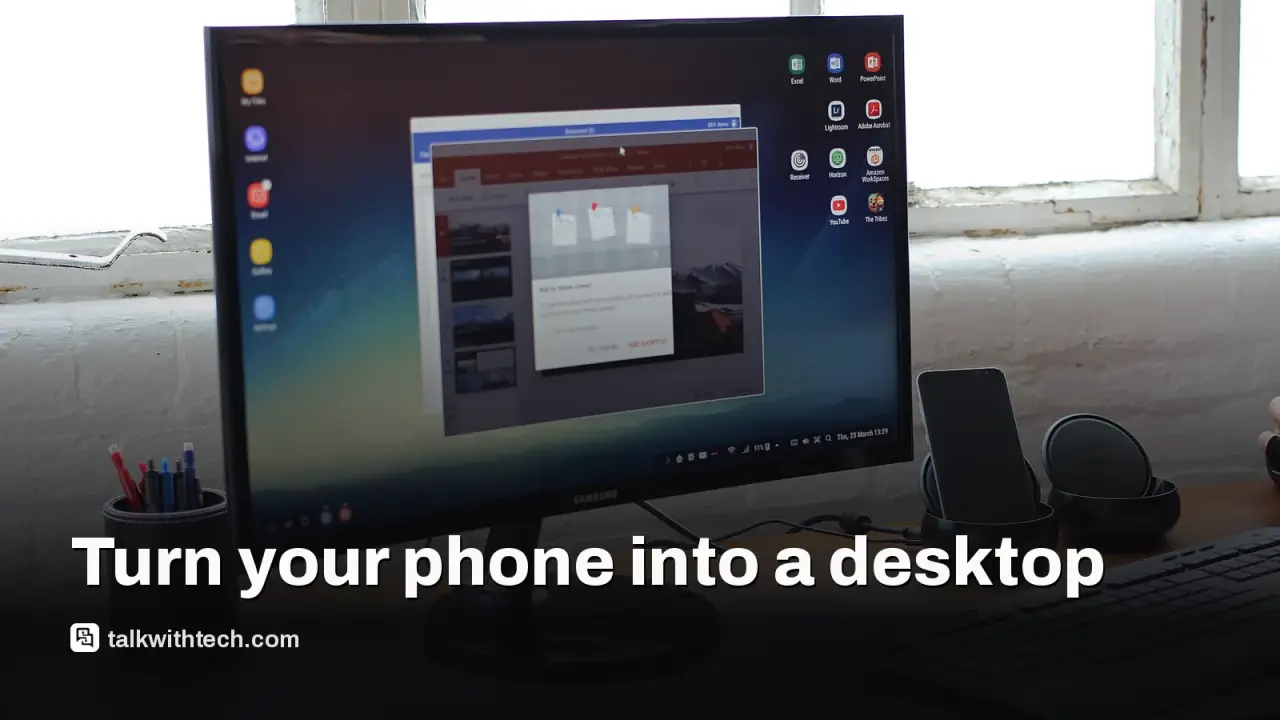
DeX, related to: Android USB gadgets for desktop mode and big displays
Photo: Maurizio Pesce from Milan, Italia / CC BY 2.0 (modified)

The short version

  • Android phones support a wide range of USB-C accessories that can expand what a phone can do, from storage to a desktop-style setup.
  • DeX-like modes and Desktop Mode are becoming more common, letting a phone drive a larger display with multiple apps.
  • Speed matters: many phones support 5Gbps or higher, but some still top out at USB 2.0 speeds, which can slow big transfers.
  • Practical tips help you pick hubs, drives and controllers that make real-world tasks easier, like editing video on the go or gaming away from a PC.
Quick read · 2 min

Android phones shine when you mix in USB-C accessories. A hub and a monitor can turn your phone into a tiny desktop, while an external SSD makes moving large files painless. USB speeds matter: try to pick gear that supports 5Gbps or more to avoid long transfers. For gaming or simple office work on the road, a USB-C game controller and a powered hub can be a real upgrade. The next steps are trying Desktop Mode on your device and choosing a hub that keeps your phone charged while you work.

What to try first: a USB-C hub with power delivery, an external SSD, and a Bluetooth keyboard. If you want a bigger screen, test a monitor or TV with Desktop Mode on your phone.

  • Test with a simple file transfer, then a longer video copy
  • Pair a Bluetooth keyboard for easy typing
  • Keep power flowing to the phone while you work

Android’s flexibility shows up most when you plug in the right USB-C gadgets. Even if you don’t think of your phone as a work tool, a few accessories can turn it into a portable workstation or media hub. Here are four easy wins you can try today.

01

Monitors and lapdocks: a real desktop feel

Samsung’s DeX-style ideas have existed for years, and Google is pushing a similar concept with Desktop Mode in Android. When a compatible phone is connected to a monitor or TV, you can work in a windowed, desktop-like interface with files and apps arranged across a larger screen. Recent high-end phones, such as Pixel models, can run multiple apps at once, including some games, in this mode. A USB-C hub with a mouse, keyboard and power keeps the setup alive without draining the phone.

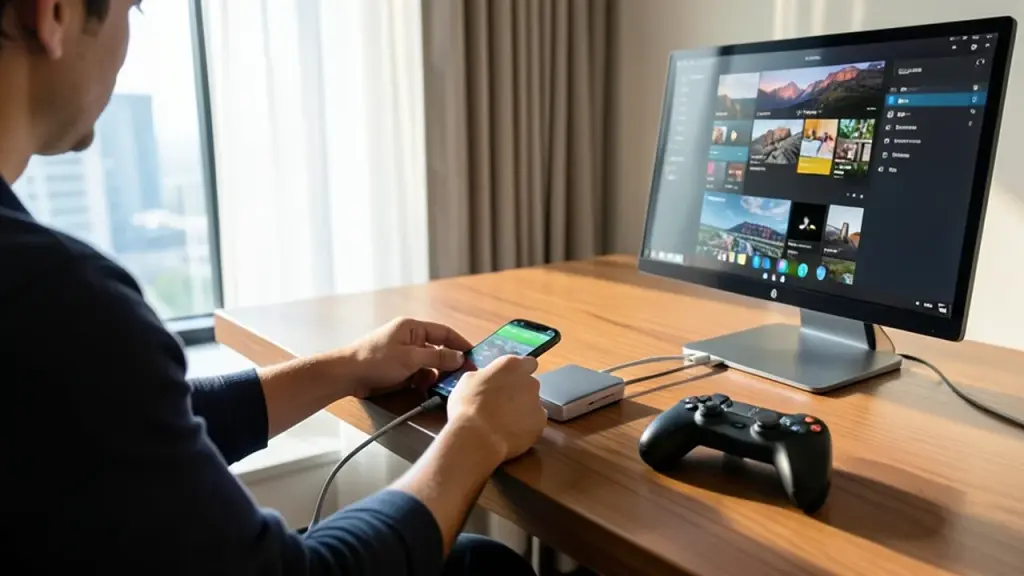
Hotel desk setup turning a phone into a portable workstation.
02

External SSDs and card readers: offload and reload fast

Many Android phones no longer include microSD slots, but you can still attach an external SSD or card reader via USB-C. This makes it easy to move photos, videos and large files between your phone and a drive, or even pull footage from a camera directly to your phone. Just watch the USB speeds on both ends: some devices push 10Gbps or higher, but many real-world transfers max out around 5Gbps. USB 2.0, which tops out at 480Mbps, would slow a 50GB transfer to about 14 minutes.

03

Game controllers and hubs: turn a phone into a portable console

A USB-C game controller can cut down input lag and avoid hunting for a clumsy phone stand. Controllers that connect directly with a USB-C cable keep charging separate, so you won’t end up with a dead phone mid-game. You can also use a USB-C hub to power the phone while you game, and switch easily as you move between games and apps.

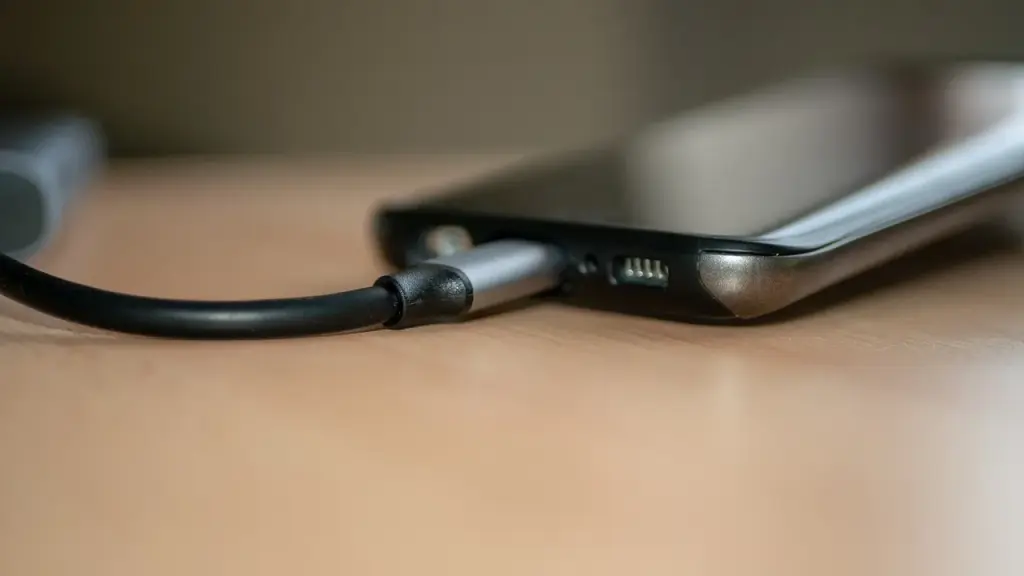
Phone connected to a USB-C hub with several ports
04

Office tools and more: you’re not limited to media

In practice, a USB-C hub can turn your phone into a mini workstation. With the right setup, you can edit documents, browse and even run lightweight apps side-by-side on a larger display. The key is choosing a hub with enough ports and power delivery to keep your phone charged while you work.

05

What this means for everyday people

If you carry a modern Android phone, you already have the core tech to plug into a bigger screen, a fast external drive or a game controller. The bottom line is flexibility: you can cut the cord for travel work, or turn a hotel room into a temporary office or a movie night setup without buying extra devices. Remember to check the USB speeds of your phone and hub, and pick a setup that actually stays charged while in use.

06

What happens next

Look for USB-C hubs with USB-C Power Delivery to keep your phone charged. If you’re curious about Desktop Mode on your specific phone, check the latest Android 16 feature list and see which devices officially support it. Start with a simple hub, a portable SSD, and a compact Bluetooth keyboard to test the setup.

07

Quick answers

Which gadgets work with Android USB-C?

External SSDs or card readers, USB-C hubs, game controllers, and display adapters are the most useful starters.

How fast can I transfer files?

Speeds vary. Many phones support 5Gbps or higher with compatible cables and drives, but USB 2.0 setups can slow transfers to a crawl.

What should I buy first?

A compact USB-C hub with Power Delivery, plus a portable external SSD, is a safe, practical starting combo.

You're reading the quick version.