Saturday, 17 October 2026

Alexa problems fixes: 6 quick tweaks to stop common glitches

A handful of easy tweaks can cure the most nagging Alexa glitches, from waking up to the wrong speaker.

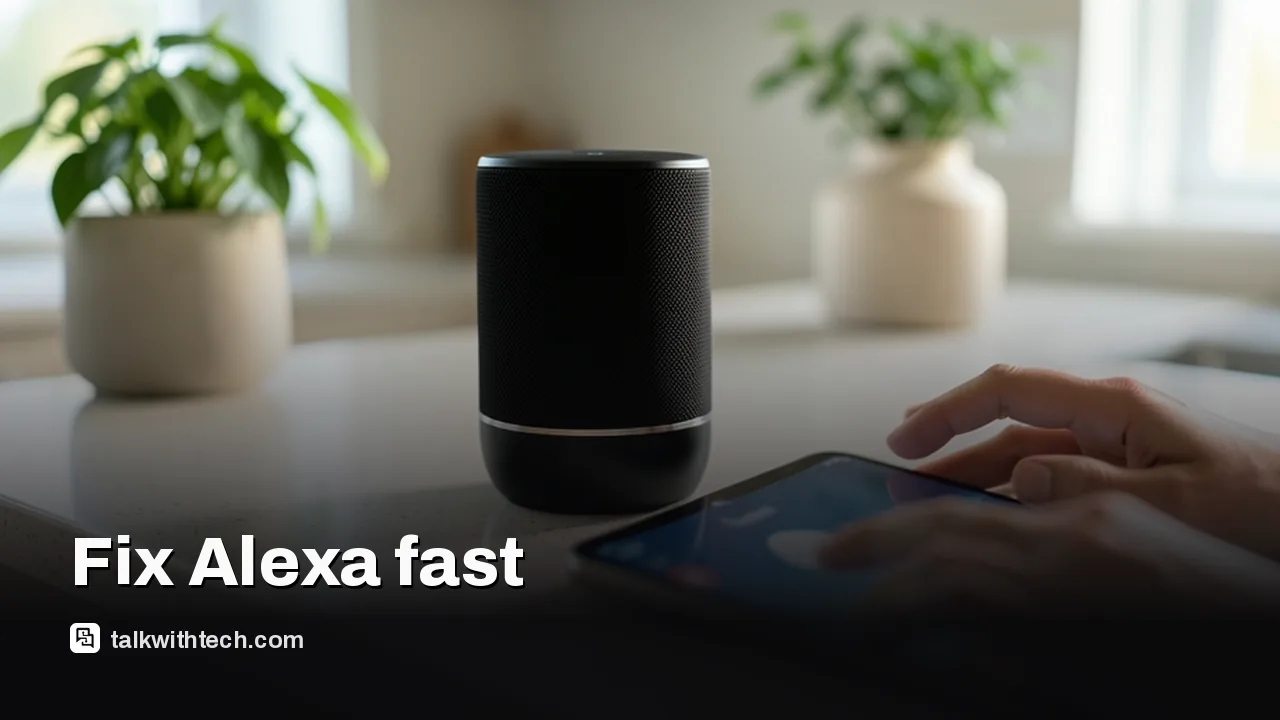
Smart speaker on kitchen island with a tablet in foreground showing settings (no screens text visible)

The short version

  • As smart homes multiply, Alexa issues show up more often but usually have quick, practical fixes.
  • Common symptoms include misunderstood commands, unwanted wake words, and audio playing on the wrong device.
  • Fixes cover voice training, wake-word tweaks, and organizing devices into rooms to avoid mixups.
Quick read · 1 min

Alexa problems are common as smart homes grow, but most fixes are quick. If Alexa doesn’t understand you, train Voice ID and enable Brief Mode for shorter replies. To stop it waking up by accident, switch the wake word and reduce nearby noise. If it plays on the wrong speaker, group devices by room and tell Alexa where to play. A quick reboot or software update often clears stubborn issues. If problems persist, check your network or contact support for device-specific help.

These tweaks translate to fewer interruptions and smoother voice control for routines, alarms, and everyday tasks. Next steps: try the fixes above and test with a few commands.

Alexa can be incredibly convenient until it starts mishearing you, waking up for no reason, or playing music on the wrong speaker. If you’ve ever found yourself herding multiple smart devices while trying to get a simple command to work, you’re not alone. The fixes below address the most frequent annoyances with straightforward steps.

01

Why Alexa sometimes misses what you say

Two effective options can dramatically improve accuracy: teaching Alexa your voice and simplifying how you speak to it. In the Alexa app, set up Voice ID so the assistant recognizes you. You can also say, “Alexa, learn my voice” to start the process. If you want a quicker change, enable Brief Mode or switch the assistant’s personality to a shorter, more concise style so responses stay brief.

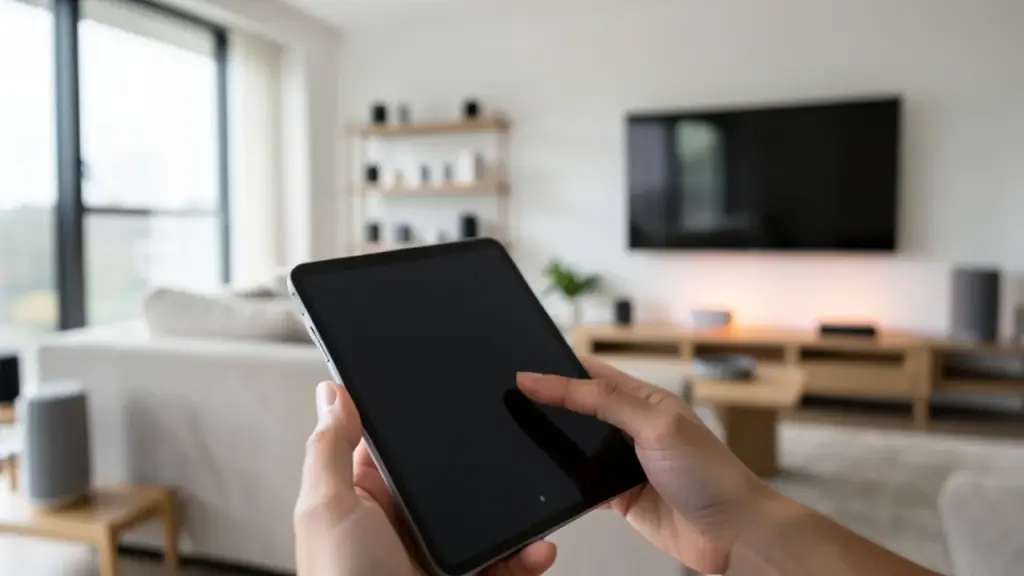
Group of smart speakers by room with a hand selecting a room on a tablet
02

Handling chatter and lengthy replies

If Alexa talks too much, reduce responses with Brief Mode or switch to the Brief personality style. In the app, go to Devices, pick your device, then Settings, and choose Alexa’s Personality Style to set Brief. You can also trigger Brief Mode by voice: “Alexa, enable Brief Mode.”

03

Getting rid of accidental wake-ups

If Alexa seems to wake on its own, check the wake word. It can be changed in the app under Wake Word, or you can say, “Alexa, change your wake word.” Keep in mind the wake word list is fixed; you’ll choose from the provided options rather than creating a new one.

Hands configuring Alexa voice options on a tablet beside a smart speaker
04

Ensuring the right speaker plays your music

With several Echo devices, it’s easy for audio to land on the wrong unit. Create Groups in the Alexa app by room, then say commands like, “Alexa, play in the living room.” Grouping helps you direct audio to the intended speaker and avoids cross‑talk between devices.

05

What to do when Alexa won’t respond

Start with the simplest checks: suppress loud background noise, ensure the microphone isn’t muted, and verify the device isn’t showing a red mute light. If muted, press the mute button to turn sound back on. If it still won’t respond, unplug the device for a few seconds and plug it back in to reboot. A software update can also help; try, “Alexa, check for software updates.”

These fixes cover the most common hiccups. If you still have trouble, you may be dealing with a broader network or account issue that needs deeper investigation in the app or with your router.
06

What this means for daily life

Most households can fix Alexa problems with a few taps or quick voice commands. Voice training can make responses more reliable as you add family members, while room-based groupings reduce misdirected audio. For routines and alarms, these tweaks save time and prevent interruptions.

07

What happens next

If you’re in the middle of a setup, these fixes are a solid first step. If issues persist after trying them, consider checking your network or reaching out to Amazon support for device-specific guidance.

08

Quick answers

Why is Alexa waking up by itself?

Unwanted wake words or nearby noise can trigger Alexa. Try changing the wake word and reducing ambient noise, then test again.

How do I stop Alexa from talking so much?

Enable Brief Mode or switch to the Brief Personality in the Alexa app under Device Settings.

What if Alexa won’t respond at all?

Restart the device, check the mute switch, and confirm a stable Wi-Fi connection; then ask Alexa to check for software updates.

You're reading the quick version.